7. In the A Page Size list, click the size of the original as specified in the application. In this case, click ISO A4.
8. Select the C Enlarged/Reduced Printing check box.
9. Click Match Page Size in the G Paper Size list.
10. Click F Scaling and enter 50.
11. Click Cut Sheet in the L Paper Source list.
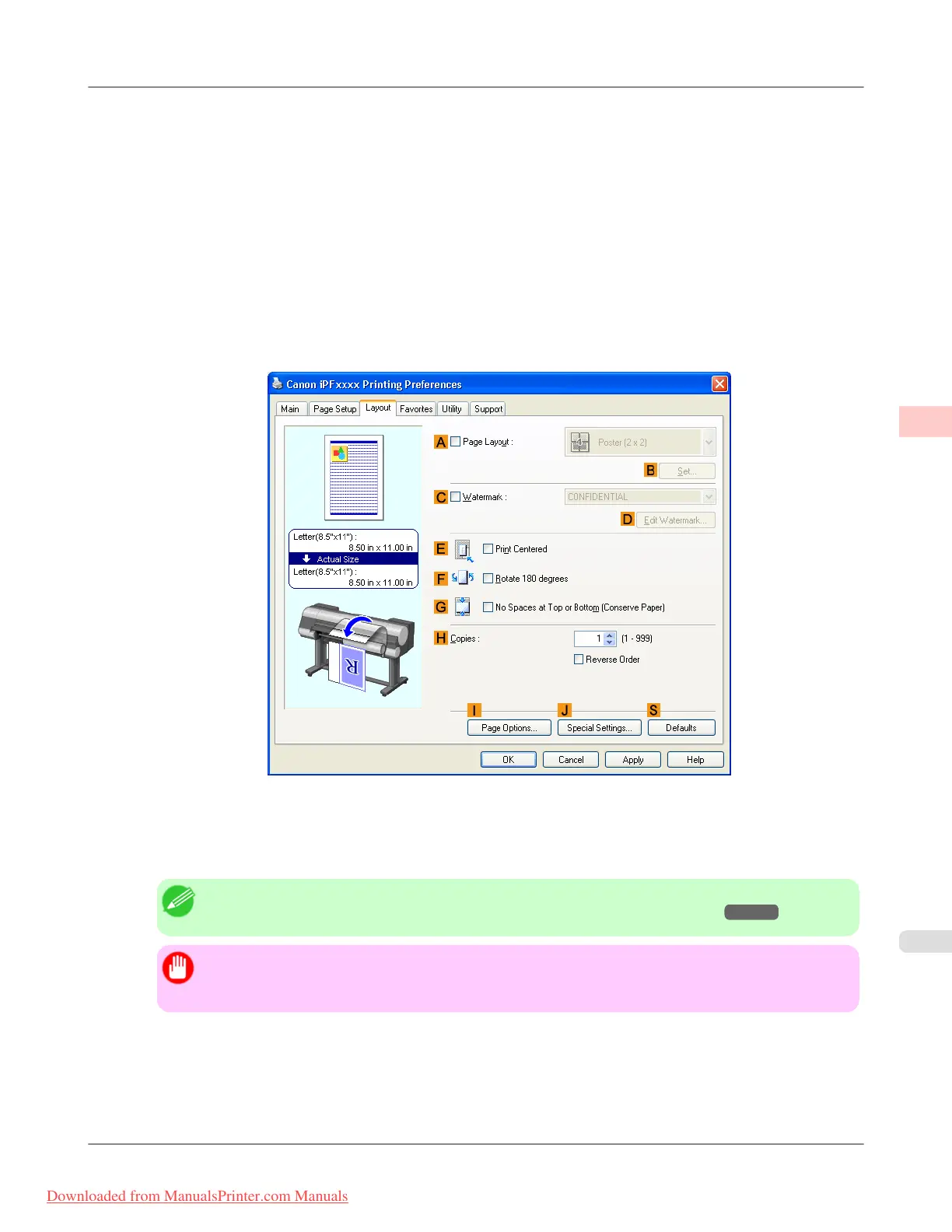
12. Click the Layout tab to display the Layout sheet.
13. Select the E Print Centered check box.
14. Confirm the print settings and print as desired.
Note
• For tips on confirming print settings, see "Confirming Print Settings (Windows) →P.200 "
Important
• If you have selected Cut Sheet as the paper source, follow the instructions on the printer control pan-
el to enter the paper size.
Enhanced Printing Options
>
Centering originals
>
iPF8300 Printing Originals Centered on Sheets (Windows)
3
157
Downloaded from ManualsPrinter.com Manuals














 To Next Page