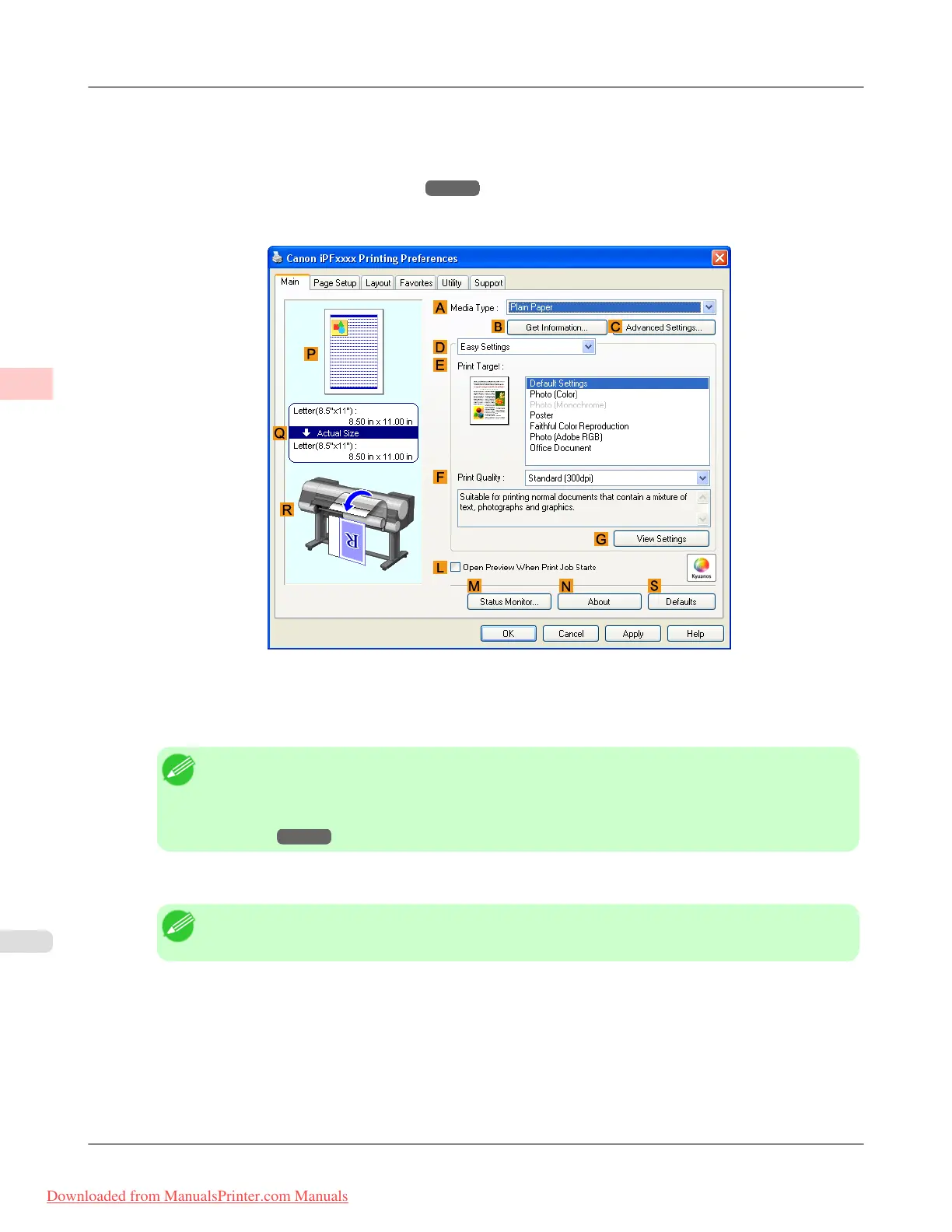
1. Choose Print in the application menu.
2. Select the printer in the dialog box, and then display the printer driver dialog box.(See "Accessing the Printer Driv-
er Dialog Box from Applications (Windows)
→P.205 ")
3. Make sure the Main sheet is displayed.
4. In the A Media Type list, select the type of paper that is loaded. In this case, click Premium Glossy Paper 200.
In the A Media Type, choose the type of paper used for printing, such as Glossy Paper, Coated Paper, and so on.
Make sure the paper you select is loaded in the printer.
Note
• The paper type setting in the printer driver and related software (as well as on the Control Panel ) is
updated when you install the Media Configuration Tool from the User Software CD-ROM or if you
change paper information by using the Media Configuration Tool. For details, see Media Configura-
tion Tool →P.440 .
5. After confirming that D Easy Settings is selected, click Photo (Color) in the E Print Target list.
Note
• You can check the settings values selected in the E Print Target list by clicking G View Settings.
Working With Various Print Jobs
>
Printing Photos and Images
>
Printing Photos and Images (Windows) iPF8300
2
20
Downloaded from ManualsPrinter.com Manuals














 To Next Page