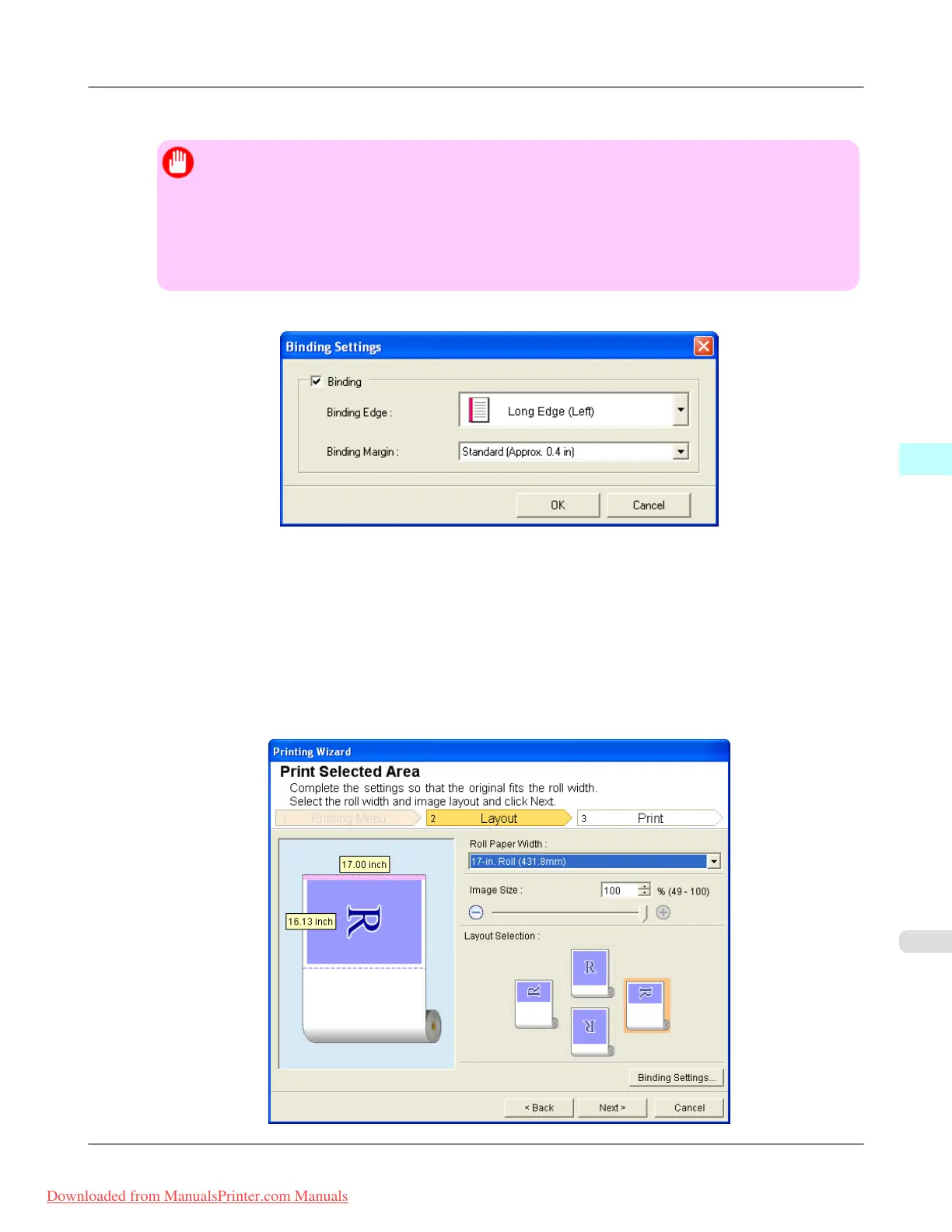
2. Click the Binding Settings button.
Important
• You cannot click the Binding Settings button in the following situations.
• When the Image Size is set to 100%
• When a graph is selected
• When page breaks have been set
• When a sheet or cell is protected
Open the Binding Settings dialog box.
3. If the Binding checkbox is not checked, select it to turn binding on.
4. Select Binding Edge.
5. Select Binding Margin.
6. Click the OK button.
Return to the Layout screen.
Windows Software
>
Print Plug-In for Office
>
iPF8300 Configuring Binding (Excel)
4
417
Downloaded from ManualsPrinter.com Manuals














 To Next Page