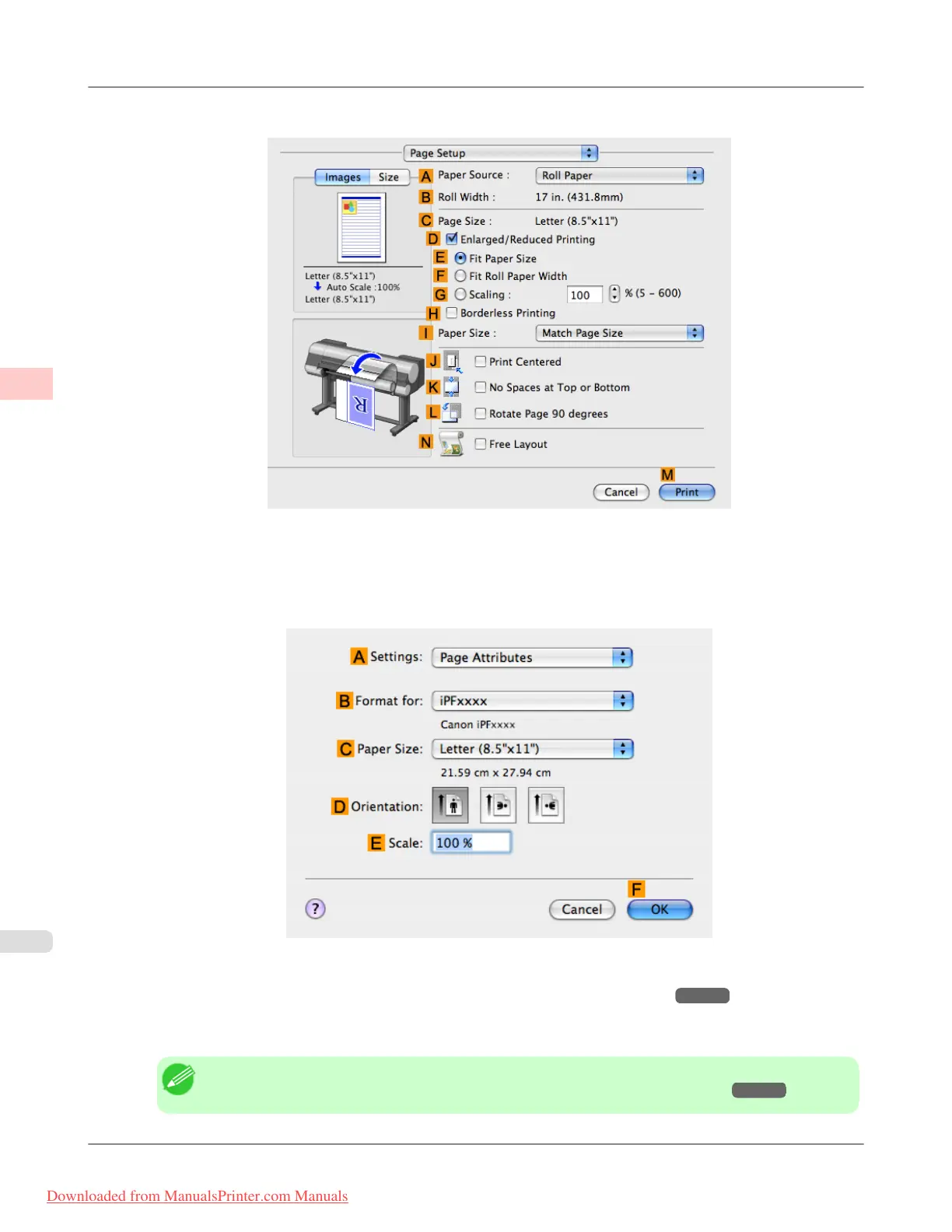
9. Access the Page Setup pane.
10. Click Cut Sheet in the A Paper Source list.
11. Make sure the C Page Size setting matches the original size as selected in CPaper Size in the Page Attributes
dialog box—in this case, ISO A4 - for Paper Tray (Large Margins).
12. Specify additional printing conditions.
For details on available printing conditions, see "Printer Driver Settings (Mac OS X) →P.478 "
13. Confirm the print settings, and then click M Print to start printing.
Note
• For tips on confirming print settings, see "Confirming Print Settings (Mac OS X) →P.482 "
Working With Various Print Jobs
>
Printing Office Documents
>
Printing Office Documents (Mac OS X) iPF8300
2
40
Downloaded from ManualsPrinter.com Manuals














 To Next Page