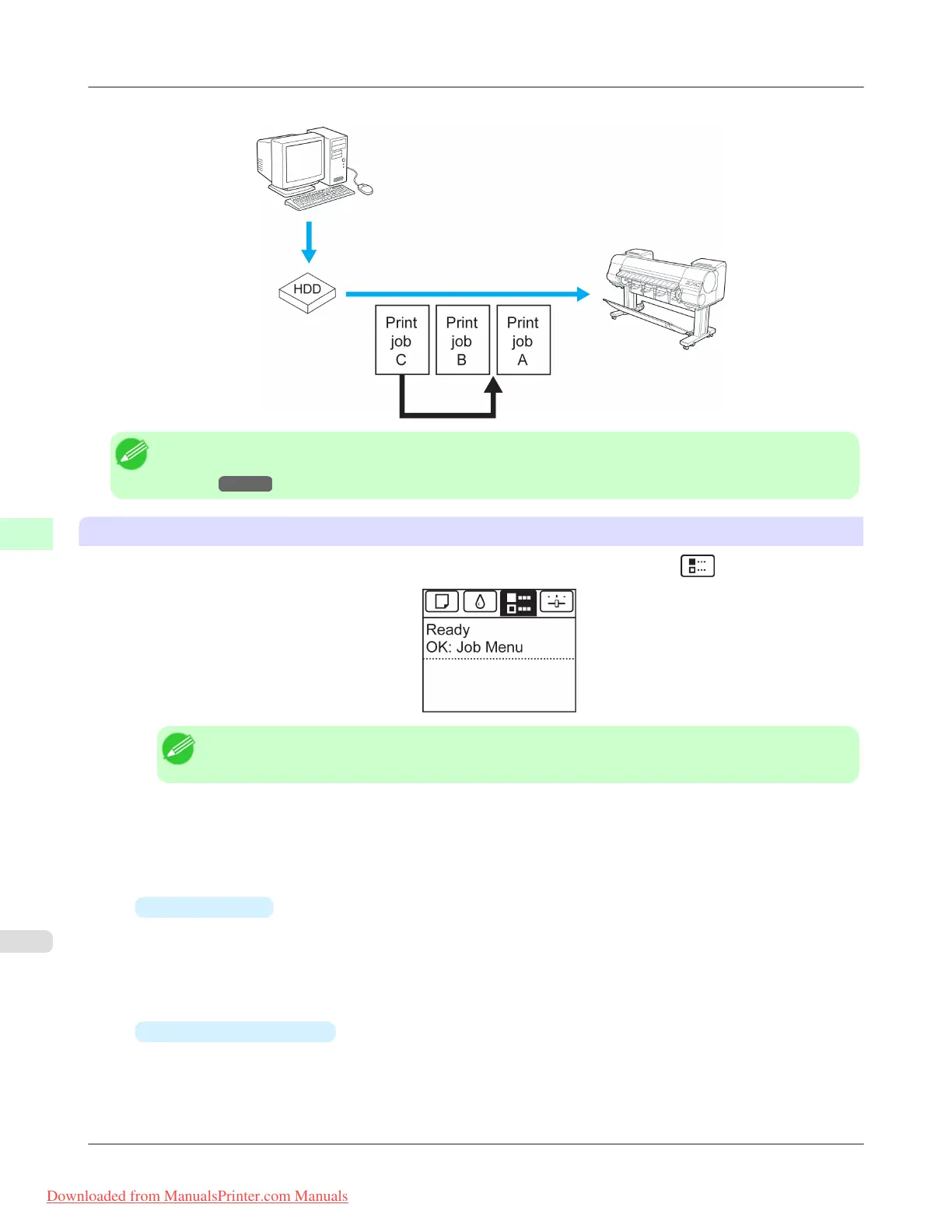
You can preempt other jobs by printing jobs that are currently being received or prepared for processing first.
Note
• For information on managing jobs being held, see "Managing Pending Jobs (Printing or Deleting Jobs on
Hold)." →P.722
Using the Control Panel
1. On the Tab Selection screen of the Control Panel, press ◀ or ▶ to select the Job tab ( ).
Note
• If the Tab Selection screen is not displayed, press the Menu button.
2. Press the OK button.
The Job Menu is displayed.
3. Manage the job queue as needed.
•
Deleting jobs
1.
Press ▲ or ▼ to select Print Job, and then press the OK button.
2. Press ▲ or ▼ to select the print job to delete, and then press the OK button.
3. Press ▲ or ▼ to select Delete, and then press the OK button.
•
Preempting other jobs
1. Press ▲ or ▼ to select Print Job, and then press the OK button.
2. Press ▲ or ▼ to select the job to print first, and then press the OK button.
Print Jobs
>
Basic Print Job Operations
>
Managing the Job Queue (Deleting or Preempting Other Jobs) iPF8300
6
720
Downloaded from ManualsPrinter.com Manuals














 To Next Page