•
If no print job was received
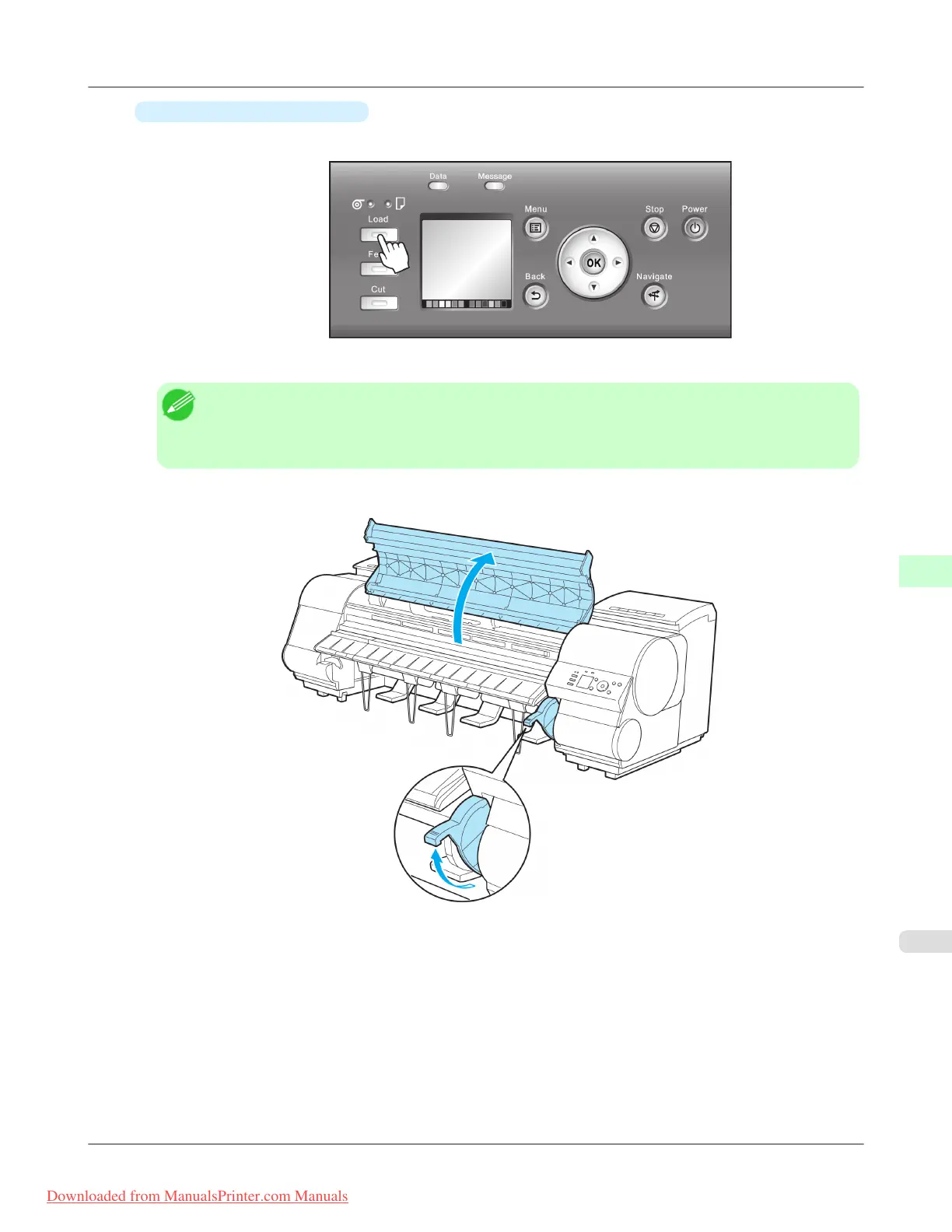
1. Press the Load button.
2. Press ▲ or ▼ to select Cut Sheet, and then press the OK button.
Note
• If any paper has been advanced that will not be used, a message is shown requesting you to remove it.
Press ▲ or ▼ to select "Yes", and then press the OK button. Remove the paper and go to the next
step.
2. Lift the Release Lever and open the Top Cover.
Handling Paper
>
Handling sheets
>
iPF8300 Loading Sheets in the Printer
7
803
Downloaded from ManualsPrinter.com Manuals














 To Next Page