Important
• This function is not available with CAD Tracing Paper, CAD Translucent Matte Film, or CAD Clear Film.
If adjustment is not possible as expected using highly transparent film or similar media, try another type of
paper, or try Manual adjustment.
(See "Manual Adjustment to Straighten Lines and Colors (Head Posi. Adj.).") →P.841
Note
• Because the results of adjustment vary depending on the type of paper used for adjustment, use the same type
of paper as you will use for printing. Even if you will print on a different type of paper, we recommend using
Auto(Advanced) for adjustment.
• If Auto(Advanced) does not improve printing, try adjustment in Manual mode.
(See "Manual Adjustment to Straighten Lines and Colors (Head Posi. Adj.).") →P.841
• Advanced adjustment can enable superior printing quality when printing fine lines or text at high precision
on glossy or semi-glossy photo or proofing paper.
(See "Enhancing Printing Quality.") →P.837
Items to Prepare
Rolls An unused roll at least 10 inches wide
Sheets Auto(Standard) : Three sheets of unused paper, A4/Letter size (or one sheet when using A2)
Auto(Advanced) : 11 sheets of unused paper, A4/Letter size (or three sheets when using A2)
Auto(Expansion) : Seven sheets of unused paper, A4/Letter size (or two sheets when using A2)
Perform adjustment as follows.
1. Load paper.
• Attaching the Roll Holder to Rolls →P.774
• Loading Rolls in the Printer →P.777
• Loading Sheets in the Printer →P.802
Important
• Always make sure the loaded paper matches the type of paper specified on the printer. Adjustment
cannot be completed correctly unless the loaded paper matches the settings.
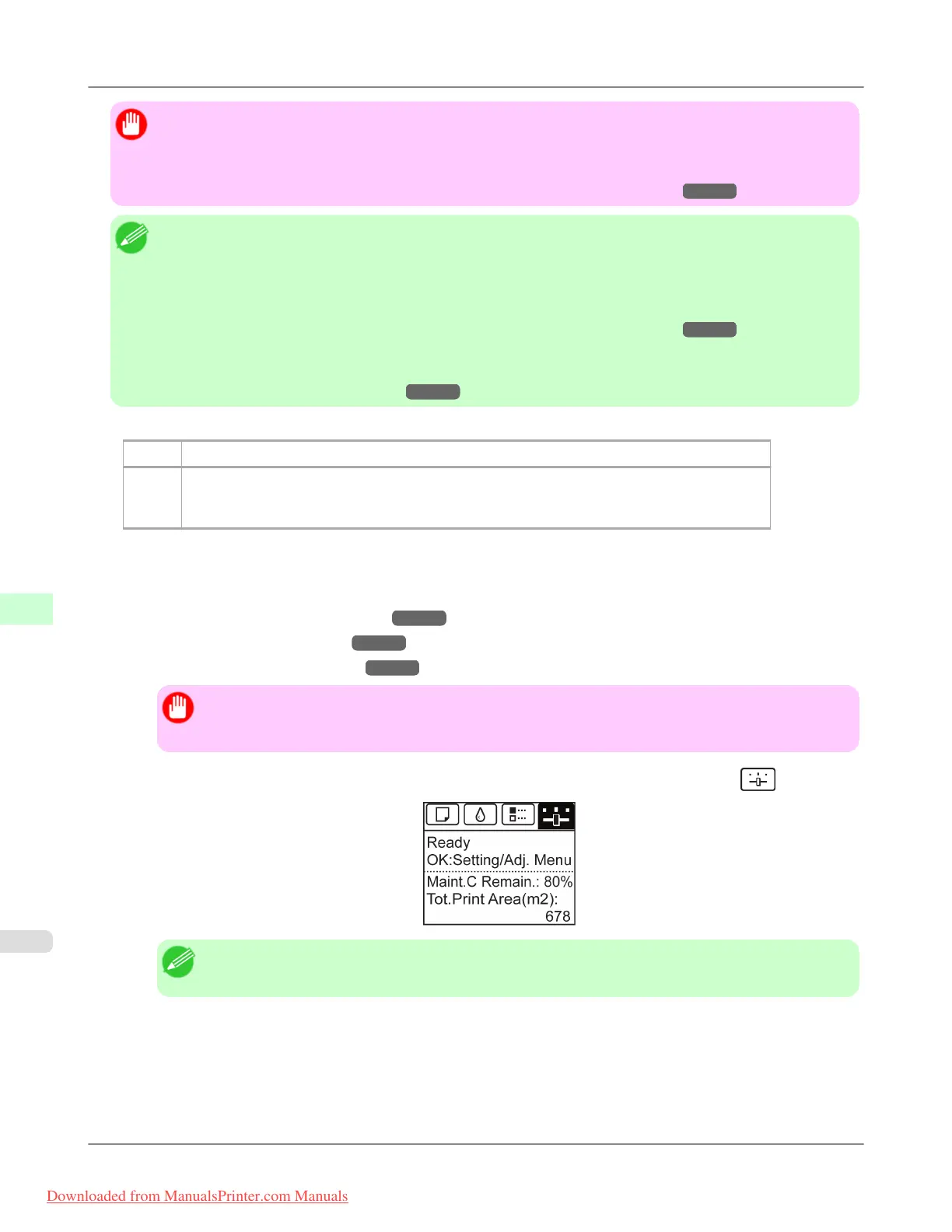
2. On the Tab Selection screen of the Control Panel, press ◀ or ▶ to select the Settings/Adj. tab ( ).
Note
• If the Tab Selection screen is not displayed, press the Menu button.
3. Press the OK button.
The Set./Adj. Menu is displayed.
4. Press ▲ or ▼ to select Adjust Printer, and then press the OK button.
Adjustments for Better Print Quality
>
Adjusting the Printhead
>
Automatic Adjustment to Straighten Lines and Colors (Head Posi. Adj.) iPF8300
8
840
Downloaded from ManualsPrinter.com Manuals














 To Next Page