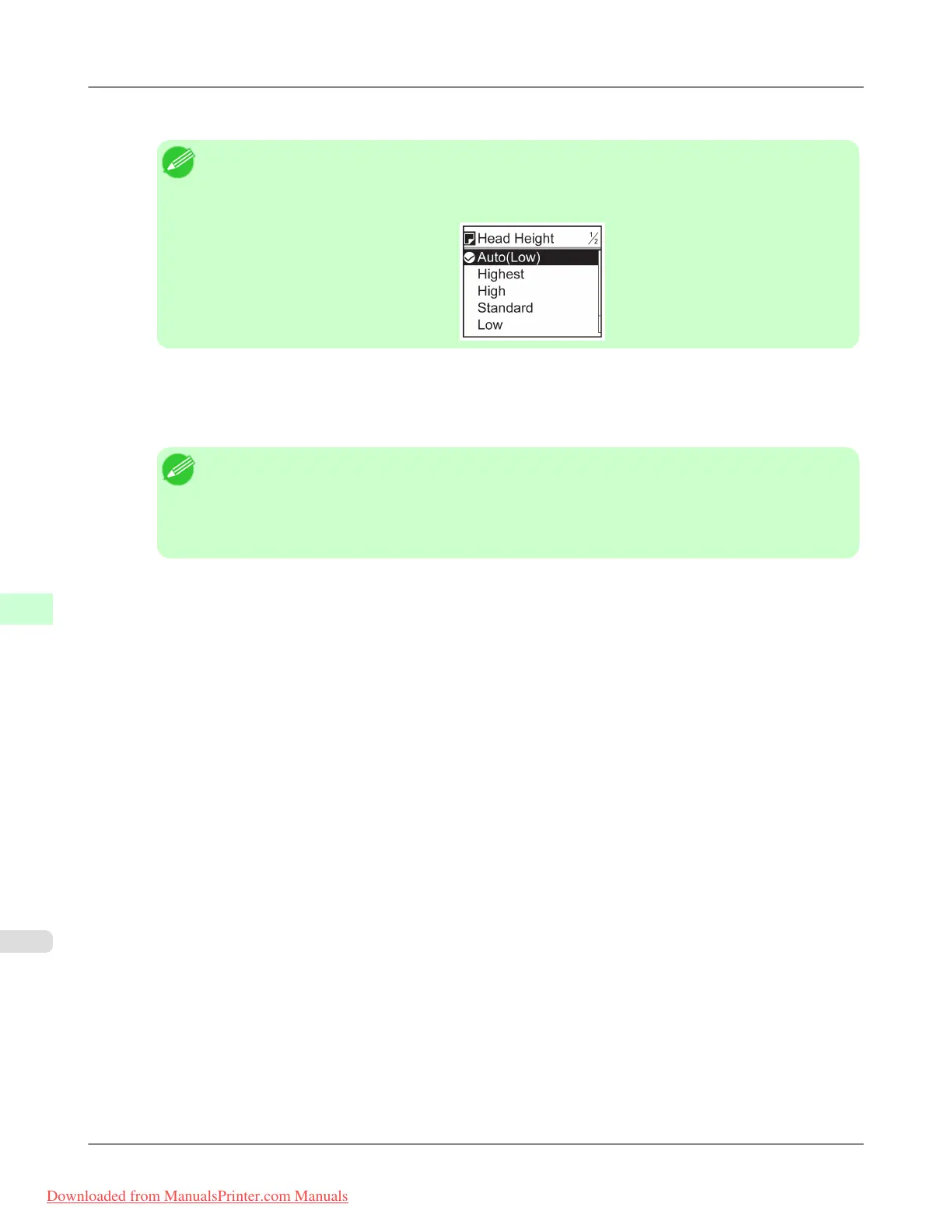
4. Press ▲ or ▼ to select the type of paper, and then press the OK button.
Note
• When Head Height is set to Automatic, the setting value selected for the previous print job is dis-
played (to the right of Automatic ) once you select the type of paper currently supplied.
However, the value is cleared when the printer is turned off or the paper is replaced.
5. Press ▲ or ▼ to select Head Height, and then press the OK button.
6. Press ▲ or ▼ to select the desired setting value, and then press the OK button.
Note
• Using Automatic will ensure that the printer adjusts the Printhead height to the optimal level before
printing, accounting for the ambient temperature and humidity. When a setting other than Automatic
is used, that value will always be applied.
• Depending on the type of paper, some setting values may not be available.
Adjustments for Better Print Quality
>
Adjusting the Printhead
>
Troubleshooting Paper Abrasion and Blurry Images (Head Height) iPF8300
8
844
Downloaded from ManualsPrinter.com Manuals














 To Next Page