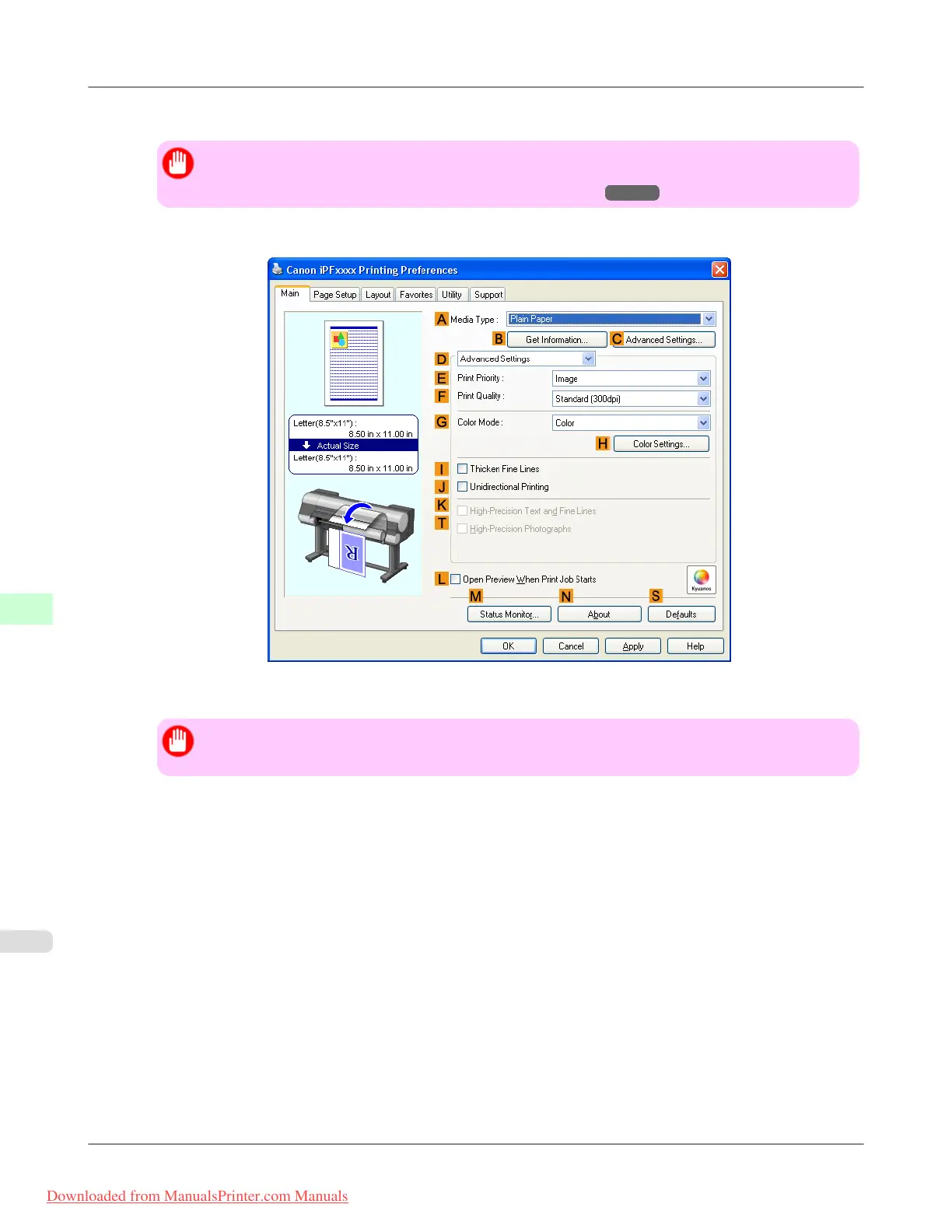
4. In the A Media Type list, select the type of paper that is loaded (for example, Premium Glossy Paper 200 ).
Important
• Ambient light matching may not be available, depending on the type of paper used. For more infor-
mation, see the Paper Reference Guide.(See "Types of Paper →P.768 ")
5. Click D Advanced Settings to switch the print mode.
6. In F Print Quality, click Highest or High.
Important
• Ambient Light Adjust is only available when the F Print Quality is set to Highest or High.
7. Click Color in the G Color Mode list.
8. Click H Color Settings to display the Color Settings dialog box.
Adjustments for Better Print Quality
>
Color adjustment
>
Selecting Color Tones on Charts Before Printing (Windows) iPF8300
8
858
Downloaded from ManualsPrinter.com Manuals














 To Next Page