7. In F Print Quality, click Highest or High.
Important
• Ambient Light Adjust is only available when the F Print Quality is set to Highest or High.
8. Click Color in the H Color Mode list.
9. Click I Set to display the Color Settings dialog box.
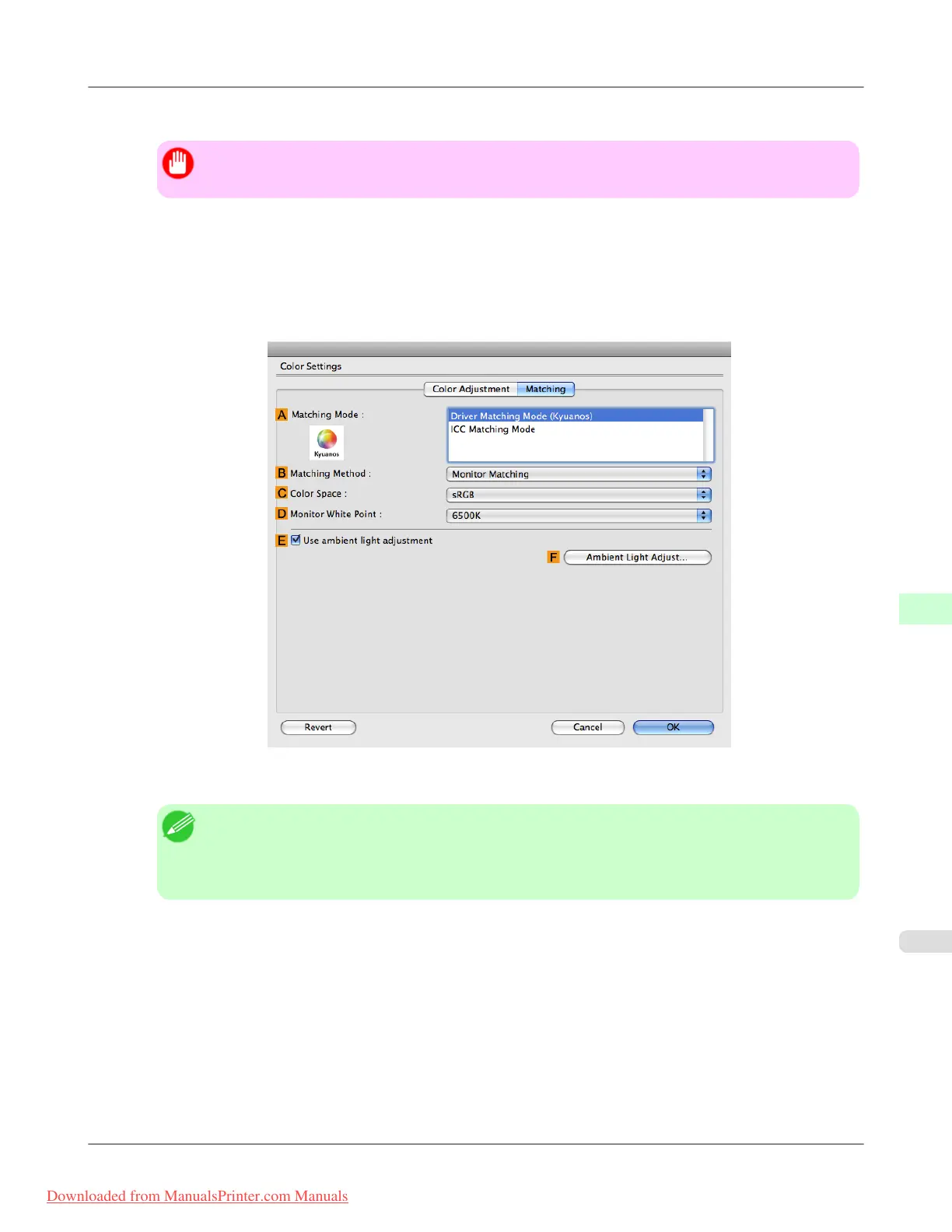
10. Click the Matching tab to display the Matching panel.
11. Make sure Driver Matching Mode is selected in A Matching Mode.
Note
• To specify monitor matching, select Monitor Matching in B Matching Method. In this case, select
the same color space as when the file was opened in C Color Space and the monitor color tempera-
ture in D Monitor White Point.
12. Select E Use ambient light adjustment.
Adjustments for Better Print Quality
>
Color adjustment
>
iPF8300 Printing in Colors Matching the Measured Ambient Light (Mac OS X)
8
871
Downloaded from ManualsPrinter.com Manuals














 To Next Page