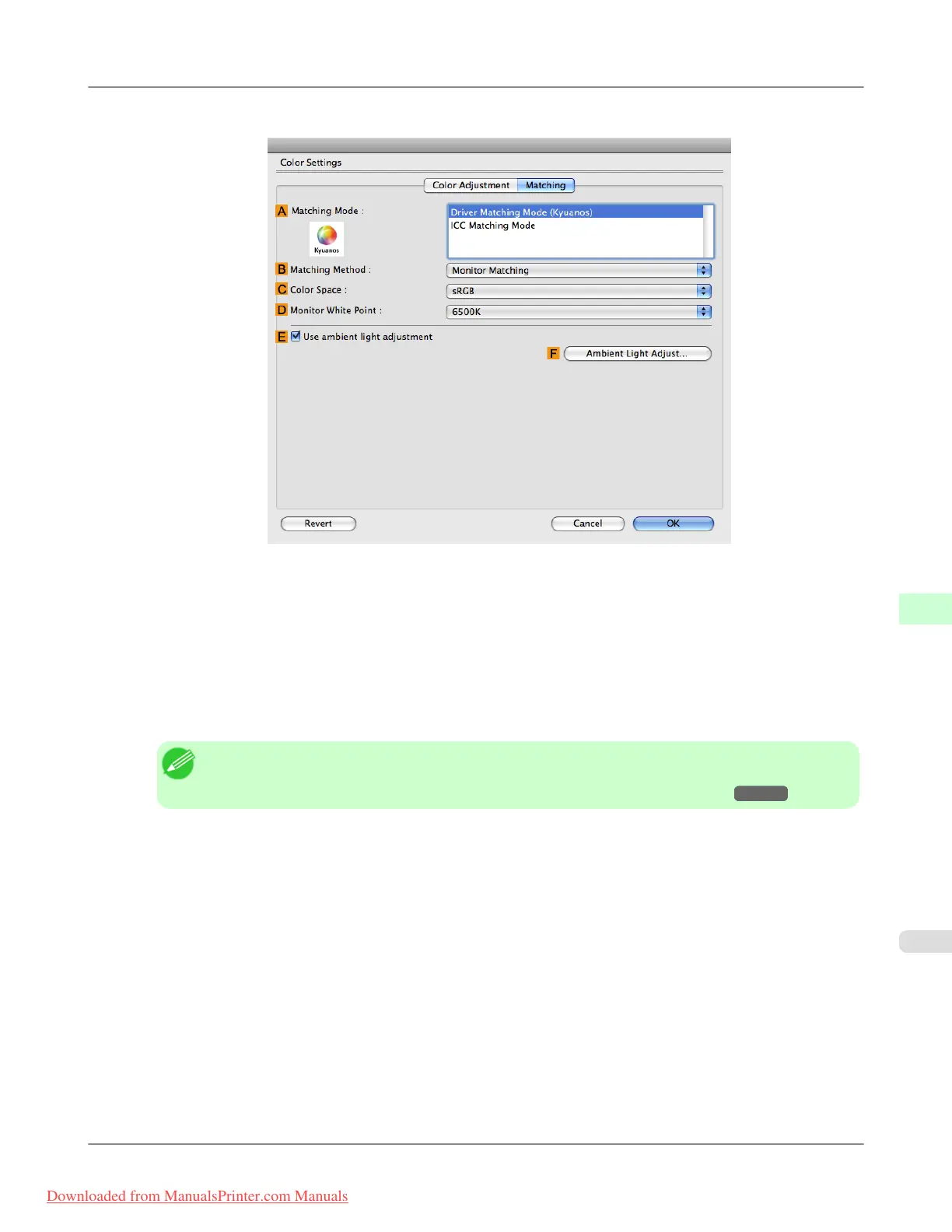
9. Click the Matching tab to display the Matching panel.
10. Make sure Driver Matching Mode is selected in A Matching Mode.
11. In B Matching Method, select Monitor Matching.
12. In C Color Space, select the color space used when displaying the file in the source application.
13. In D Monitor White Point, select the white point set on the monitor.
Note
• For greater precision in monitor matching, we recommend configuring the settings for ambient light
matching. (See "Printing in Ideal Colors for Light in the Viewing Environment.") →P.856
14. Click OK.
15. Confirm the print settings and print as desired.
Adjustments for Better Print Quality
>
Color adjustment
>
iPF8300 Printing Images to Match Monitor Colors (Mac OS X)
8
879
Downloaded from ManualsPrinter.com Manuals














 To Next Page