Level
Shipping Meth-
od (Example)
Permitted Angle of Inclination
Amount of Ink
to Dispose of
Required
Mainte-
nance Car-
tridges(*1)
3 Tipping the
printer or hold-
ing it upright
for elevators or
stairs
Lengthwise: 0–90º
Rotation: 0–30º
Approx. 1.8 L
(60.9 fl oz)
2 or 3
*1: The quantity of cartridges required depends on the capacity of the Maintenance Cartridge in use.
Remove paper
1. Remove the paper.
• Rolls (See "Removing the Roll from the Printer.") →P.786
• Sheets (See "Removing Sheets.") →P.810
Access the Prep.MovePrinter menu
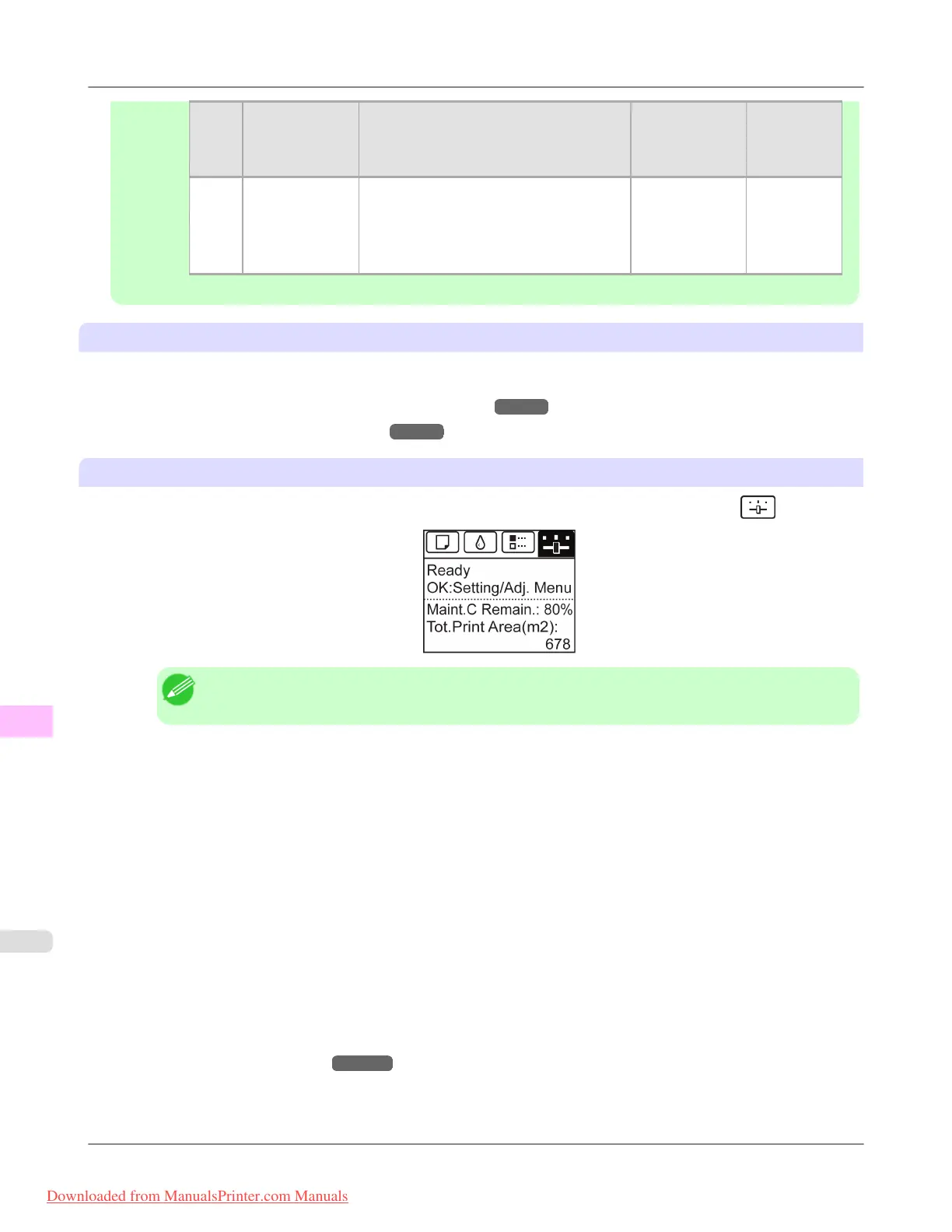
1. On the Tab Selection screen of the Control Panel, press ◀ or ▶ to select the Settings/Adj. tab ( ).
Note
• If the Tab Selection screen is not displayed, press the Menu button.
2. Press the OK button.
The Set./Adj. Menu is displayed.
3. Press ▲ or ▼ to select Prep.MovePrinter, and then press the OK button.
4. Press ▲ or ▼ to select the level of transfer, and then press the OK button.
5. Press ▲ or ▼ to select Execute, and then press the OK button to display the confirmation screen.
6. Press ▲ or ▼ to select Yes, and then press the OK button.
The printer is now prepared for transfer.
• Level 1
Once preparations are finished, a message on the Display Screen requests you to turn off the printer.
Turn off and pack the printer. There is no need to remove the ink tanks.
(See "Pack the printer.") →P.1036
• Level 2 and Level 3
Once preparations are finished, a message on the Display Screen requests you to open the Ink Tank Cover.
Remove the ink tanks before packing the printer.
Maintenance
>
Other Maintenance
>
Preparing to Transfer the Printer iPF8300
11
1032
Downloaded from ManualsPrinter.com Manuals














 To Next Page