Important
• In Photoshop, select no color-matching.
• In the printer driver settings, select Driver Matching Mode and choose Adobe RGB in Color Space.
1. In Photoshop, create an image in the Adobe RGB color space.
Note
• The following procedures are based on the example of Photoshop CS2.
• For instructions on creating Adobe RGB images, refer to the Photoshop documentation.
2. Choose Print with Preview from the Photoshop menu to display the Print dialog box.
3. Make sure the setting mode is Color Management.
4. In the Color Handling list in Options, click No Color Management.
5. Click Print.
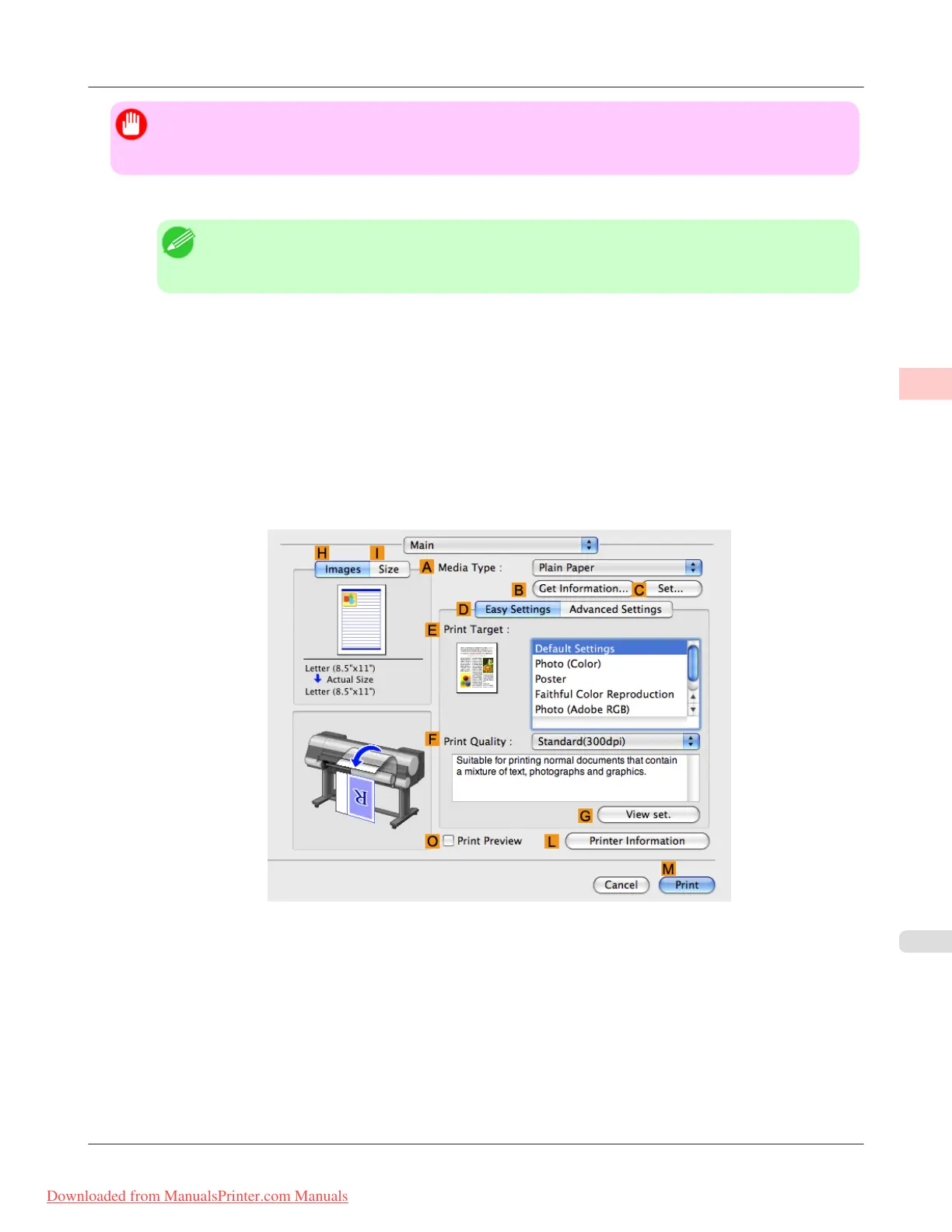
6. Access the Main pane.
7. In the A Media Type list, select the type of paper that is loaded. In this case, click Premium Glossy Paper 200.
Working With Various Print Jobs
>
Printing Photos and Images
>
iPF8300 Printing Adobe RGB Images (Mac OS X)
2
31
Downloaded from ManualsPrinter.com Manuals














 To Next Page