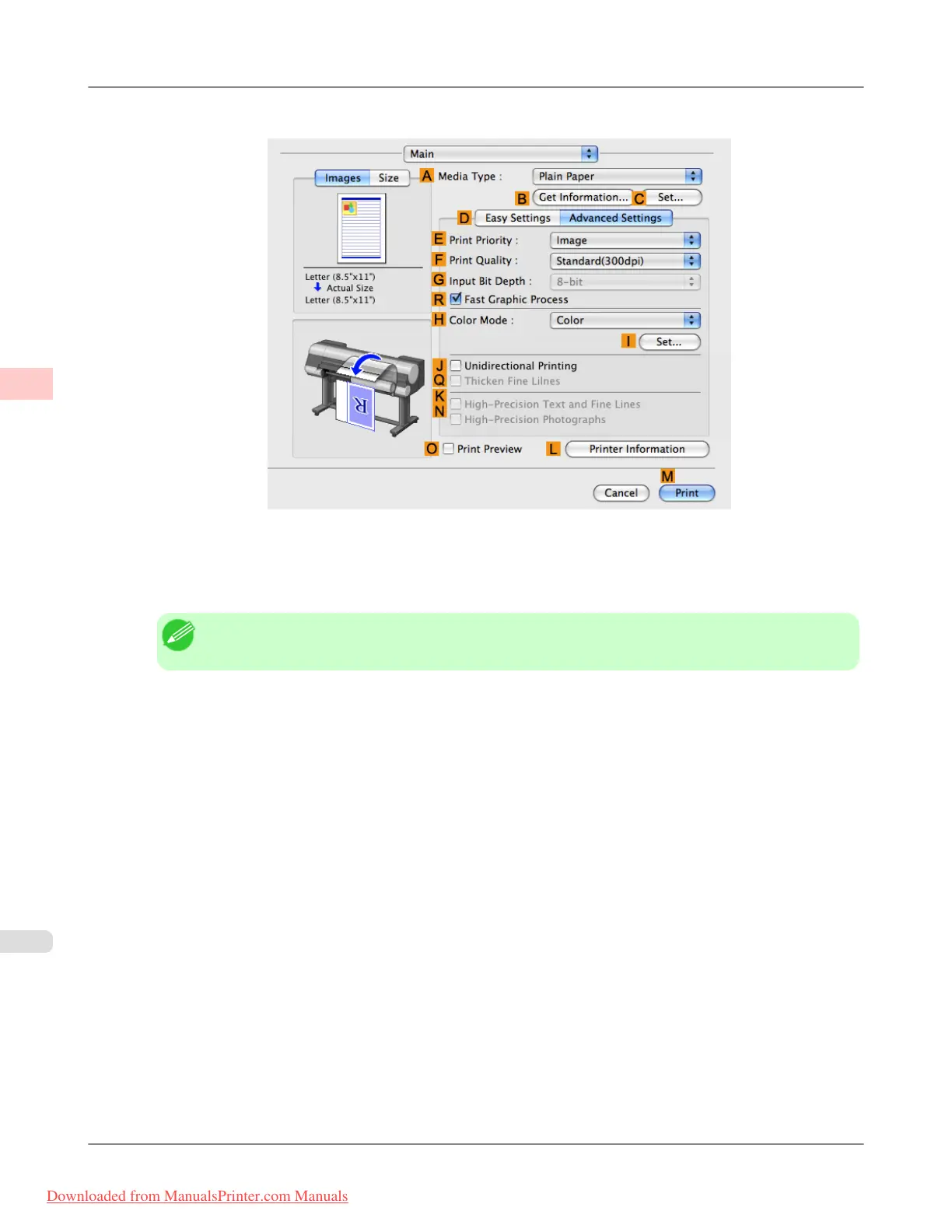
8. Click D Advanced Settings to switch the print mode.
9. Click Image in the E Print Priority list.
10. Select the print quality in the F Print Quality list.
Note
• Options displayed in the F Print Quality list vary depending on the type of paper.
11. Click Color in the H Color Mode list.
12. Click I Set to display the Color Settings dialog box.
13. Click Matching to display the Matching pane.
14. In Matching Mode, click Driver Matching Mode.
15. In Color Space, click Adobe RGB.
16. Click OK to close the Color Settings dialog box.
Working With Various Print Jobs
>
Printing Photos and Images
>
Printing Adobe RGB Images (Mac OS X) iPF8300
2
32
Downloaded from ManualsPrinter.com Manuals














 To Next Page