Note
• If the Tab Selection screen is not displayed, press the Menu button.
2. Press the OK button.
The Job Menu menu is displayed.
3. Press ▲ or ▼ to select Print Job, and then press the OK button.
4. Press ▲ or ▼ to select the print job to manage, and then press the OK button.
Held jobs are labeled with an icon.
5. Press ▲ or ▼ to select Print Anyway or Delete, and then press the OK button.
• If you choose Print Anyway
Press ▲ or ▼ to select Yes or No, and then press the OK button.
• If you choose Delete
Press ▲ or ▼ to select Yes or No, and then press the OK button.
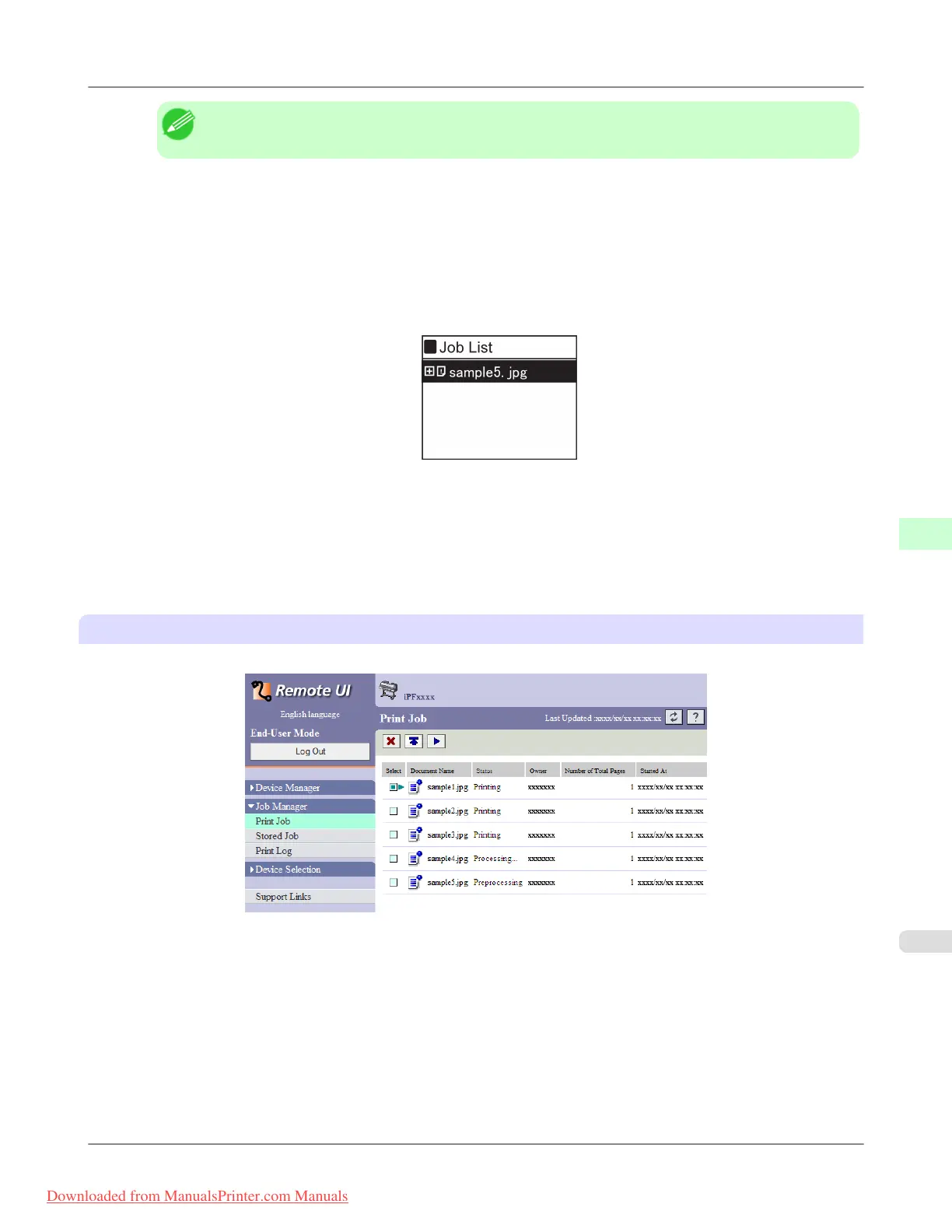
Using RemoteUI
Manage jobs as needed on the Print Job page. For details, refer to the RemoteUI help file.
Print Jobs
>
Basic Print Job Operations
>
iPF8300 Managing Pending Jobs (Printing or Deleting Jobs on Hold)
6
723
Downloaded from ManualsPrinter.com Manuals














 To Next Page