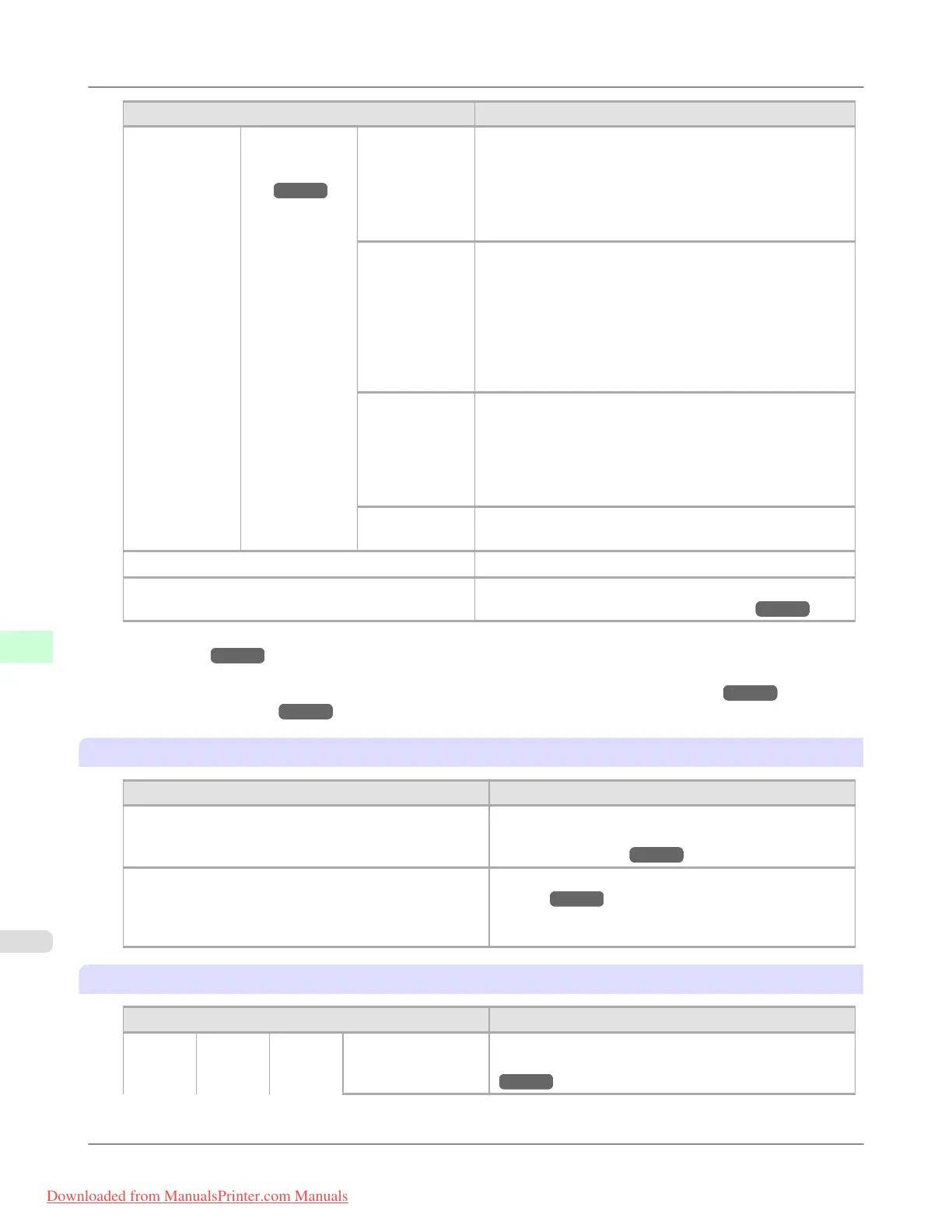
Setting Item Description, Instructions
Paper Details (The type of pa-
per is displayed
here.)
(*1 →P.914 )
NearEnd Sht
Mrgn
Specify a margin at the leading edge of sheets to ensure bet-
ter printing quality at the leading edge.
Note that if you choose 5mm, it may lower the printing
quality at the leading edge and affect feeding accuracy. The
printed surface may be scratched, and ink may adhere to the
leading edge.
Bordless Mar-
gin
Adjust the margin during borderless printing.
Choose Automatic to have the printer automatically detect
the paper width and configure the margin settings for bor-
derless printing. If margins are mistakenly created when Au-
tomatic is selected, choose Fixed. In this case, the paper
width is not detected automatically, and the document is
printed without borders, using the margin settings required
by the printer.
Width Detec-
tion
Specify this option to print inside boundaries or in other ca-
ses when specifying a particular starting position for print-
ing.
Paper width and skew are not detected if you select Off. If
paper is loaded askew, paper jams or Platen soiling may oc-
cur.
Return De-
faults
Choose OK to restore Paper Details to the default values.
Paper Details Print the paper settings as specified in Paper Details.
Keep Paper Type Select On when printing on a particular type of paper regu-
larly. (See "Changing the Type of Paper.") →P.784
*1: For information on the types of paper the printer supports, refer to the Paper Reference Guide. (See "Types of
Paper.") →P.768 The types of paper indicated in the printer driver and related software (as well as on the Con-
trol Panel ) are updated when you install the printer driver from the User Software CD-ROM or if you update
paper information by using the Media Configuration Tool. (See Media Configuration Tool →P.440 or Media
Configuration Tool →P.671 .)
Ink Menu
Setting Item Description, Instructions
Rep. Ink Tank Replace the Ink Tank at this point. Follow the instructions
displayed to complete the required procedure. (See "Re-
placing Ink Tanks.") →P.984
Head Cleaning A Printhead cleaning options. (See "Cleaning the Print-
head.") →P.999
Execute Head Cleaning A if printing is faint, oddly col-
ored, or contains foreign substances.
Job Menu
Setting Item
Description, Instructions
Print
Job
Job List (Choose
a print
job.)
Delete Delete the current job or queued jobs. (See "Managing
the Job Queue (Deleting or Preempting Other Jobs).")
→P.719
Printer Parts
>
Control Panel
>
Menu Settings iPF8300
9
914
Downloaded from ManualsPrinter.com Manuals














 To Next Page