Passphrases. Clicking on the “+” symbol in the top-right corner
opens the SNMP V3 Screen. See "SNMP V3" on page106.
SNMP Traps: This panel allows you to define different SNMP
Managers that SNMP traps can be sent to over the network.
This allows for SNMP Managers in different geographical areas
to receive the same SNMP traps that Managers in other areas
also receive. Clicking the PLUS icon in the top- right corner
opens the SNMP Traps Settings Screen. See also "SNMP Traps"
on page108 and "Setting Up SNMP Notifications" on page269.
2.
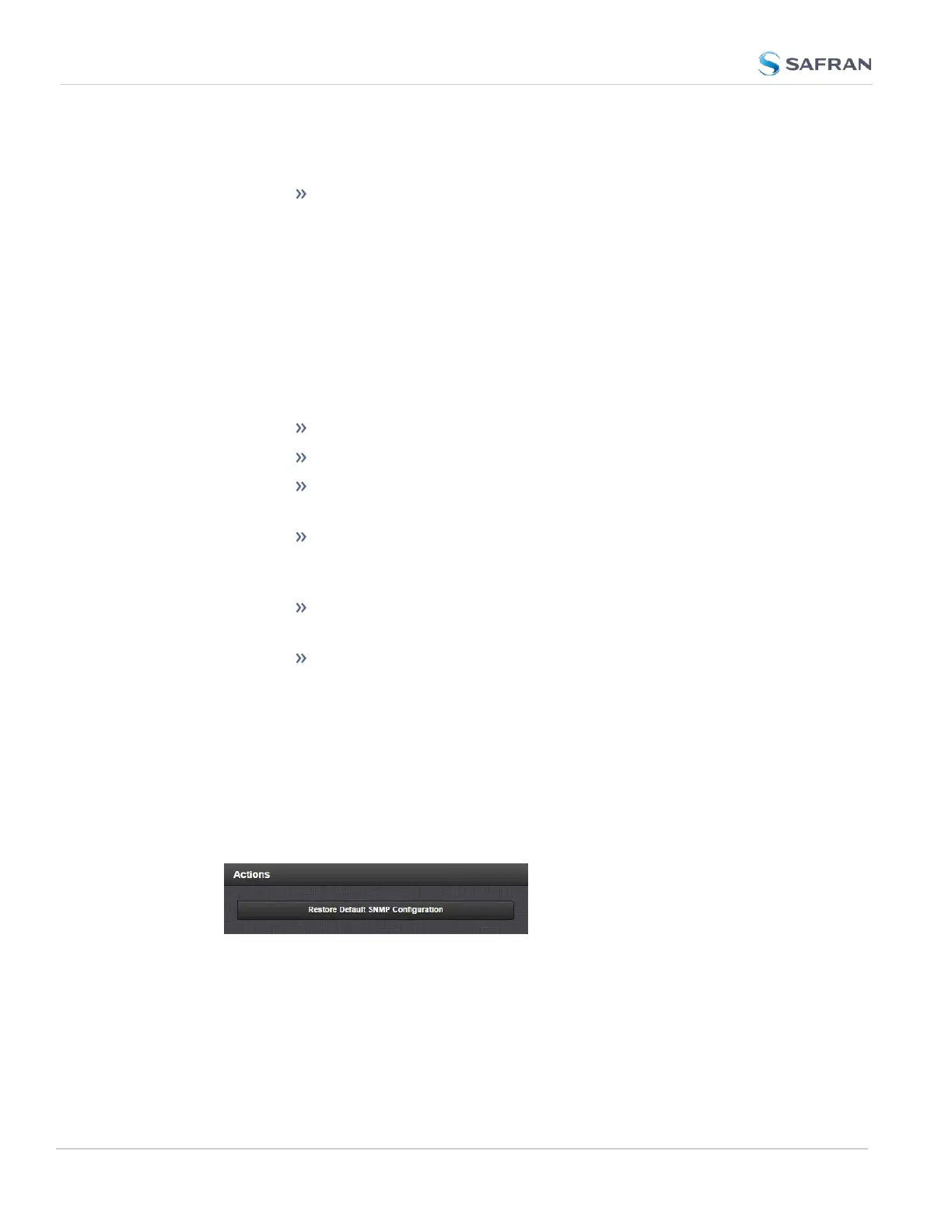
The Actions panel, which contains the Restore Default SNMP Con-
figuration button.
3.
The SNMP Status panel, which offers:
An SNMP ON/OFF switch.
An Authentication Error Trap ON/OFF switch.
SysObjID—The System Object ID number. This is editable in the
SNMP Status panel (see "Configuring the SNMP Status" below).
Contact Information—The email to contact for service. This is
editable in the SNMP Status panel (see "Configuring the SNMP
Status" below).
Location— The system location. This is editable in the SNMP
Status panel (see "Configuring the SNMP Status" below).
Description—A simple product description. This is not editable
in the SNMP Status.
Restoring the Default SNMP Configuration
To restore the SecureSync to its default SNMP configuration:
1.
Navigate to the MANAGEMENT > NETWORK: SNMP Setup screen.
2.
In the Actions panel, click the Restore Default SNMP Configuration but-
ton.
3. Confirm that you want to restore the default settings in the pop-up mes-
sage.
Configuring the SNMP Status
102
CHAPTER 2 • SecureSync 2400 User Manual Rev. 5.2
2.14 Configure Network Settings



 To Next Page