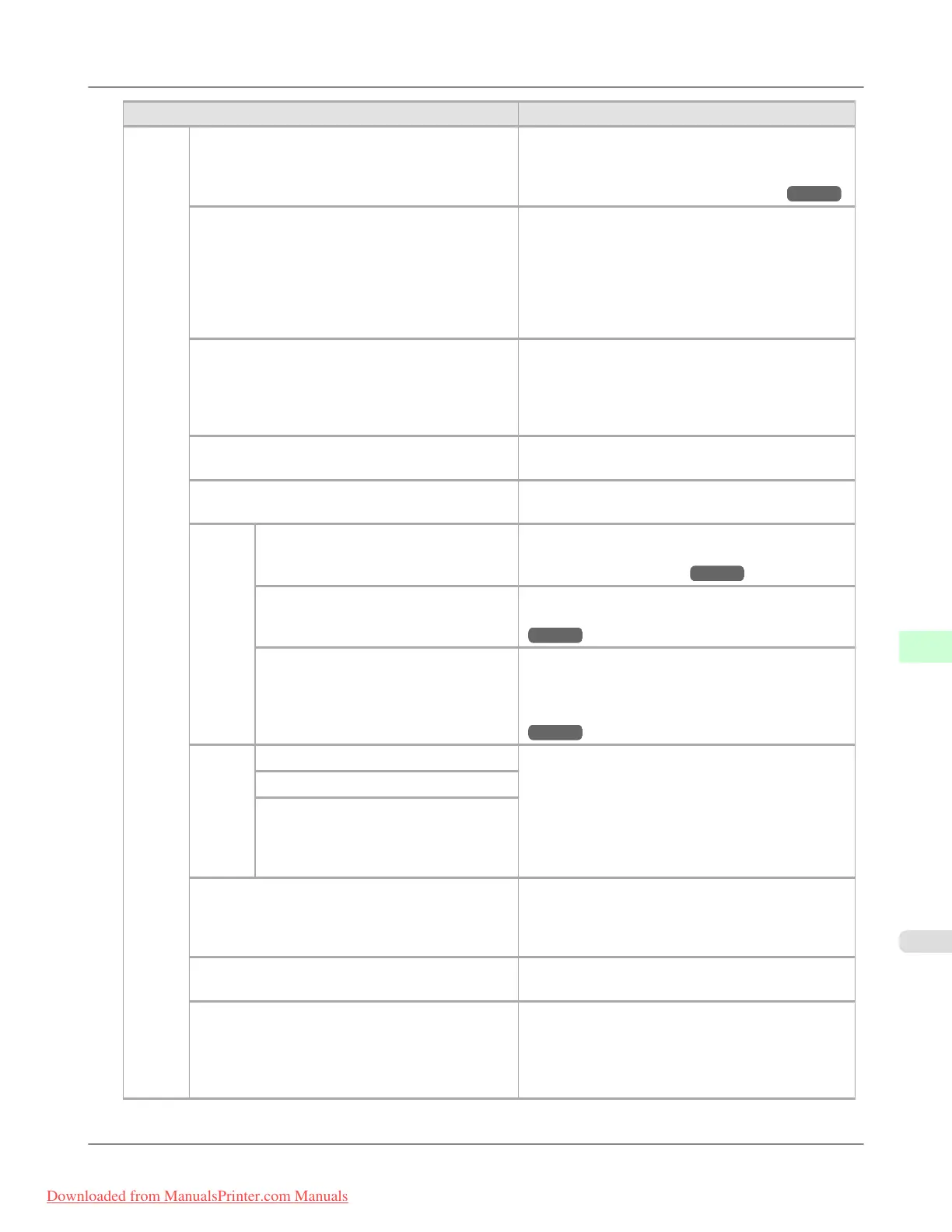
Setting Item Description, Instructions
System
Setup
Rep.P.head Print Choose On to have the printer automatically execute
the Advanced Adj. operations after you replace the
Printhead. (See "Automatic Adjustment to Straight-
en Lines and Colors (Head Posi. Adj.).") →P.839
Nozzle Check In Frequency, specify the timing for automatic
checks of nozzle clogging. Choose Standard to have
the printer adjust the timing for checks based on the
frequency of nozzle use. Choose 1 page to check
once per page.
Select Warning > On to display warnings if the noz-
zles clog during printing.
CarriageScanWdth Specify the scan width of the carriage during print-
ing. Select Automatic for movement equivalent to
the width of paper loaded. Selecting Fixed will re-
duce any soiling on the back of the paper, although
printing may take a little longer.
Use RemoteUI Choosing Off prohibits access from RemoteUI. Set-
tings can only be configured from the control panel.
Reset PaprSetngs Restores settings that you have changed with Media
Configuration Tool to the default values.
Erase
HDD
Data
High Speed Erases file management data for print job data stored
on the printer's hard disk. (See "Erasing Data on
the Printer's Hard Disk.") →P.938
Secure High Spd. Overwrites the entire hard disk with random data.
(See "Erasing Data on the Printer's Hard Disk.")
→P.938
Secure Overwrites the entire hard disk with 00, FF, and ran-
dom data (one time each). Verification is performed
to check if the data was correctly written. (See
"Erasing Data on the Printer's Hard Disk.")
→P.938
Output
Meth-
od
Print Select the printing method for jobs received from
software other than the printer driver. When using
the printer driver, configure settings on the printer.
To print as usual, select Print. Selecting Print (Auto
Del) will print the job and then delete the data from
the printer's hard disk. Selecting Save: Box 01 will
only save the print job in the box, without printing it.
Print (Auto Del)
Save: Box 01
Print After Recv A setting for jobs received from software other than
the printer driver. When using the printer driver, con-
figure settings on the printer. Select On to print the
job after it has been saved.
Common Box Set. Select Print (Auto Del) to print without saving jobs
in the box shared among multiple users.
Show Job Log Selecting Off prevents display of the log in Job
Menu > Job Log. Additionally, the log is not printed
if you choose Job Menu > Print Job Log. Note that
because job logs are not collected, the Status Monitor
accounting functions will not work correctly.
Printer Parts
>
Control Panel
>
iPF8300 Menu Settings
9
921
Downloaded from ManualsPrinter.com Manuals














 To Next Page