SV-COM-X83 Transceiver and Panel Installation and Configuration
15-10 SkyView HDX System Installation Manual - Revision E
15.3 SkyView System Settings for SV-COM-X83
15.3.1.1 Network Setup
As with all other SkyView Network devices, the SV-COM-X83 must be configured into the
SkyView Network:
• Go to SETUP MENU > SYSTEM SETUP > SKYVIEW NETWORK SETUP >
CONFIGURE > (right click) > DETECT (button).
• The SV-COM-X83 will be listed as SV-COM-PANEL.
• FINISH (button) > EXIT (button).
15.3.1.2 COM RADIO Setup
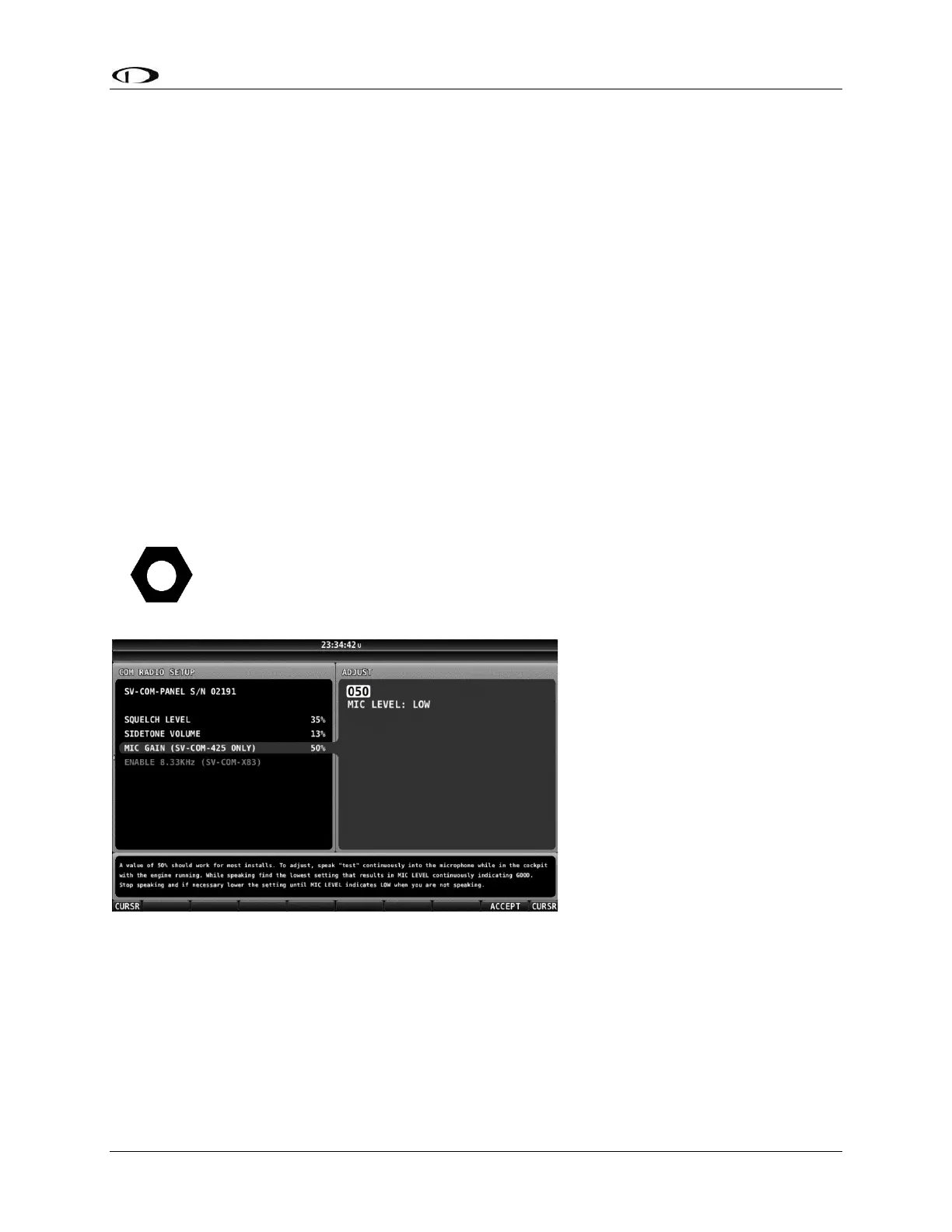
To adjust Squelch, Sidetone, and Microphone Gain, go to SETUP MENU > COM RADIO
SETUP:
> SQUELCH LEVEL – Adjust squelch level so that the audio is heard during
transmissions, and muted when transmissions are not present.
> SIDETONE VOLUME – Adjust for your personal preference of how much microphone
audio is heard in the headset when transmitting.
For example, an “unpowered” (conventional) headset may require a MIC
GAIN setting of 70 for acceptable audio quality / audio level being transmitted.
A noise-cancelling headset with a microphone adjustment may require a MIC
GAIN setting of 30 for acceptable audio quality / audio level being transmitted.
> MIC GAIN – The default setting
of 50 should work for most
installations.
To assist in setting SV-COM-
425’s microphone gain, the COM
RADIO SETUP > MIC GAIN
(SV-COM-425 ONLY) menu
includes a diagnostic feature
(MIC LEVEL: LOW / GOOD /
HIGH), as shown on screen:
To adjust, speak “test”
continuously into the
microphone while in the cockpit
with the engine running.
While speaking, find the lowest setting that results in MIC LEVEL continuously indicating
GOOD. Stop speaking and if necessary lower the setting until MIC LEVEL indicates LOW
when you are not speaking.
In practice, a more reliable method to determine the correct setting of MIC GAIN is to ask
a helper to listen on another radio while you talk in brief intervals, allowing for other
transmissions to be heard by the helper. For such a test to be valid, depending on the
Figure 102: Headset Jack Schematic Interpretation


 To Next Page