Display Operation
21-6 SkyView HDX System Installation Manual - Revision E
continue to use the SV-BAT-320 to power itself until the battery’s charge is depleted or
the display is turned off manually pressing and holding button number 1. Finally, if neither
button is pressed before the countdown expires, the display will automatically turn off after
30 seconds to conserve the SV-BAT-320 charge.
If the aircraft is in flight, SkyView displays the message “AIRCRAFT POWER LOST” with
no additional count down. This ensures that active pilot action is required to turn off a
display when power is lost in-flight and SV-BAT-320 power is available. The STAY ON
and PWR OFF buttons are still offered, but the display will stay on indefinitely unless PWR
OFF is pressed.
21.5.3 How to Reboot the Display
Press and hold buttons 1, 2, and 5 simultaneously to instantly reboot the system. This
may be helpful if you need to cycle power after changing certain settings and for general
troubleshooting.
21.5.4 How to Manually Adjust the Screen Brightness
A SkyView display’s backlighting (brightness) is primarily controlled by its ambient light
sensor. If you have more than one (1) SkyView display, each display’s ambient light
sensor is incorporated. You can adjust the brightness / dimming to your preference by
SCREEN > DIM to access the DIM Menu. To decrease or increase the backlight
brightness press DEC- or INC+, respectively or simply rotate the knob labeled DIM –
clockwise to brighten, counter-clockwise to dim. To set the backlight brightness to 100%,
press FULL. SkyView will not allow you to dim the display(s) to a level that would cause
it to be illegible for the ambient lighting conditions.
Reference Section 4.4.3 of this manual for instructions on specifying the display’s
backlight brightness control method.
21.5.5 How to Enter the Joystick / Knob Function Menu
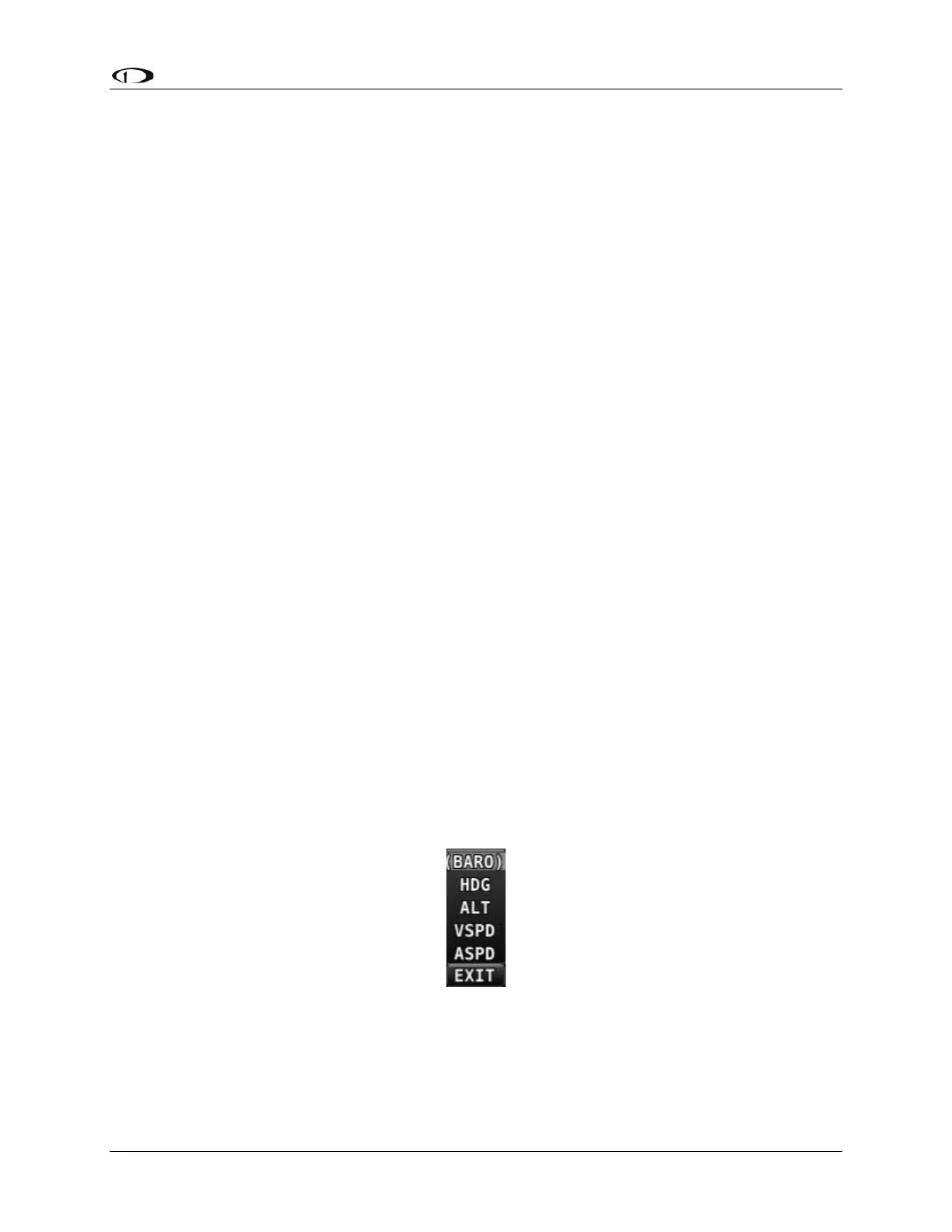
The Joystick / Knob Function menus are used to specify which bug that knob or joystick
adjusts if rotated. For example, knob or joystick 1 could be set to adjust the Heading bug
and knob or joystick 2 could be set to adjust the Altitude bug.
If you have a SkyView HDX display, push the knob (pushbutton) to enter its Function
Menu. Figure 3-5 illustrates the Joystick / Knob menu.
Figure 124: Knob Menu
To set the function of a SkyView HDX knob:
1. Push the knob (pushbutton) to enter the knob’s Function Menu.
2. Choose the joystick function by rotating the knob clockwise or counter-clockwise.


 To Next Page