Display Operation
21-4 SkyView HDX System Installation Manual - Revision E
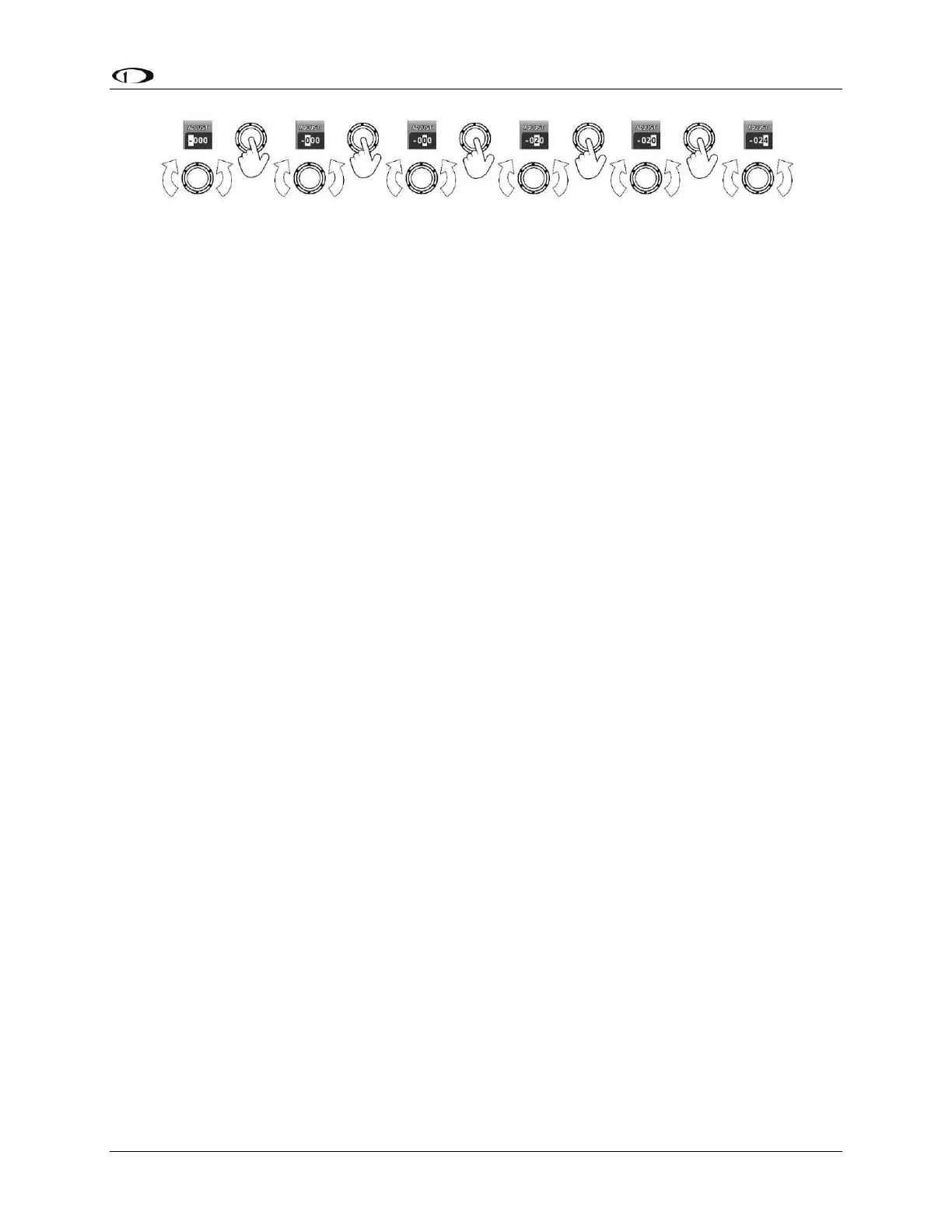
Figure 123: Adjusting Successive Characters in SkyView HDX
When the parameter is first displayed, the most significant (left-most) field is highlighted.
Rotate the knob clockwise to increment the parameter, or counter-clockwise to decrement
the parameter. In this example, the first time you rotate the knob, you toggle between the
“-“ and “+” symbols.
After changing the parameter to the desired value, push the knob (pushbutton) to accept
the desired value. The cursor will automatically change to the next field (to the right).
Once you have adjusted the value appropriately (finished entering the desired data),
pushing the knob will generally accept the entire value and return to the menu.
Occasionally, it is necessary to press ACCEPT button (on the keypad).
When in a list of menu items, to move up and down the menu, simply rotate the knob
clockwise to move down the menu, and counter-clockwise to move up the menu. When
the desired menu is highlighted, push the knob (pushbutton) to enter the desired menu.
21.4 Menu Navigation
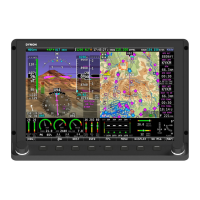
After the display turns on, you will see a screen similar to the screen in Figure . This
manual refers to the label bar at the bottom of the screen as the Main Menu.
Throughout this manual, the “>” character is used to indicate a sequence of menu
selections or other actions you would take as you navigate the menu system. Menu
selections which are followed by “…” indicate full-screen wizard interfaces which manual
you through the appropriate steps. These wizard interfaces are not described in detail in
this manual, as the on-screen instructions provide adequate information.
SkyView menus follow this structure: SETUP MENU > MENU > ... > MENU > PAGE or
WIZARD. The setup menus (In Flight Setup or Setup) are the root of most menu
navigation. Each nested menu is more specific than the previous one (1) and there is no
set limit for the number of nested menus before reaching a page. A page or wizard is at
the end of the chain and it is where the user can perform a specific action such as change
a specific setting, configure a SkyView network, or set up the layout of the onscreen
engine gauges. Wizards employ easy-to-follow onscreen instructions.
For example, SETUP MENU > SYSTEM SETUP > MEASUREMENT UNITS >
BAROMETER indicates entering the SETUP MENU, then selecting SYSTEM SETUP,
then selecting MEASUREMENT UNITS, and then entering the BAROMETER Menu to
select INHG, MBAR, or MMHG.


 To Next Page