Group 8 Job Editor Page 207
JET3up Release R1.06
Start the graphic editor dialog box with the option <Editors> - <Graphic-Editor>
(2) and (3).
The graphic editor provides a menu bar with the following entries:
File Edit Function View
<Graphics> are created and edited on the drawing area (6).
The <Coordinates> (7) indicate the current position on the drawing area.
The status bar for the current tool or command (8)
indicates which tool is selected
and what is expected as next step.
The <Cancel> button (9)
closes the dialog box. If the inputs have been not saved
yet, a confirmation prompt is displayed.
With the <OK> button (10) the graphic editor w
ill be closed without further notice
and all changes will be aborted.
7.5.6.1 Edit tools
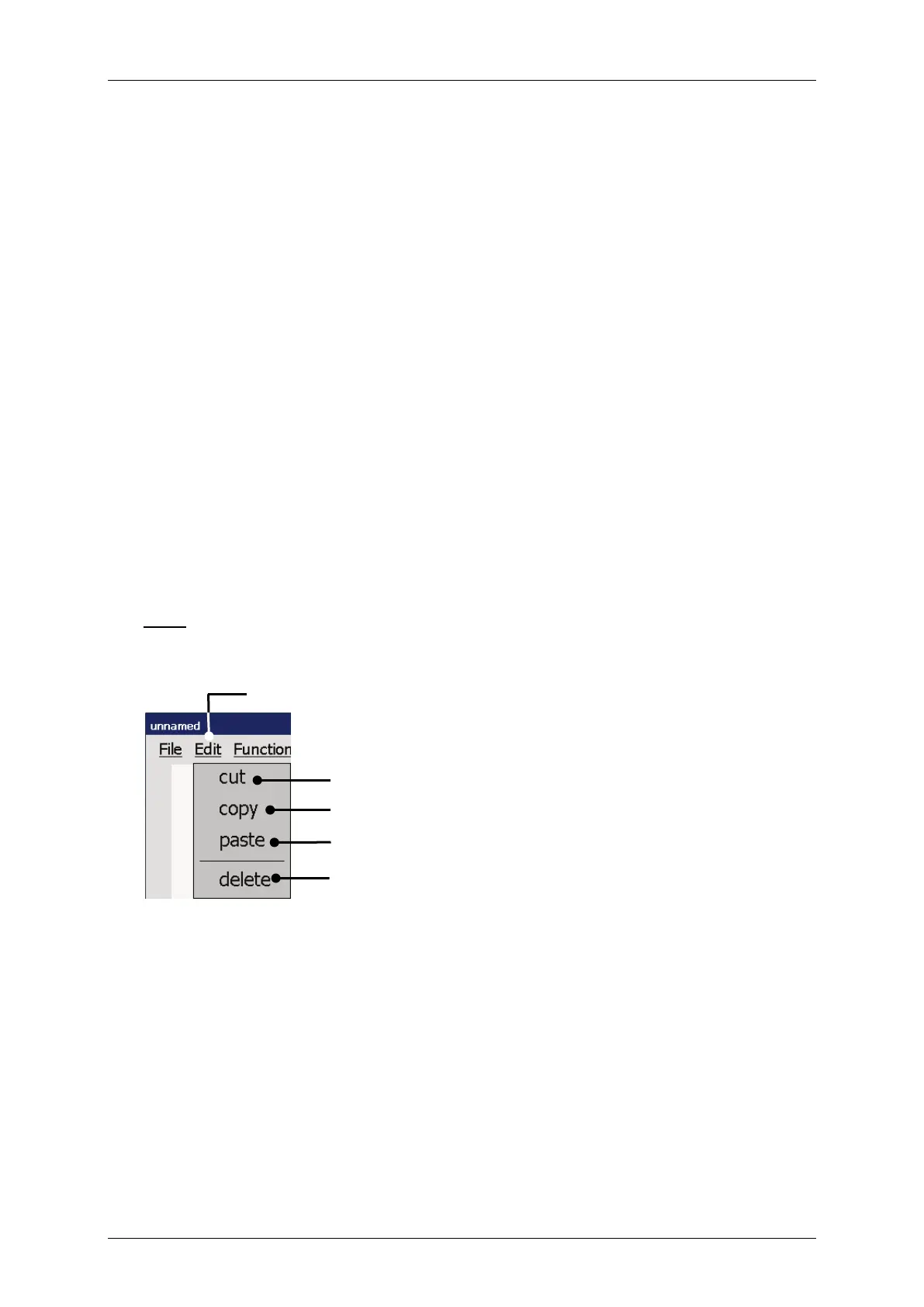
The drop-down menu <Edit> provides several tools.
Note: The function of the tools corresponds to Windows™-standard procedures.
Figure 95 Graphic editor (Edit tools)
1 – Drop-down- menu <Edit>


 To Next Page