Page 354 Job Editor Group 8
Release R1.06 JET3up
8.7.5.3.2 Extern Text Mailing – Database settings
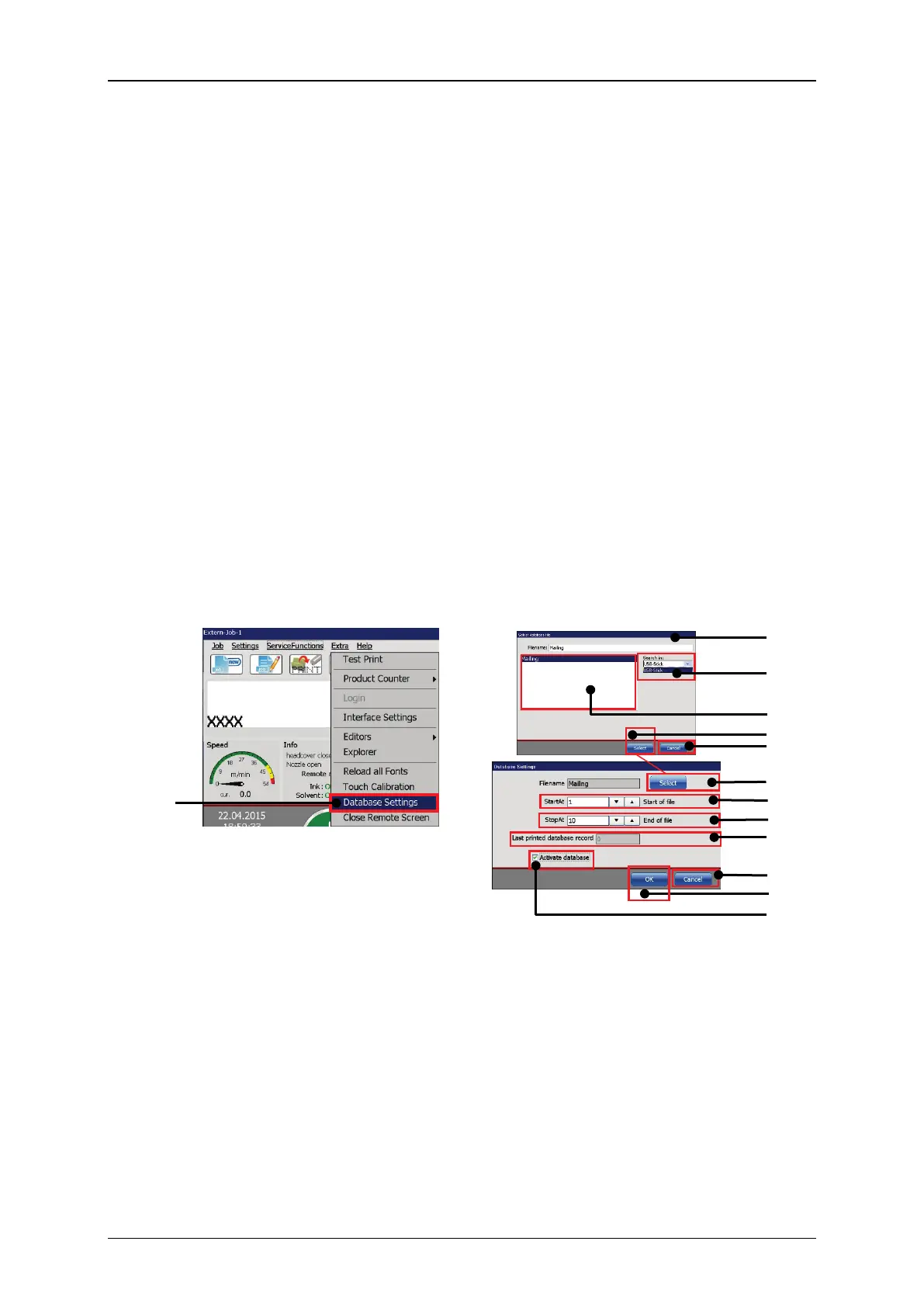
See figure 179
Firstly you have to connect the USB stick to the USB port of the JET3up printer. In
the next step you will have to set the parameter for the database. The database
settings are an option of the <Extra> drop-down menu (1).
Pressing the <Select> button of the dialog box (2) will open an <Open File>
dialog box (3). Selecting “USB” from the drop-down list (4) will show the *.ljd files
on the USB stick (5).
Choose the requested file and confirm with the <Select> button (7)
leave this dialog box without any changes by pressing the <Cancel> button (6).
Now some basic information of the loaded data file is shown in the database
settings dialog box. There are display fields which show the number of the first (8)
and the last record (9) and the number of the last printed record (10).
You will have to check off the check box <Activate database> (13) before you
can leave the dialog box with the <OK> button (12) to confirm the settings. You
can leave the dialog box without changes by pressing the <Cancel> button (11).
Figure 179 Extern Text Mailing – Database settings
1 – Option <Database Settings>
8 – Number of first data set
9 – Number of last data set
3 – <Open File> dialog box
10 – Number of last printed data set
4 – Drop-down menu file source
13 – Check box <Activate database>



 To Next Page