Group 8 Job Editor Page 299
JET3up Release R1.06
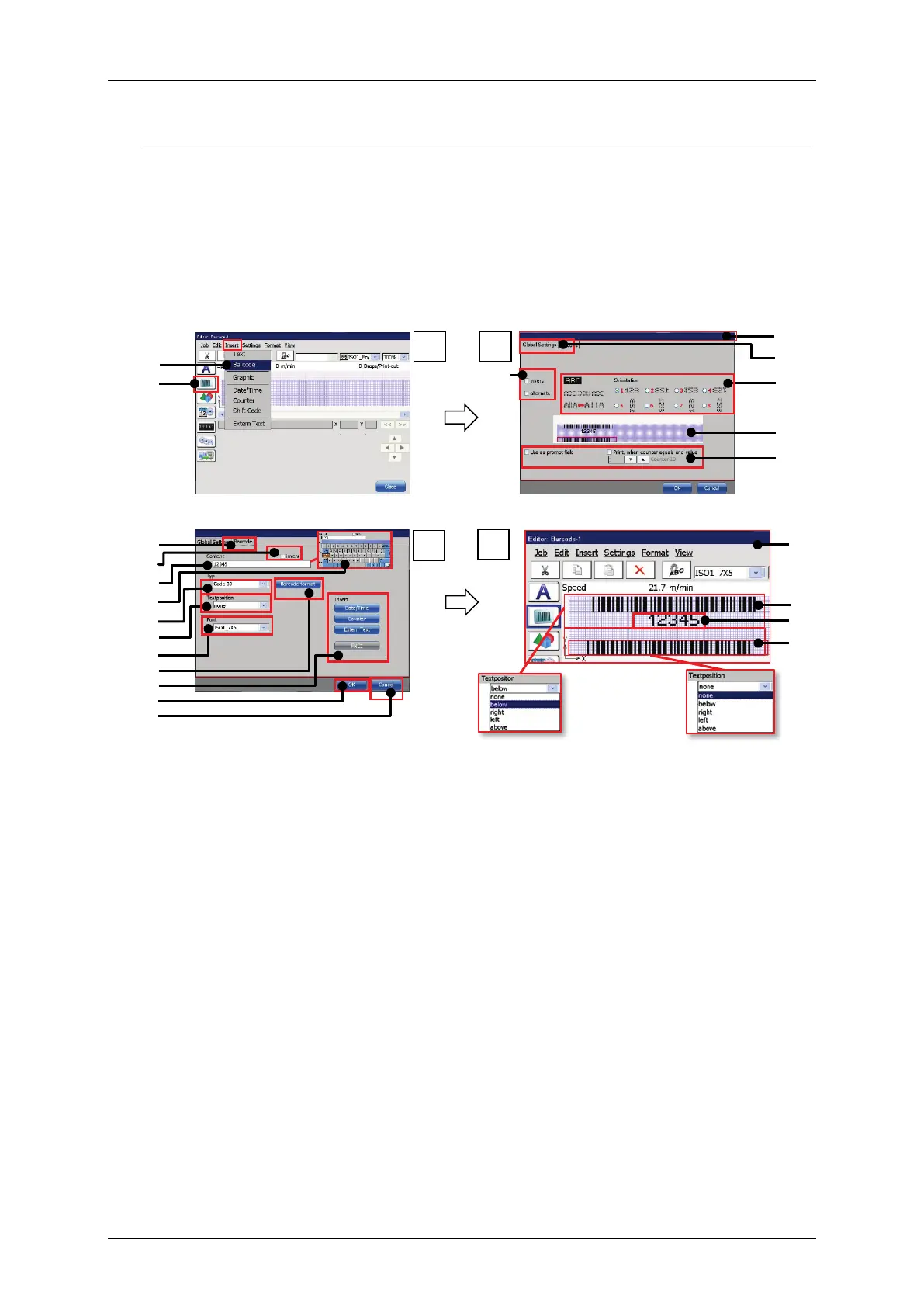
Please see point 4 of Figure 161
The result of the settings for the plain text is displayed in the job editor (20). The
example shows a job editor preview of two bar codes. Both are code 39 bar codes
with the same content. The upper code (21) is with the plain text option and
shows the content of the bar code below the code (22).
The lower bar code (23) is without the plain text option.
Figure 161 Bar codes: Object creating and settings
1 – Menu item <Extern Text> 13 – Drop-down list bar code <Type>
2 – Direct button <Barcode>
14 – Drop-down list <Textposition>
3 – Dialog box <Object settings>
15 – Drop-down list <Font>
4 – Tab <Global settings>
16 – Button <Barcode Format>
5 – <Orientation> options for the bar
code object
17 – Options for inserting objects and
functions into the barcode content
6 – Global <Inverse> option
21 – Bar code (code 39) with plain text
10 – Barcode <Inverse> option.
22 – Plain text of the bar code content.
Positioned below the bar code.
11 – Display /input bar code <Content>
23 – Bar code (code 39) without plain
text
12 – Keyboard for <Content> input
1 2


 To Next Page