EasyManua.ls Logo

Lexmark W840 - Service Manual

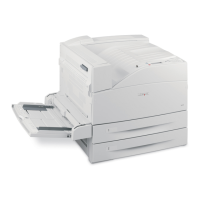
Lexmark W840
493 pages
Print Icon
To Next Page IconTo Next Page
Loading...
Lexmark™
W840 Options
4024-XXX
Table of contents
Start diagnostics
Safety and notices
Trademarks
Index
Lexmark and Lexmark with diamond design are
trademarks of Lexmark International, Inc., registered
in the United States and/or other countries.
Edition: September 20, 2013

Table of Contents

Other manuals for Lexmark W840

Questions and Answers

  • Y
    Yvette BridgesAug 27, 2025
    Why held jobs do not print on my Lexmark W840 Printer?
    • K
      kcalhounAug 27, 2025
      Held jobs on your Lexmark Printer might fail to print due to a formatting error or invalid data. You can try to print the job (knowing that only part of it may print), delete the job, or free up additional printer memory by deleting other held jobs.
  • C
    Chris OnealAug 28, 2025
    What to do if Lexmark W840 shows blank operator panel display?
    • K
      Kristie BrownAug 28, 2025
      If the operator panel display is blank or shows only diamonds, the printer self-test has likely failed. Turn the printer off, wait 10 seconds, and then turn it back on. If the 'Performing Self Test' and 'Ready' messages do not appear, turn the printer off and call for service.
  • S
    smithbenjaminAug 29, 2025
    How to fix incorrect characters printing on Lexmark Printer?
    • L
      Lisa AllenAug 29, 2025
      Incorrect characters may print due to: * An incompatible parallel cable. Use an IEEE 1284-compliant cable. * The printer being in Hex Trace mode. Turn the printer off and back on to exit Hex Trace mode.
  • A
    Ashley StewartAug 29, 2025
    Why is my Lexmark W840 printing toner on the back of the page?
    • M
      Megan BeckAug 29, 2025
      Toner appearing on the back of the printed page means toner is on the transfer roll. To prevent this, avoid loading print media smaller than the job's page size. Open and close the printer's top front cover to run the setup cycle and clean the transfer roll.
  • H
    hector52Aug 30, 2025
    How to resolve large jobs not collating on Lexmark Printer?
    • T
      Tiffany BarnesAug 30, 2025
      If large jobs do not collate, it may be due to: * Collate not being set to On. Enable Collation in the Finishing Menu or through the printer driver. Note that setting Collation to Off in the driver overrides the setting in the Finishing Menu. * The job being too complex. Reduce complexity by minimizing fonts, images, and pages. * Insufficient printer memory. Add more memory or a hard disk.
  • N
    Nicholas SmithAug 30, 2025
    How to fix toner smears on prints from Lexmark W840 Printer?
    • S
      Shelia MackAug 31, 2025
      If toner smears or print comes off the page: * If printing on an uneven surface, change the Paper Weight and Paper Texture settings in the Paper menu. * Verify the print media is within the printer specifications.
  • T
    Terry RomeroAug 25, 2025
    Why jobs do not print on my Lexmark W840?
    • M
      Meghan NielsenAug 25, 2025
      Several factors can prevent jobs from printing: * The printer might not be ready. Ensure 'Ready' or 'Power Saver' is displayed. * The output bin could be full, so remove the paper. * The tray might be empty; load paper into the tray. * You might be using the wrong printer driver or printing to a file. Verify you're using the correct driver for your printer and that it's compatible with your operating system if using a USB Direct interface. * The internal print server may not be set up correctly. Ensure the printer is properly configured for network printing. * The interface cable might be incorrect or not securely connected. Use a recommended cable and ensure it's securely connected.
  • R
    Renee BlairSep 1, 2025
    What causes unexpected page breaks on Lexmark W840 Printer?
    • V
      vcontrerasSep 1, 2025
      Unexpected page breaks can occur if the job has timed out. Increase the Print Timeout value in the Setup Menu.
  • M
    Michael HendersonSep 1, 2025
    What to do if the paper jam message remains on Lexmark W840 Printer?
    • M
      Melissa LawsonSep 2, 2025
      If the Paper Jam message persists after removing the jammed paper, ensure you have cleared the entire paper path and then press the appropriate button.
  • M
    martinkathySep 2, 2025
    Why does Lexmark W840 Printer print from the wrong tray?
    • C
      Connie RasmussenSep 2, 2025
      If a job prints from the wrong tray, or on the wrong paper or specialty media, the operator panel menu settings likely don't match the media loaded in the tray. Ensure the Paper Size and Paper Type specified in the printer driver match the paper in the tray.

Summary

General Information

Tray 2 and Tandem Tray Media Transport

Describes the media path and transport mechanisms for Tray 2 and Tandem Tray options.

High Capacity Feeder (HCF) Operations

Explains HCF media feeding, unit operations, sensors, and motor functions for optimal performance.

Duplex and Exit 2 Components

Identifies key components within the Duplex and Exit 2 options, including motors and sensors.

Diagnostic Information

Confirm Installation Status and POR Sequence

Verifies proper printer setup and details the power-on reset sequence for diagnostic checks.

Error Code Messages

Lists error codes, their contents, and recommended actions for troubleshooting various printer issues.

Service Checks

Provides detailed step-by-step procedures to diagnose and resolve specific printer errors and faults.

Diagnostic Aids

Accessing Service Menus

Details how to enter diagnostic and configuration modes for accessing printer tests.

Diagnostic Mode Tests

Outlines available tests for motors, print output, hardware, and duplex functions.

Hardware Tests

Describes tests for panel, buttons, memory, and port functionality to verify hardware.

Repair Information

Handling ESD-Sensitive Parts

Outlines precautions to prevent damage from electrostatic discharge during service procedures.

Removal Procedures

Provides general instructions and notes before performing part removals and replacements.

2 X 500-sheet drawer (2 TM) Removals

Step-by-step instructions for disassembling the 2X 500-sheet drawer (2TM) unit.

Component Locations

2 TM, TTM, HCF, Duplex, and Exit 2 Components

Illustrates the location of key parts for the 2TM, TTM, HCF, Duplex, and Exit 2 options.

Preventive Maintenance

Safety Inspection Guide

Identifies potential unsafe conditions and hazards during printer operation and maintenance.

Lubrication Specifications

Details recommended lubricants and their application for maintaining moving parts.

Maintenance Recommendations

Outlines routine cleaning and replacement schedules for printer parts to ensure performance.

Parts Catalog

How to Use This Parts Catalog

Explains the legend and structure used in the parts catalog for identifying FRUs.

Assembly 1: 2 X 500-sheet drawer (2 TM)-covers

Lists and illustrates the parts for the 2X 500-sheet drawer (2TM) outer covers.

Assembly 2: 2 X 500-sheet drawer (2 TM)-media tray and media feed units

Lists and illustrates the parts for the 2X 500-sheet drawer (2TM) media tray and feed units.

Assembly 3: 2 X 500-sheet drawer (2 TM)-media tray

Lists and illustrates the parts specific to the 2X 500-sheet drawer (2TM) media tray assembly.

Lexmark W840 Specifications

General IconGeneral
ColorNo
Print technologyLaser
Maximum resolution1200 x 1200 DPI
Time to first page (black, normal)6.8 s
Print speed (black, normal quality, A4/US Letter)50 ppm
Internal memory256 MB
Sound power level (standby)28 dB
Sound pressure level (printing)54 dB
Total input capacity1100 sheets
Total output capacity500 sheets
Maximum input capacity5100 sheets
DisplayLCD
Maximum print size297 x 420 mm
Media types supportedPlain paper, envelopes, card stock, transparencies, paper labels
Media weight (tray 1)Plain paper: 64 to 216 g/m2; Card stock: up to 199 g/m2 Index
Maximum ISO A-series paper sizeA3
Page description languagesPDF 1.5, PPDS
I/O portsUSB, Parallel, 1 internal solutions port (ISP)
Mac compatibilityYes
Compatible operating systemsWindows, Linux, UNIX, Mac, NetWare and OS/400
Recommended operating temperature range (T-T)16 - 32 °C
Sustainability certificatesENERGY STAR
Power consumption (standby)9 W
Power consumption (printing)700 W
Power consumption (PowerSave)105 W
Bundled softwareMarkVision Professional
Operating relative humidity (H-H)8 - 80 %
Weight and Dimensions IconWeight and Dimensions
Dimensions (WxDxH)616 x 520 x 475 mm

Related product manuals