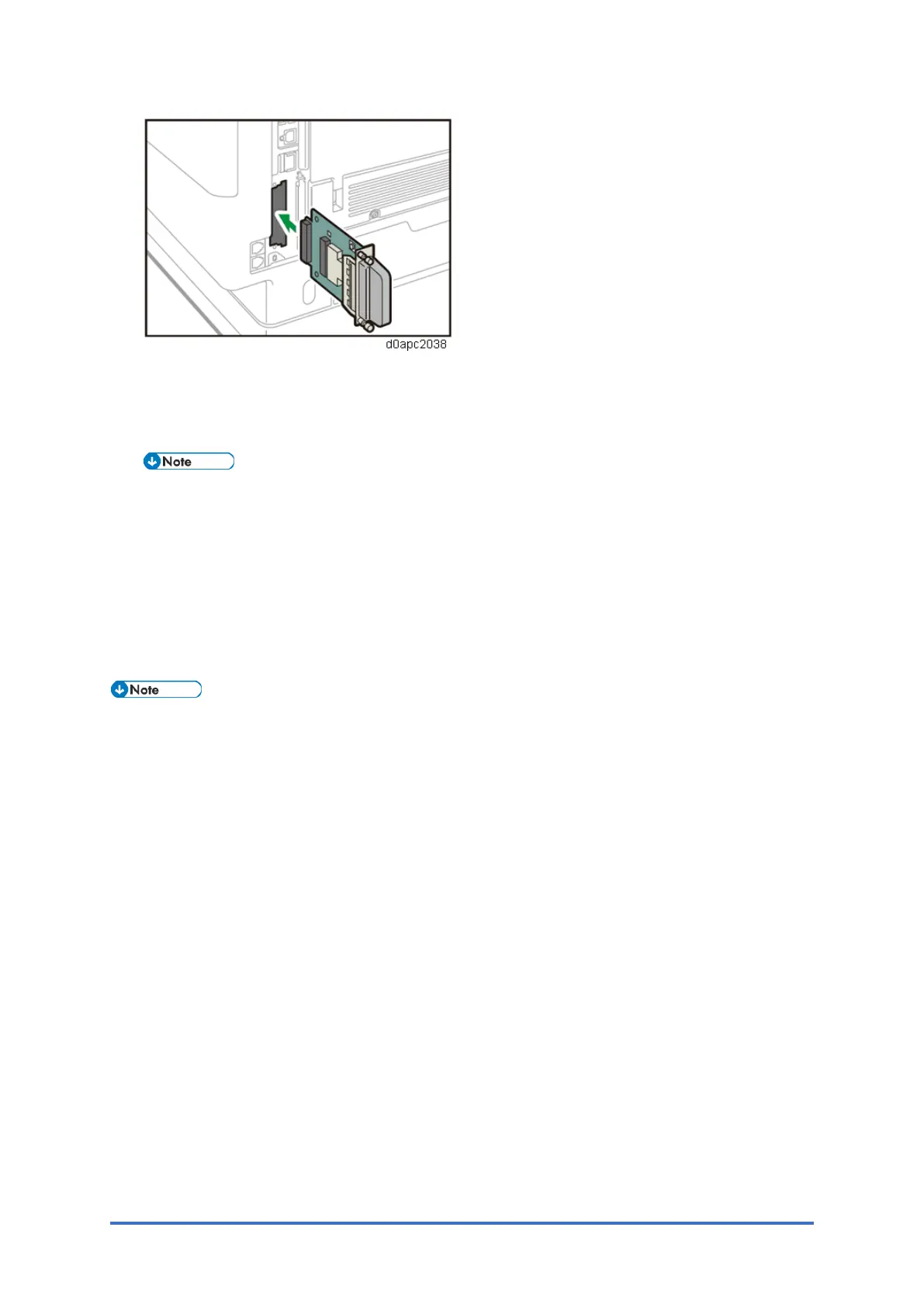
IEEE 802.11 Interface Unit Type M24 (M500-08)
D0AP/D0C4/D0C5/D0C6/M0BQ/M0D1 2-86 SM
3. Tighten the two screws to secure the interface board.
4. Plug in the power cord, and then turn on the machine.
5. Print the configuration page to confirm that the board was attached correctly.
If it is correctly installed, "Wireless LAN" will appear for "Device Connection" on the
configuration page.
2.16.3 USER TOOL SETTINGS FOR IEEE 802.11A/G/N (PRINTER
MODEL)
Enter the User Tools mode and perform the procedure below. These settings take effect every
time the machine is turned ON.
• IEEE 802.11a/g/n function is disabled when using Ethernet.
1. Press the [Menu] key.
2. Select [Host Interface], and then press the [OK] key.
3. Select [Network], and then press the [OK] key.
4. Select [LAN Type], and then press the [OK] key.
5. Select [Wireless LAN], and then press the [OK] key. (Default: Ethernet)
6. Press the [Escape] key.
7. Select [Wireless LAN], and then press the [OK] key.
8. Select [Communication Mode], and then press the [OK] key.
9. Specify the "Communication Mode", and then press the [OK] key. ("Ad hoc Mode",
"Infrastructure Mode", and "Direct Connection Mode")
10. Select [SSID Setting], and then press the [OK] key.
11. Enter the "SSID setting". (The setting is case sensitive.)
Press the [Accept] key when you finish entering the SSID.
12. When "Ad Hoc Mode" is selected, select [Ad-hoc Channel], and then press the [OK] key.
Specify the "Ad-hoc Channel". The allowed range for the channel settings may vary for
different countries.
• For mainly Europe and Asia


 To Next Page