USB Device Server Option Type M19A (D3BC-33, -34)
SM 2-99 D0AP/D0C4/D0C5/D0C6/M0BQ/M0D1
2.18.3 IP ADDRESS SETTING
This section describes how to manually specify an IP address for the USB device server option.
Note that you can specify an IP address not only on the same network segment but also on a
different network segment. This will enable you to share a single printer with devices in multiple
networks.
• Yo u cannot change the IP address of this option from the operation panel of the main
machine. The setting must be done from a web browser on your PC.
• The network setting of this option is initially assigned as follows:
IP address: 192.168.100.100 / Subnet mask: 255.255.255.0
• The network setting of your PC must be in the same network segment to change the
network setting of this option.
1. Make a note of the current network settings of your PC.
2. Change the IP address of your PC to [192.168.100.xxx (*0 - 255)].
3. Change the subnet mask of your PC to [255.255.255.0].
4. Open a web browser.
5. Type [http://192.168.100.100/] in the address bar.
6. Press the "Enter" key.
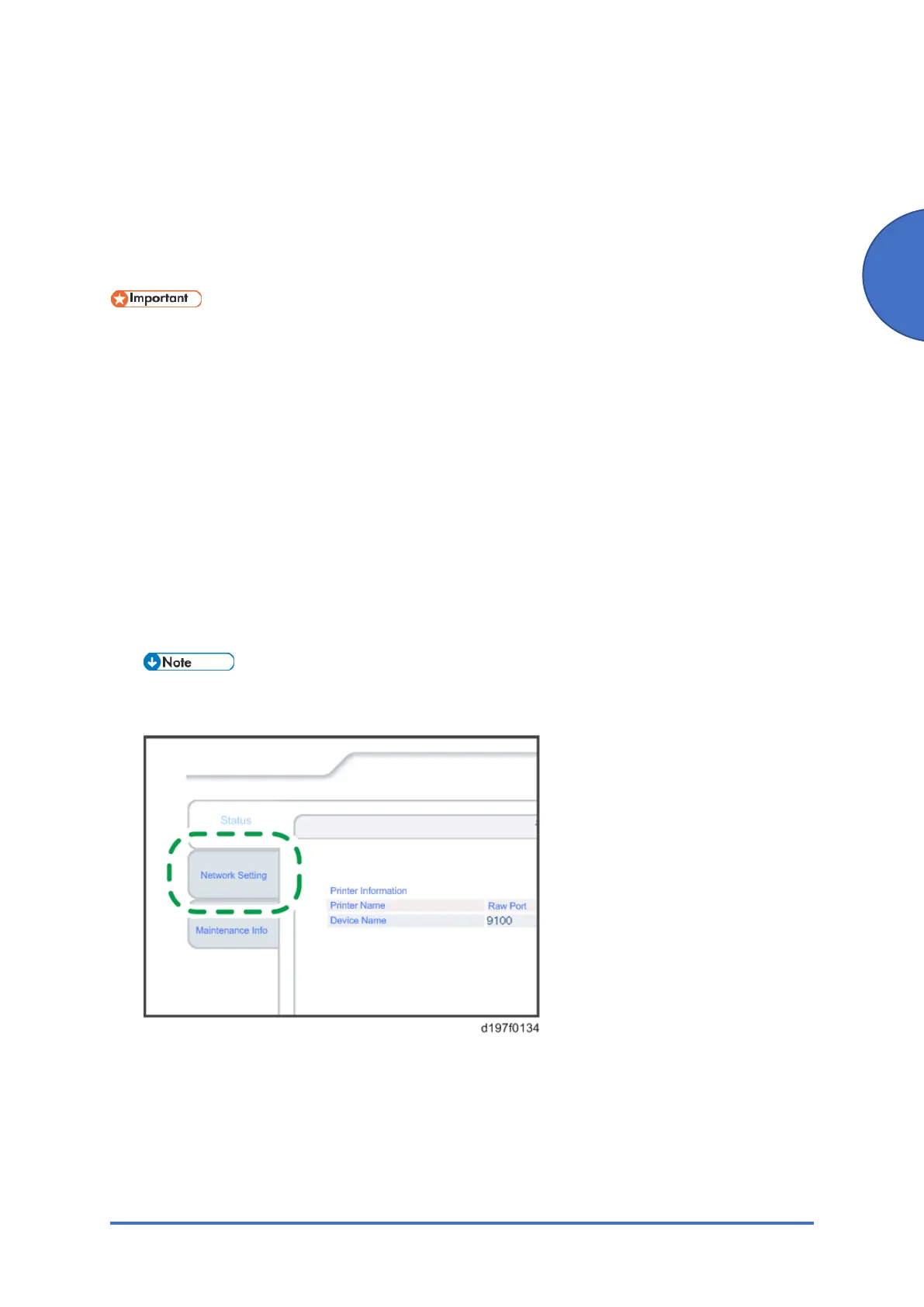
• The setting screen for this option is displayed.
7. Click [Network Setting].
8. Type [root] in the username text box, and click [OK].


 To Next Page