Security Settings
D0AP/D0C4/D0C5/D0C6/M0BQ/M0D1 2-128 SM
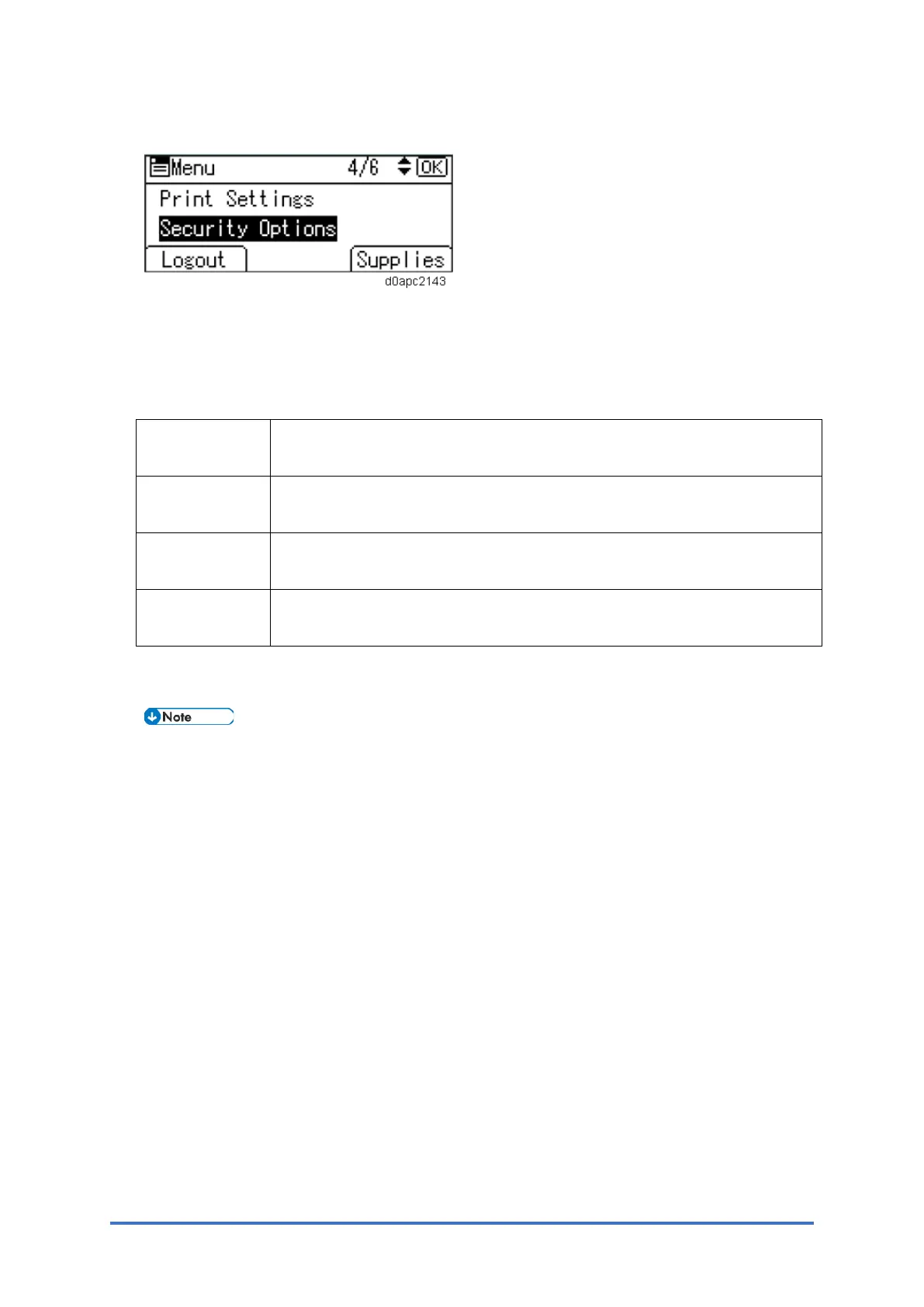
3. Select [Security Options], and then press the [OK] key.
4. Select [Auto Erase Memory Setting], and then press the [OK] key.
5. Select [On].
6. Press the selection key beneath [HDDErase], and then select the method of overwriting as
follows:
Method of
overwriting
Description
NSA Temporary data is overwritten twice with random numbers and once with
zeros.
DoD Each item of data is overwritten by a random number, then by its
complement, then by another random number, and is then verified.
Random
Numbers
Temporary data is overwritten multiple times with random numbers. The
number of overwrites can be selected from 1 to 9. (Default: 3)
7. Press the [OK] key.
8. Log out.
When Auto Erase Memory is enabled, you can use the Memory Erase Status screen to find
out whether there is any data to be erased in the memory.
1. Press the [Menu] key.
2. Select [Memory Erase Status], and then press the [OK] key.
3. "Currently no data to erase" appears.
Using Auto Erase Memory (MF Model)
The Auto Erase Memory function can be enabled by the following procedure.
1. Log in as the machine administrator from the operation panel.
2. Press the [User To o ls ] icon.
3. Press [Machine Features].
4. Press [System Settings].
5. Press [Administrator Tools].
6. Press [Next] three times.


 To Next Page