Key Functions (Embroidery)
144
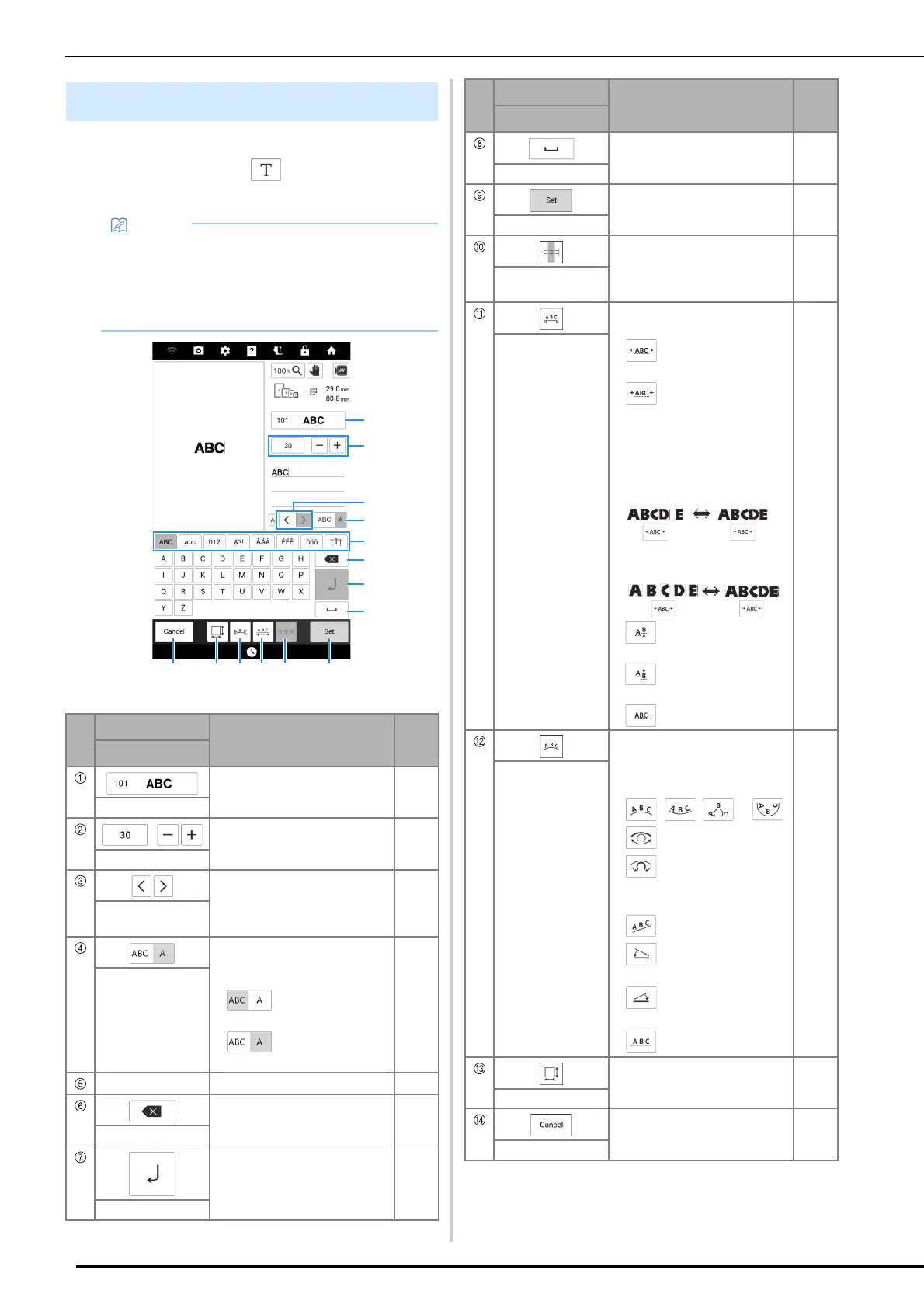
Even after text has been entered, the characters
can be re-edited. Touch in the [Edit] window
to display the following screen.
Character Pattern Editing Screen
• If a key display is grayed out, you cannot use
that function with the selected pattern.
• Line feed key (7) and alignment key (0)
cannot be used when re-editing character
patterns.
No.
Display
Explanation
Reference
Name
Change the font of the
characters. Touch this key to
display the available fonts.
—
Font type key
Change the size of characters. —
Character size key
Move the cursor and select a
character.
138
Character selection
keys
Switch between selecting
multiple characters or selecting
a single character.
• : Multiple character
selection mode
• : Single character
selection mode
138
Select multiple/one
key
—
Select the category of character. —
Delete the character. —
Delete key
Add a line.
This function is available when
entering characters.
138
Line feed key
Enter a space. —
Space key
Apply the character pattern
editing.
—
Set key
Align the characters at the right,
left or center. This function is
available when multiple lines of
characters are input.
138
Alignment key
Change the spacing of the
character patterns.
• : Increase the
character spacing.
• : Decrease the
character spacing.
• The spacing between the
selected character and the
next character is changed.
When the letter “D” is
selected:
When all characters are
selected:
• : Move the one selected
character up.
• : Move the one selected
character down.
• : Reset the spacing.
—
Character spacing
key
Change the configuration of the
character patterns.
• To arrange the character
patterns on an arc, touch
, , or .
: Make the arc flatter.
: Make the arc rounder.
• To arrange the character
patterns on an incline, touch
.
: Change the incline
counterclockwise.
: Change the incline
clockwise.
• : Reset the layout.
147
Array key
Change the character size for
fine adjustment.
—
Size key
Return to the previous screen. —
Cancel key
No.
Display
Explanation
Reference
Name



 To Next Page