Various Embroidering Functions
176
• ___r.pdf
An image flipped on a vertical axis (for an
iron-on transfer)
• ___n.pdf
An image that is not flipped (for printing on
printable fabric)
• ___p.pdf
An image that is not flipped, but has
positioning marks attached (for positioning)
4 Touch .
Printing the Background and
Embroidery Position Sheet
Print the PDF files of the background and
embroidery position sheet. The background file
that is printed differs depending on whether iron-on
paper or printable fabric is used.
1 Open the PDF file to be printed.
2 Print the background image.
* When printing onto iron-on paper, print the file
named “___r.pdf” (an image flipped on a vertical
axis). When printing onto printable fabric, print the
file named “___n.pdf” (an image that is not flipped).
3 Print the embroidery position sheet (file
named “___p.pdf”) onto plain paper.
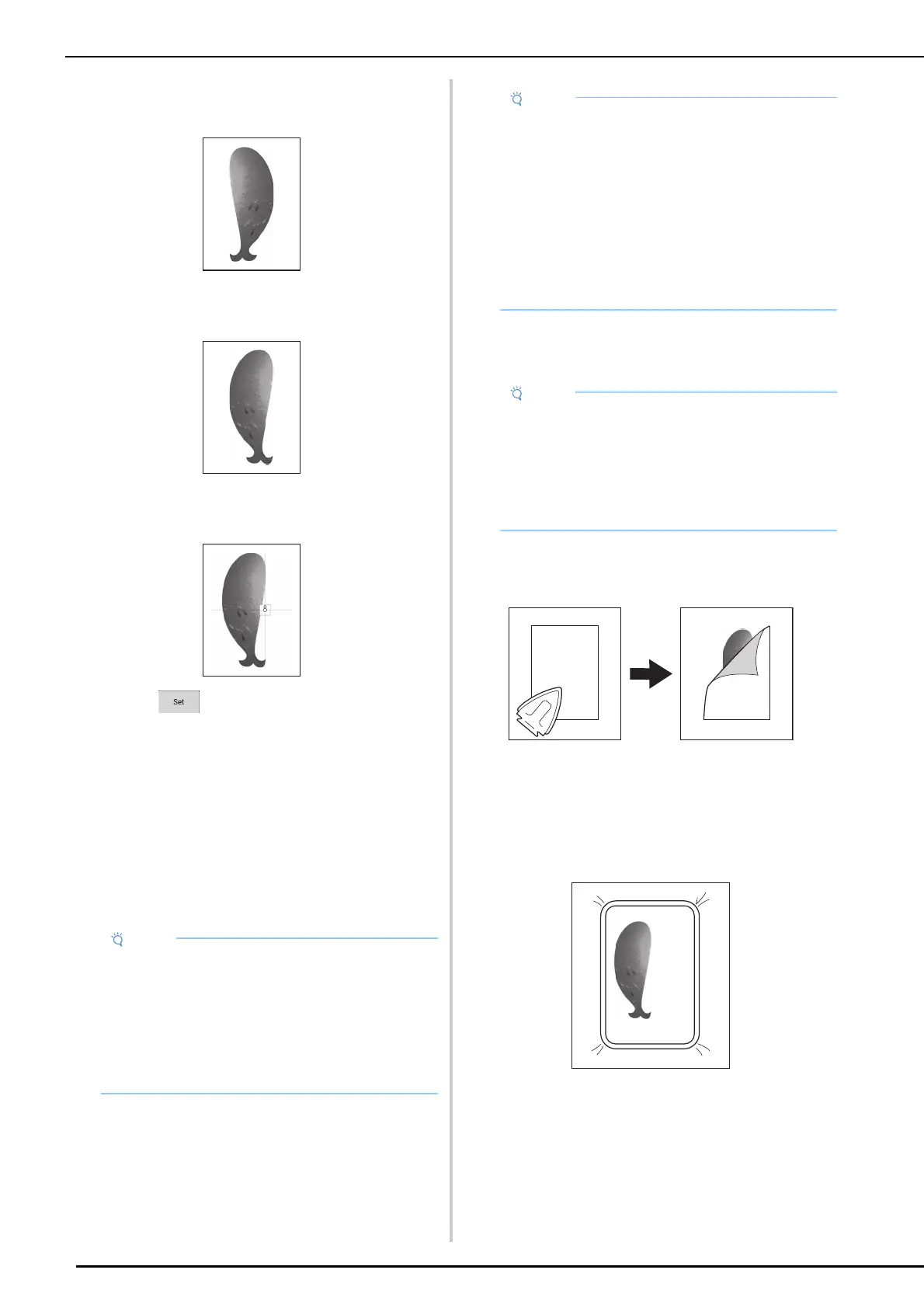
4 If an iron-on transfer sheet is used,
transfer the image onto fabric.
Embroidering Patterns
1
Hoop in the embroidery frame the fabric
with the background image.
• Print the background and embroidery position
sheet in their original dimensions. If an image
is printed in a different size, the sizes of the
embroidery pattern and background may not
match. In addition, the built-in camera cannot
detect the embroidery position mark. Make
sure that the print settings are correctly
specified.
• Before printing onto iron-on paper or printable
fabric, we recommend performing a test print
to check the print settings.
• For details on how to use iron-on transfer
sheets or printable fabric, refer to the
instructions for the iron-on transfer sheets and
printable fabric.
• Some printers will automatically print an image
flipped if an iron-on transfer sheet is selected
as the paper. For details, refer to the
instructions for the printer being used.
• When printing the PDF file for the embroidery
position sheet, specify the highest image
quality possible for full-color printing. In
addition, we recommend printing on matte
paper. If this is not done, the built-in camera
may not be able to correctly detect the
embroidery positioning mark.



 To Next Page