Key Functions (My Design Center)
235
My Design Center
6
You can select the part of the design to move
and/or edit.
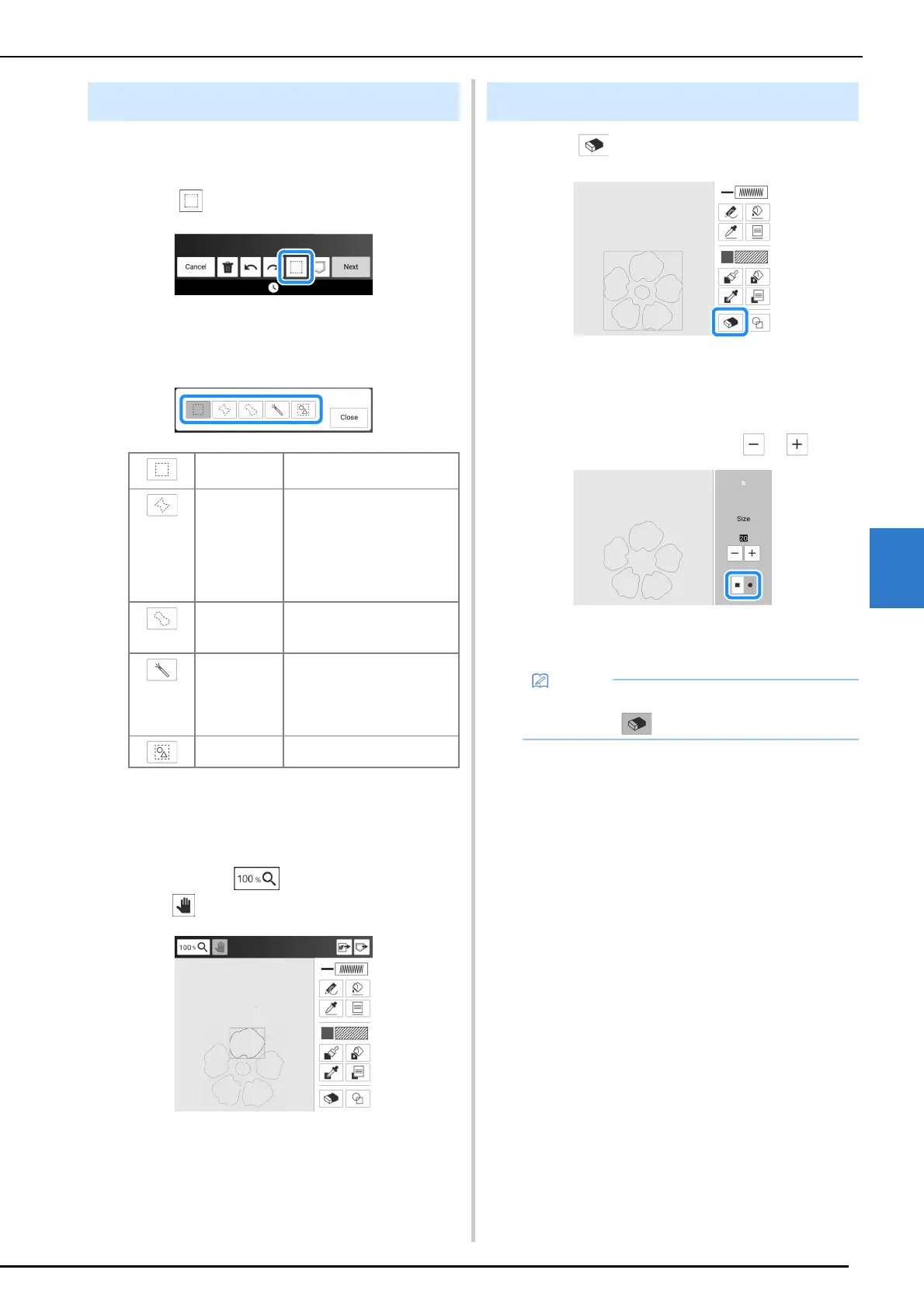
1 Touch .
2 Select the method for selecting an area.
And then touch [Close].
3 Select the area you want to edit.
* Create the red box around your selected area to be
edited.
* To select the desired pattern easily, magnify the
image. Touch to magnify the pattern and
use to move the canvas.
4 Edit the design with available keys.
(page 230)
5 Touch [Next], and then specify the stitch
setting. (page 238)
1 Touch .
2 Select the shape of the eraser.
And then drag along the area or line that
you want to erase.
* To select the eraser size, touch or .
3 Touch [OK].
Using the Select Key
Box selection Selects all objects within the
box that is drawn.
Polygonal
shape
selection
Selects all objects within the
polygonal shape that is drawn.
Draw a polygon by touching
the screen to add points, and
then specify the end point by
touching the red square at the
starting point.
Freestyle
curve
selection
Selects all objects within the
curved line that is drawn.
Automatic
selection
Selects the pattern that is
touched. This allows you to
select only a single line or only
the outer pattern of a donut
shape.
Select all Selects all patterns.
Using the Erase Key
• The area or lines can be erased while the key
appears as .



 To Next Page