Key Functions (My Design Center)
233
My Design Center
6
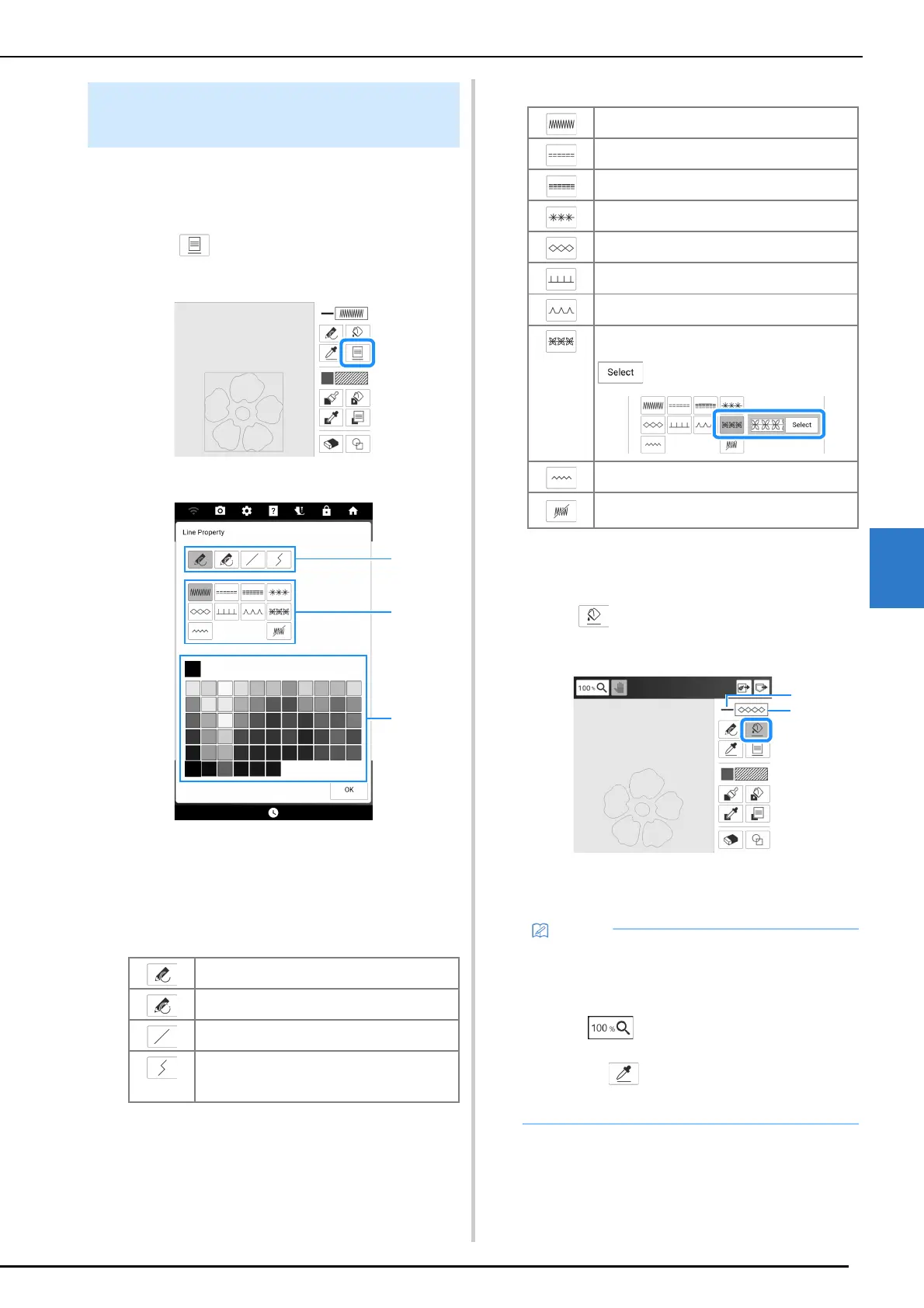
You can set or change the line types, stitch types
and colors anytime. You can also specify the
settings before drawing lines.
1 Touch to set the line types, stitch
types and colors.
The [Line Property] screen appears.
a Line types
b Stitch types
c Line color selection: touch the color palette to
activate the drawing pen color.
•Line types
• Stitch types
2 Touch [OK] to return to the pattern
drawing screen.
3 Touch then touch on the lines to
change the settings.
a Color
b Stitch type
Setting the Line Types, Stitch
Types and Colors
Freehand line with the end open.
Freehand line closing the end automatically.
Straight line with one stroke.
Straight line changing directions to the point
you select. If the end point is created near the
start point, a closed object will be created.
Zigzag stitch
Running stitch
Triple stitch
Candlewicking stitch
Chain stitch
E stitch
V stitch
Select motif stitches
Displays motif stitch selection screen, where
can be touched to select a pattern.
Appliqué zigzag stitch
Line without stitch for creating a region.
Created region will be defined by the gray line.
• The appearance of the line does not change
even if the stitch type was changed. The
specified stitch type can be checked in the
stitch settings screen. (page 238)
• Touch to magnify the image when you
cannot touch on the line correctly.
• Touching , then touching a line reflects
the settings for that line in the [Line Property]
screen.



 To Next Page