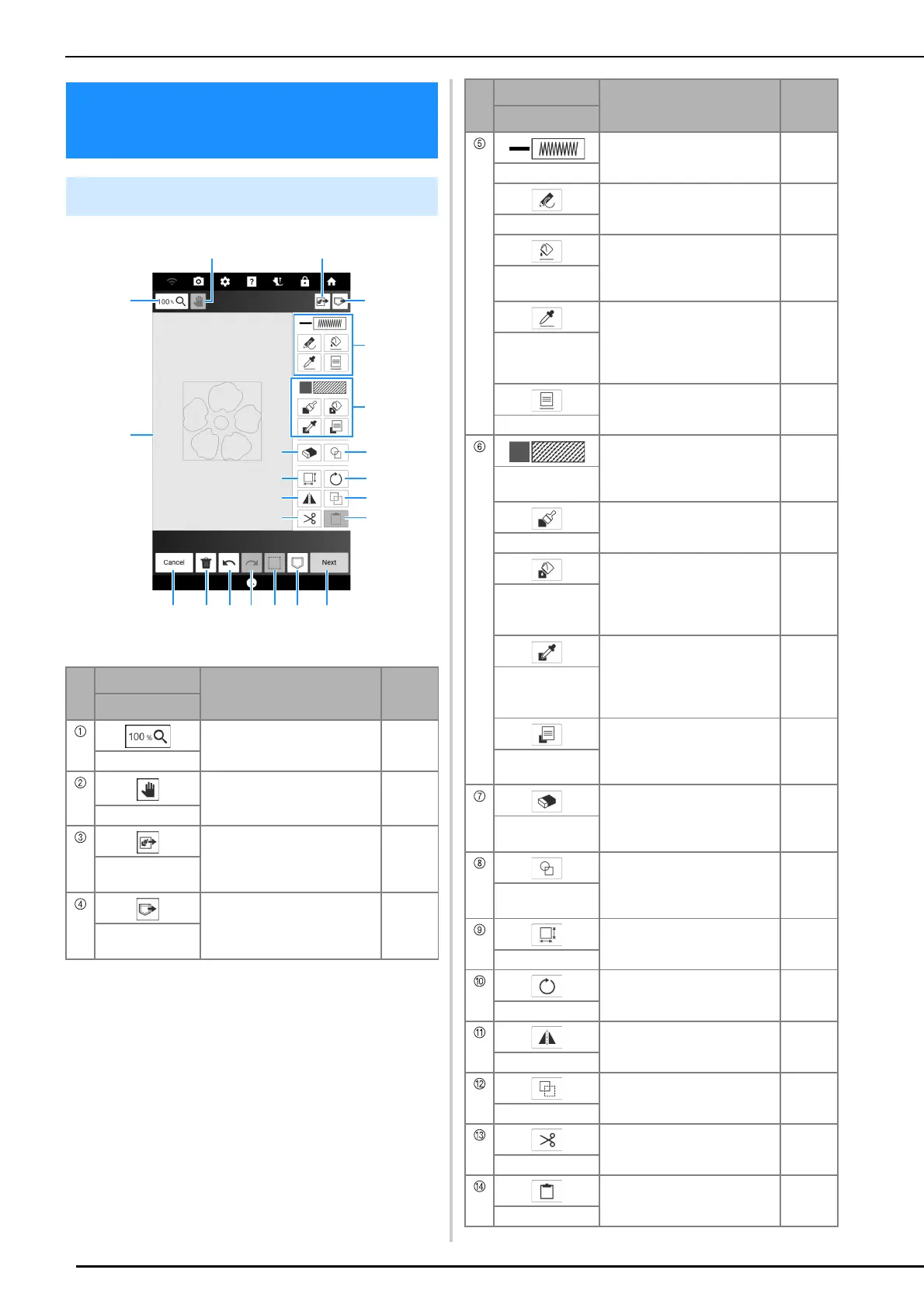
Key Functions (My Design Center)
230
* Pattern drawing area
Key Functions (My Design
Center)
Pattern Drawing Screen
No.
Display
Explanation
Reference
Name
Magnify the pattern. —
Magnify key
Move the canvas when it is
magnified.
—
Hand tool key
Create patterns using scanned
images, line drawings,
illustrations, and data files of
images.
241
Scan/Design key
Recall pattern drawing data
created with My Design Center
from the machine’s memory, or
USB media.
—
Recall key
a
u
c
d
f
h
j
l
t s r q
*
e
p
b
o
n
g
i
k
m
Display the color and stitch type
specified in the [Line Property]
screen.
233
Line display
Draw lines. Specify the line type
in the [Line Property] screen.
232
Line tool key
Apply the color and stitch type
specified in the [Line Property]
screen to the selected line.
233
Bucket tool key
for line
Pick up the color and stitch type
from a line in the pattern. The
picked-up color and stitch type
are reflected in the [Line
Property] screen.
—
Dropper tool key
for line
Display the [Line Property]
screen. Set the line type, stitch
type, and color.
233
Line Property key
Display the fill color and fill
stitch type specified in the
[Region Property] screen.
234
Region display
Paint with a brush. Specify the
brush shape and size in the
[Region Property] screen.
232
Region tool key
Apply the color and fill stitch
type set in the [Region
Property] screen to brush lines
and the closed area made from
the lines.
234
Bucket tool key
for region
Pick up the fill color and fill
stitch types from a region in the
pattern. The picked-up fill color
and fill stitch type are reflected
in the [Region Property] screen.
—
Dropper tool key
for region
Display the [Region Property]
screen. Set the brush type, fill
stitch type, and fill color.
234
Region Property
key
Erase lines and shapes that
have been drawn. You can
select the size/shape of the
eraser.
235
Eraser key
Select the stamp shape for
pattern drawing.
231
Stamp shapes
key
Change the size of the selected
section.
236
Size key
Rotate the selected section. —
Rotate key
Flip the selected section
horizontally.
—
Mirror image key
Duplicate the selected section. —
Duplicate key
Cut out the selected section. —
Cut key
Paste in the previously
duplicated or cut section.
—
Paste key
No.
Display
Explanation
Reference
Name



 To Next Page