Picture Play Embroidery Function
181
Advanced Embroidery
5
Using the Original Image (No
Style Conversion)
The displayed image can be converted directly to
embroidery data, without using style conversion.
The image can be adjusted as necessary before it
is converted to embroidery data.
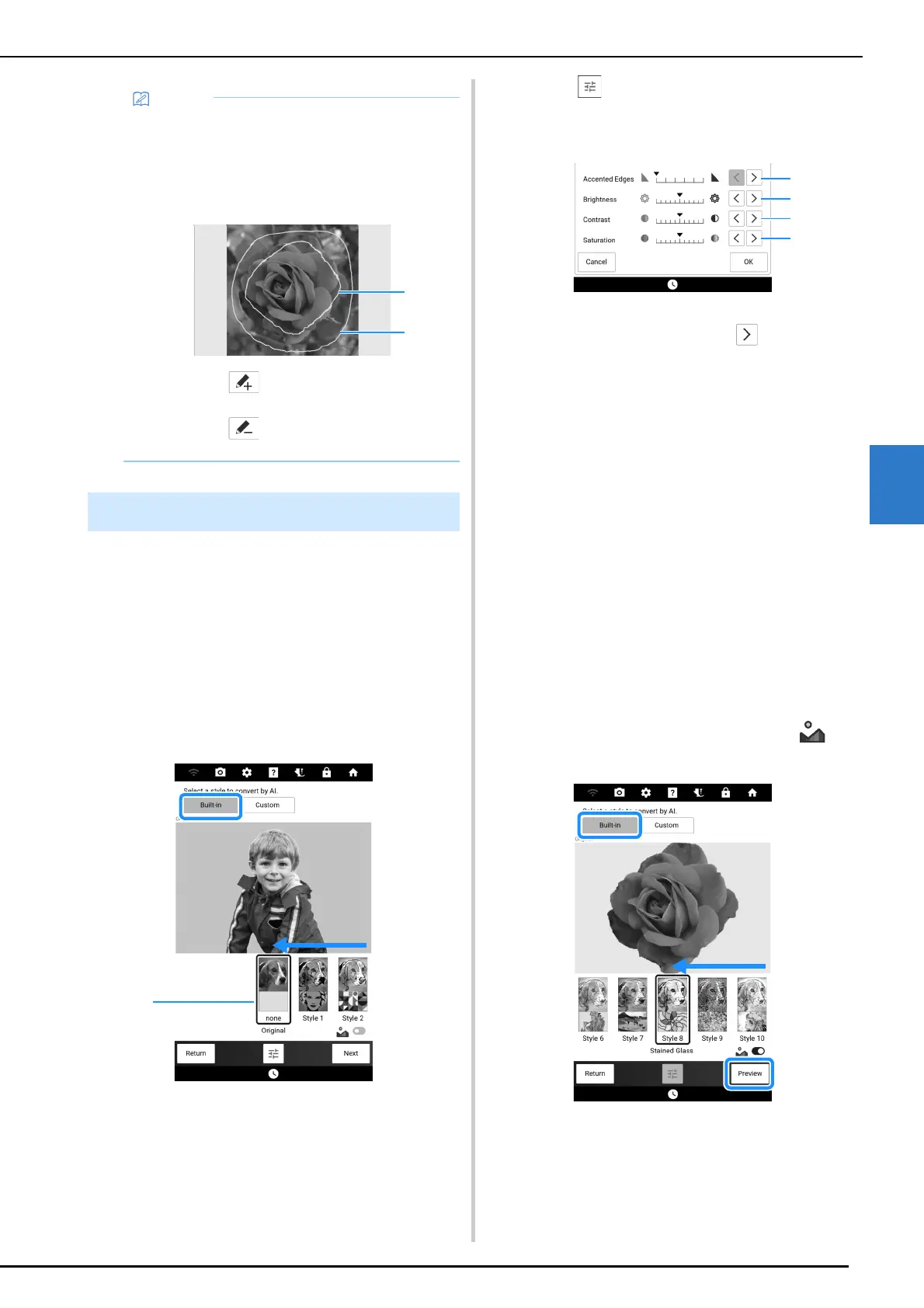
1 Make sure that [Original] is displayed in
the box.
a Box
2 Touch to adjust the image brightness,
etc.
Touch [OK] to apply the settings.
a Adjust the amount of emphasis applied to the
outline of the image. Touching repeatedly
makes the boundaries between bright and dark
areas clearer.
b Adjust the image brightness.
c Adjust the image contrast.
d Adjust the image saturation.
3 Touch [Next].
Proceed to “Selecting Appropriate Thread Colors
and Density” on page 183.
Using the [Built-in] Style
By applying any of the various built-in styles to an
image, you can create a variety of new images that
have a different impression from the original, then
convert them to embroidery data.
For this example, a photo of a flower will be
converted.
1 Swipe until your image with the desired
[Style] appears in the box. Switch on
or off. And then touch [Preview].
• To specify the cropping area before it is
detected, perform step
1 without touching
[Preview]. Roughly mark the areas to be and
not to be extracted in step
2, and then touch
[Preview]. And then continue with step
3.
a Select , and then use the pink pen to
mark areas to be extracted.
b Select , and then use the yellowish
green pen to mark areas not to be extracted.
Selecting the Conversion Method



 To Next Page