Useful Functions
74
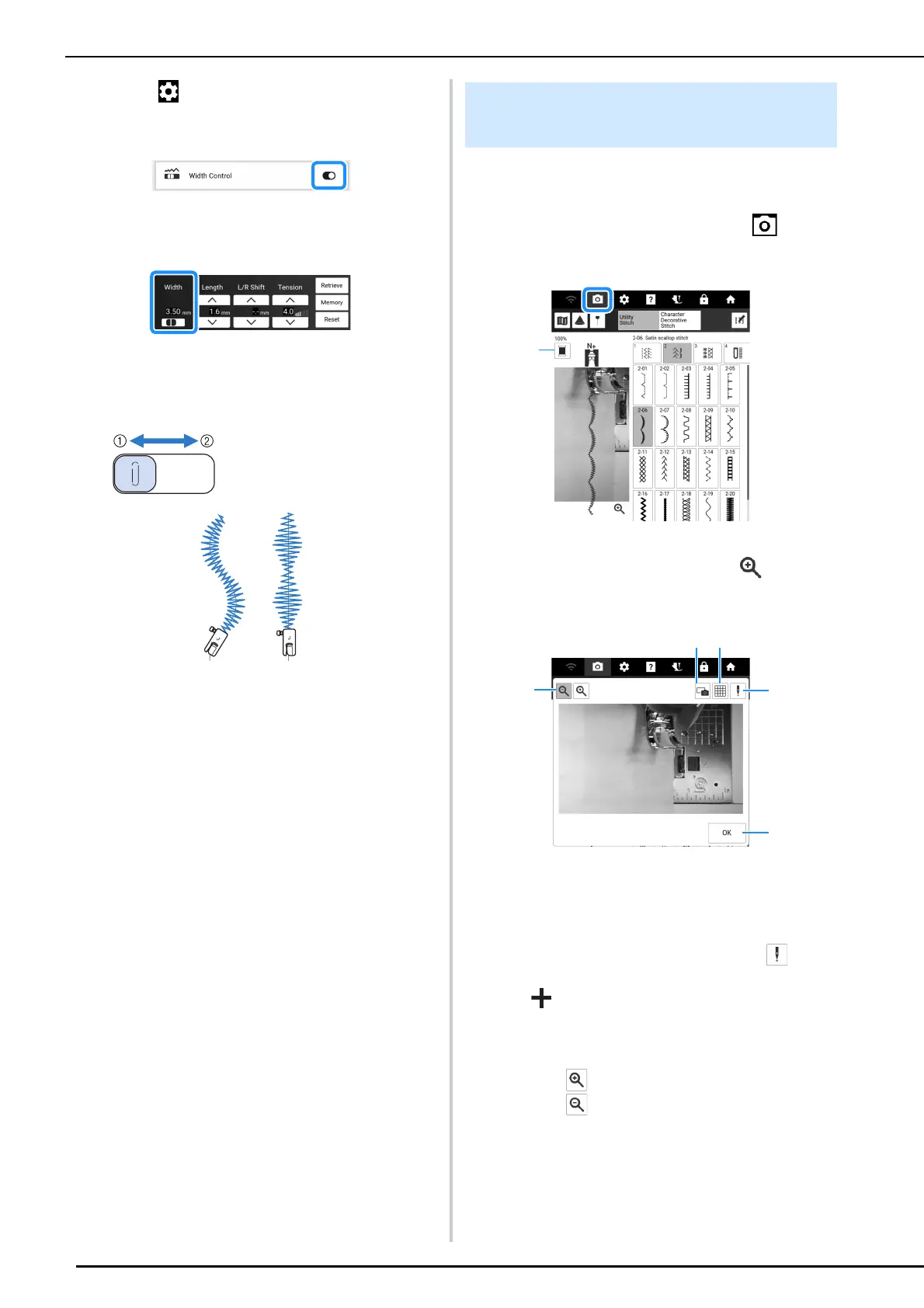
4 Touch to display [Width Control].
5 Set the [Width Control] to on.
6 Touch [OK].
The screen appears as shown below.
7 While sewing, slide the sewing speed
controller to adjust the stitch width.
* Adjust the sewing speed with the foot controller.
8 When you are finished sewing, set the
[Width Control] back to off.
You can check the stitch image with actual fabric
image on the screen.
1 Select a stitch, and then touch .
An image of the selected stitch and the actual
fabric image are displayed.
a Change the thread color displayed on the screen.
2 Touch on the fabric image or on the
screen.
The camera view window appears.
a Touch this key to save a camera image to the USB
media.
Insert the USB media to the machine to save a
camera image. (page 13)
b Touch this key to display a grid.
c Lower the presser foot, and then touch .
The needle drop point appears in the screen as
“”.
* When moving the fabric, raise the presser foot, and
then lower it again afterwards.
d Touch this key to close the screen.
e Touch to enlarge the image in the screen.
Touch again to return the image to its original
display size.
a narrower
b wider
Checking the Needle Location in
the Screen



 To Next Page