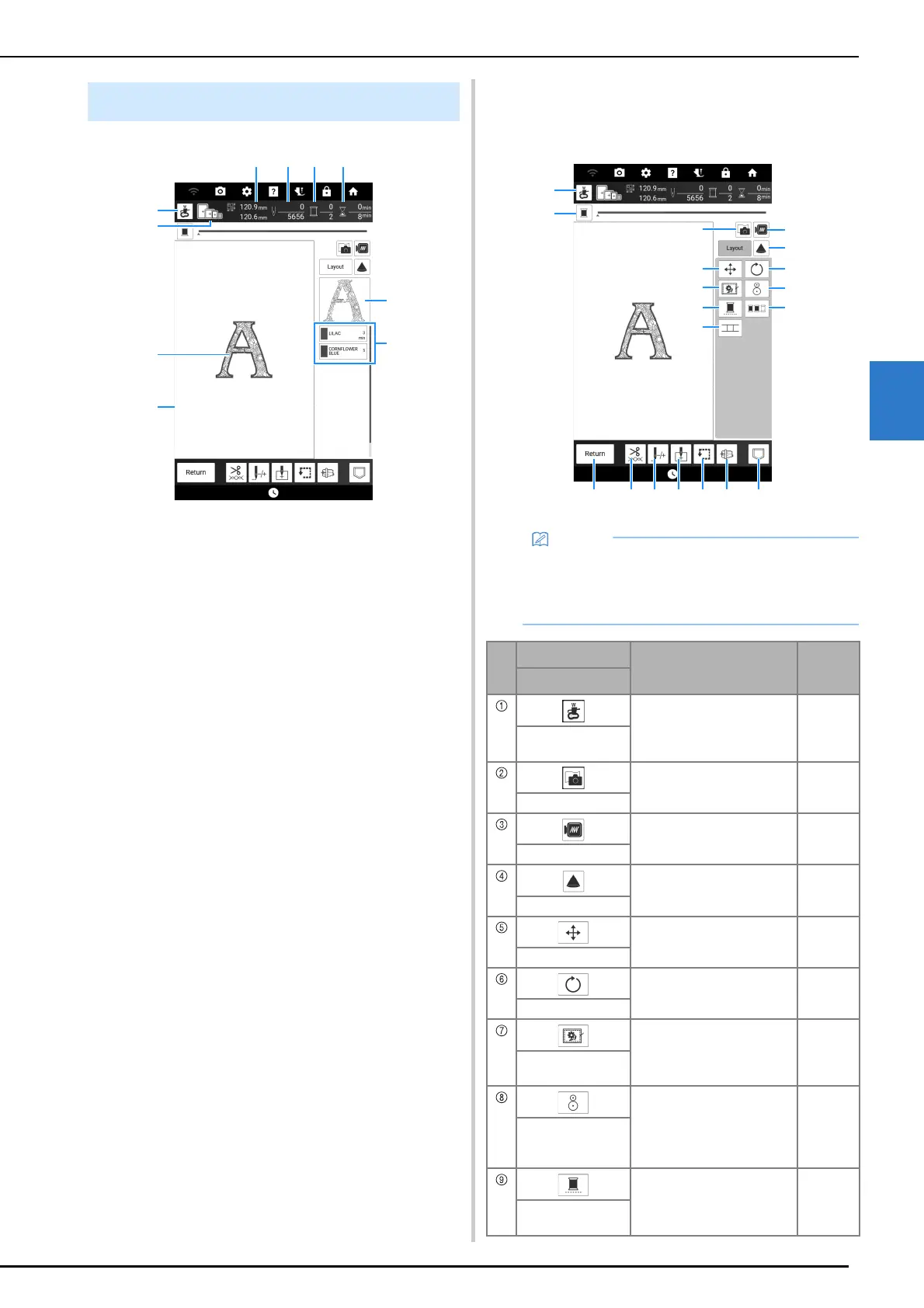
Key Functions (Embroidery)
Basic Embroidery
145
4
a Touch to check the needle drop point with the
projector. (page 139)
b Shows the embroidery frames that can be used for
the selected pattern. Be sure to use the proper
frame. (page 128)
c Shows a preview of the selected pattern.
d Shows the boundary for embroidering with the
selected frame in the settings screen. (page 25)
e Shows the size of the selected pattern.
f Shows how many stitches are in the selected
pattern and how many stitches have been
embroidered so far.
g Shows the number of colors in the selected pattern
and the number of the color currently being
embroidered.
h Shows the time necessary to embroider the pattern
and the time already spent embroidering the
pattern (not including time for changing thread
colors and automatically trimming the thread).
i Shows the part of the embroidery that will be
embroidered with the first thread color.
j Shows the order for thread color changes and the
embroidering time for each thread color.
* The displayed time is the approximate time that will
be required. The actual embroidering time may be
longer than the displayed time, depending on the
embroidery frame that is used. In addition, the
amount of time required to change thread colors is
not included.
[Layout] Window
Touch [Layout] to display the [Layout] window.
Embroidery Screen
• Some operations or functions are not available
for certain patterns. If the key appears in light
gray, you cannot use that function or operation
with the selected pattern.
No.
Display
Explanation
Reference
Name
Touch this key to check the
needle drop point with the
projector.
139
Needle point check
key
Touch this key to scan the
fabric to align the embroidery
position.
157
Fabric scan key
Touch this key for a preview
of the embroidered image.
153
Preview key
Touch this key to use the
projector to project the
pattern.
154
Projector key
Touch this key to display the
pattern moving window.
—
Move key
Touch this key to display the
pattern rotating window.
—
Rotate key
Touch this key to add the
basting stitch to the pattern.
You can set the desired
basting distance.
173
Basting key
Touch this key to align the
embroidering position using
the built-in camera and
embroidery positioning
sticker.
159
Embroidery
positioning key
Touch this key to embroider
the selected pattern with a
single color (monochrome).
171
Uninterrupted
embroidery key



 To Next Page