Editing Patterns
148
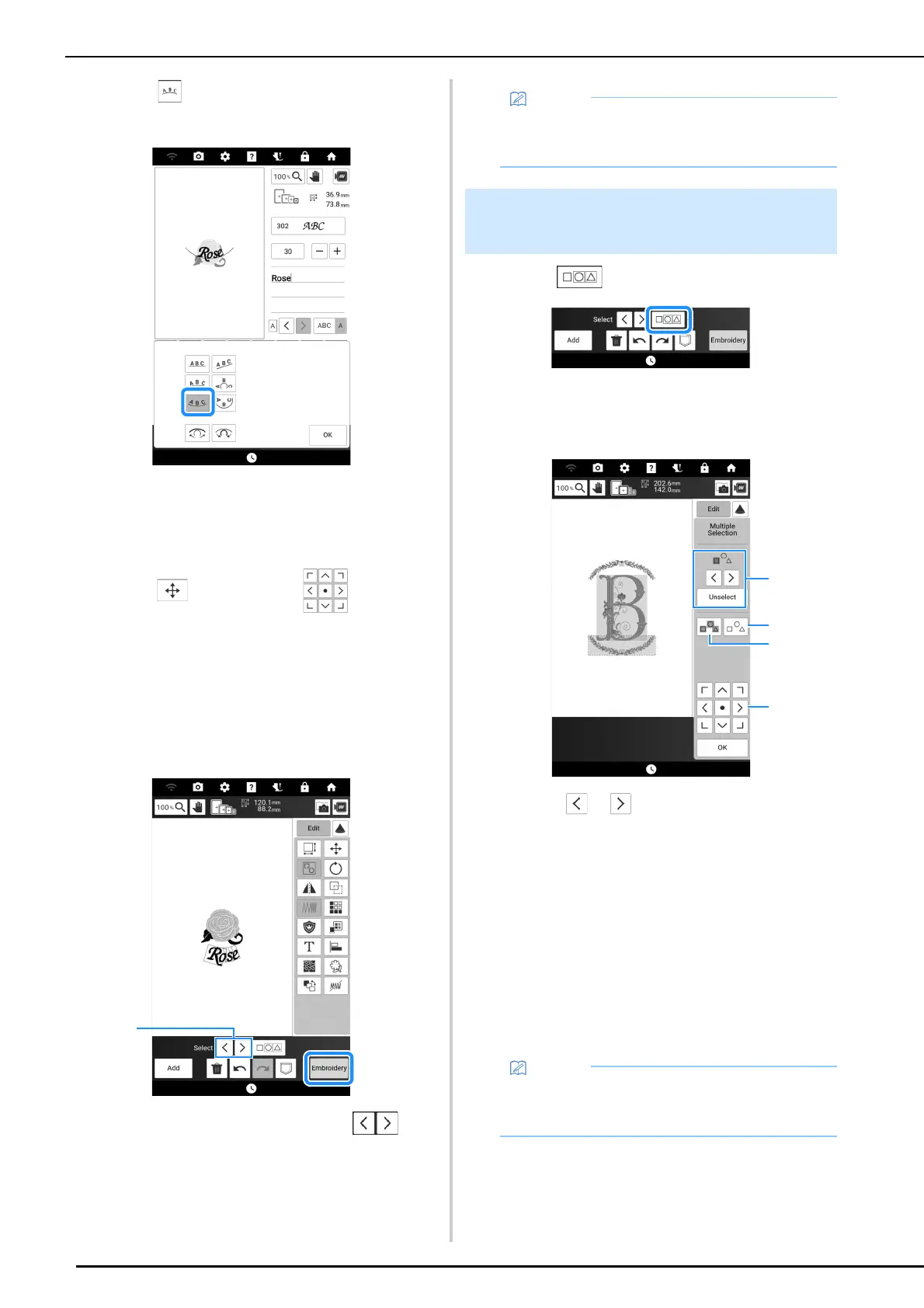
5 Touch to change the layout of the
characters. Touch [OK].
* Refer to page 144 for more information about
changing the layout.
6 Touch [Set] and then touch [Edit].
7 Touch and then use to move
the characters. Touch [OK].
* Patterns can also be moved by directly dragging
them with your finger or the included dual purpose
stylus.
8 When all editing is finished, touch
[Embroidery].
a If editing the combined patterns, use to
select the pattern to be edited. Patterns can also
be selected by directly touching the screen with
your finger or the included dual purpose stylus.
1 Touch .
2 Touch each pattern to select multiple
patterns.
a Touch or to check the patterns to be
selected, and then touch [Select] to select the
pattern. The selected patterns are surrounded with
a red box. To deselect the selected patterns, touch
[Unselect].
b Touch to deselect all selected patterns.
c Touch to select all patterns in the pattern display
area.
d While the Multiple Selection screen is displayed,
patterns can be moved with.
3 Touch [OK].
Each selected pattern is surrounded with a red
box.
• Combined patterns will be embroidered in the
order they were entered. You can change the
embroidering order. (page 172)
Selecting Multiple Patterns at the
Same Time
• Some editing keys appear in light gray and are
not available while multiple patterns are
selected.



 To Next Page