Updating Your Machine’s Software
258
Please be sure to reset the settings of your
machine to delete the following data.
• all saved data
• customized settings
• network information
1 Touch , and then touch [Reset] beside
[Reset to Default].
2 Touch [Reset].
Confirming the Machine Number
There may be circumstances where the machine
number is required.
1 Touch .
2 Display the settings screen below.
a Machine number (internal machine number)
Confirming the Serial Number
Confirm the rating plate on the back of the
machine.
a Serial number
You can update your machine’s software using
one of the two procedures.
When an update program is available on https://
s.brother/cpdae/ , please download the files
following the instructions on the website and
steps below.
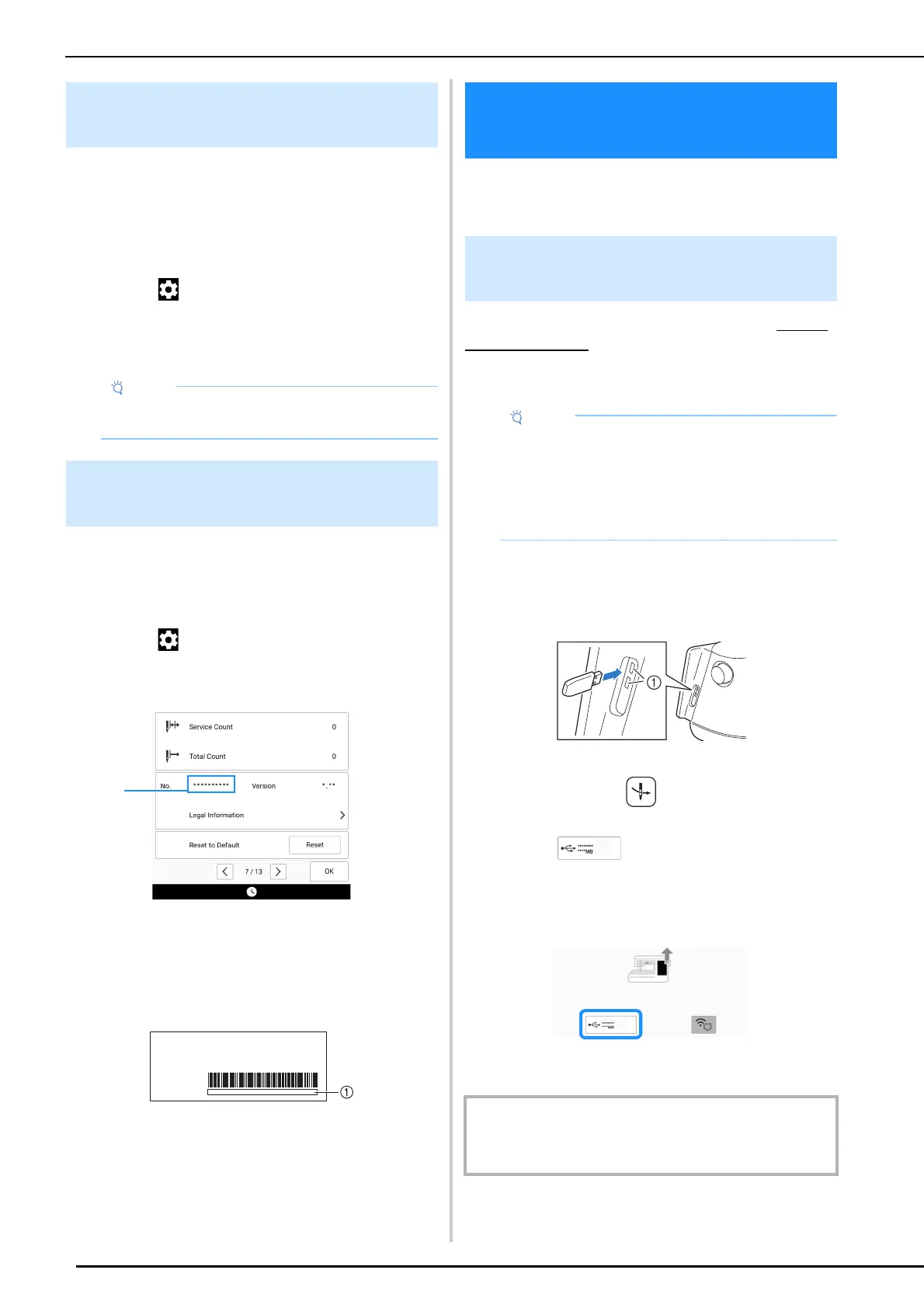
1 Insert the USB media into the USB port.
The media device should only contain the
update file.
a USB ports
2 While pressing (Automatic threading
button), turn the main power to ON.
3 Touch .
* If two USB media are connected to the machine,
check the USB media names that are displayed,
and then touch the name of the USB media that
you wish to use.
4 Touch [Load] to update the machine.
Before Lending or Disposing of
the Product
• Do not turn the main power to OFF while the
[Deleting...] screen is displayed.
Confirming the Machine Number/
Serial Number
Updating Your Machine’s
Software
Update Procedure Using USB
Media
• Check that no data other than the update file is
saved on the USB media being used before
starting to update.
• Some USB media may not be usable with this
machine. For compatible USB media, refer to
“Specifications” on page 271.
IMPORTANT
• Do not turn off the machine during the update. When
updating is finished, the completion message appears.



 To Next Page