Using a Mobile App
226
2 Install [My Design Snap].
Transferring an Image from a
Mobile Device to the Machine
1
Connect the machine to your wireless
network.
* Refer to “Wireless Network Connection Functions”
on page 31.
2 Confirm that your mobile device and your
machine are connected to the same
network.
3 Tap the icon on the mobile device for [My
Design Snap] to start the app.
4 Follow the instructions that appear in the
app to connect the app to your machine.
* Select the name that appears beside [Machine
name] in the settings screen on your machine.
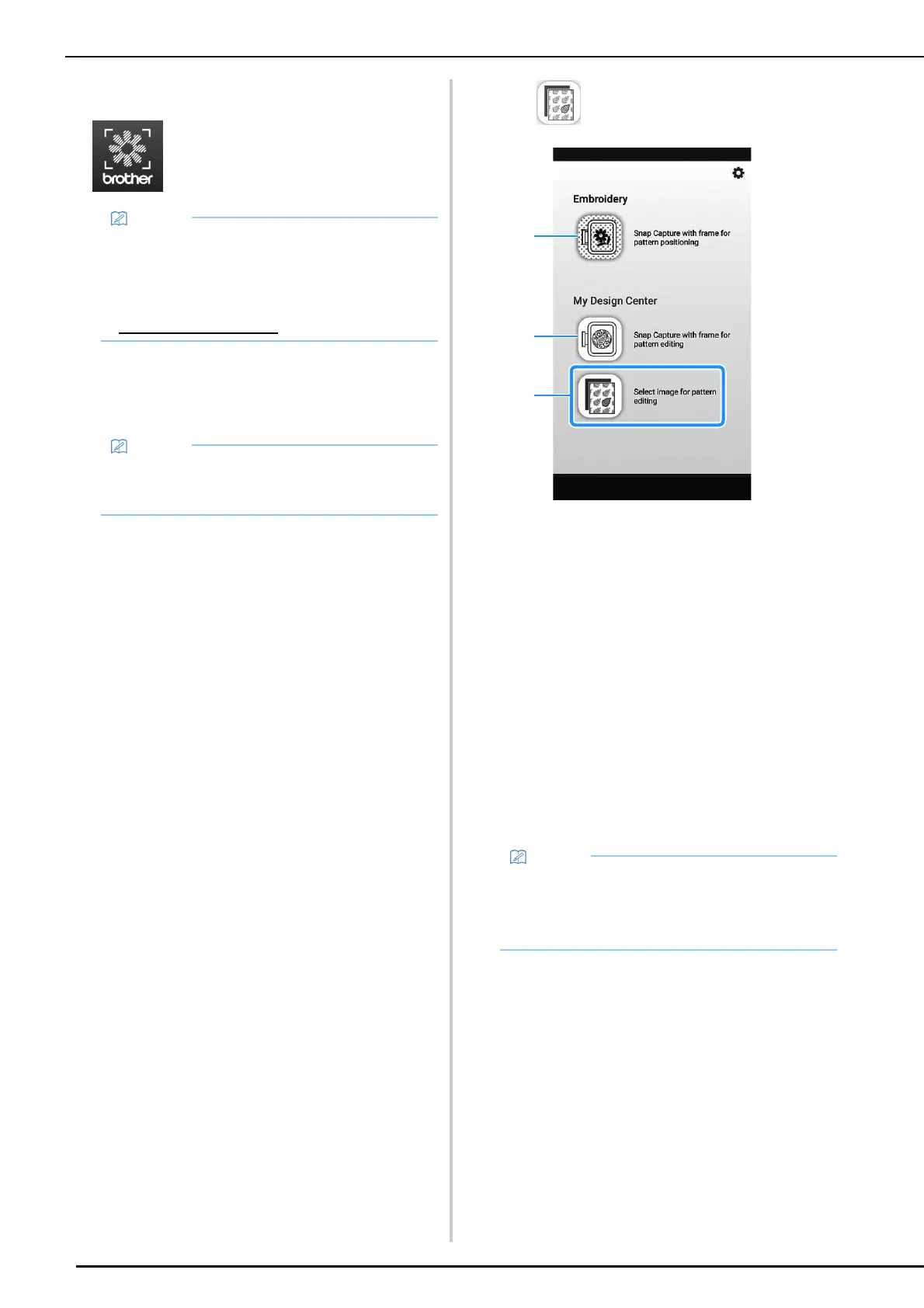
5 Tap .
a This icon is not available for your machine. It is for
machines that are not equipped with a camera.
Your machine will use the built-in camera to align
embroidery patterns. For details, refer to “Display
the Fabric on the Screen” on page 157.
b This icon is not available for your machine. It is for
machines that are not equipped with a camera.
Your machine will use the built-in camera to create
embroidery patterns in My Design Center. For
details, refer to “Create the Pattern Using Scanned
Images or Image Data Files” on page 241.
c This icon allows you to transfer an image from the
mobile device to the machine to create a design.
6 Select the image, then select [Send to the
Machine] to transfer it from the mobile
device to the machine.
You will receive confirmation in the app that the
image was successfully sent to the machine.
My Design Snap
• To download and install the app, you can also
search for [My Design Snap] in Google Play or
the App Store.
• Visit the following web site for support
information on the app.
https://s.brother/cpdae/
• The app will be updated from time to time. The
following descriptions may differ from the
actual screens and operations.
• To retrieve the transferred images, refer to
each function.
- Picture Play embroidery function (page 177)
- My Design Center (page 241)



 To Next Page