Create the Pattern Using Scanned Images or Image Data Files
246
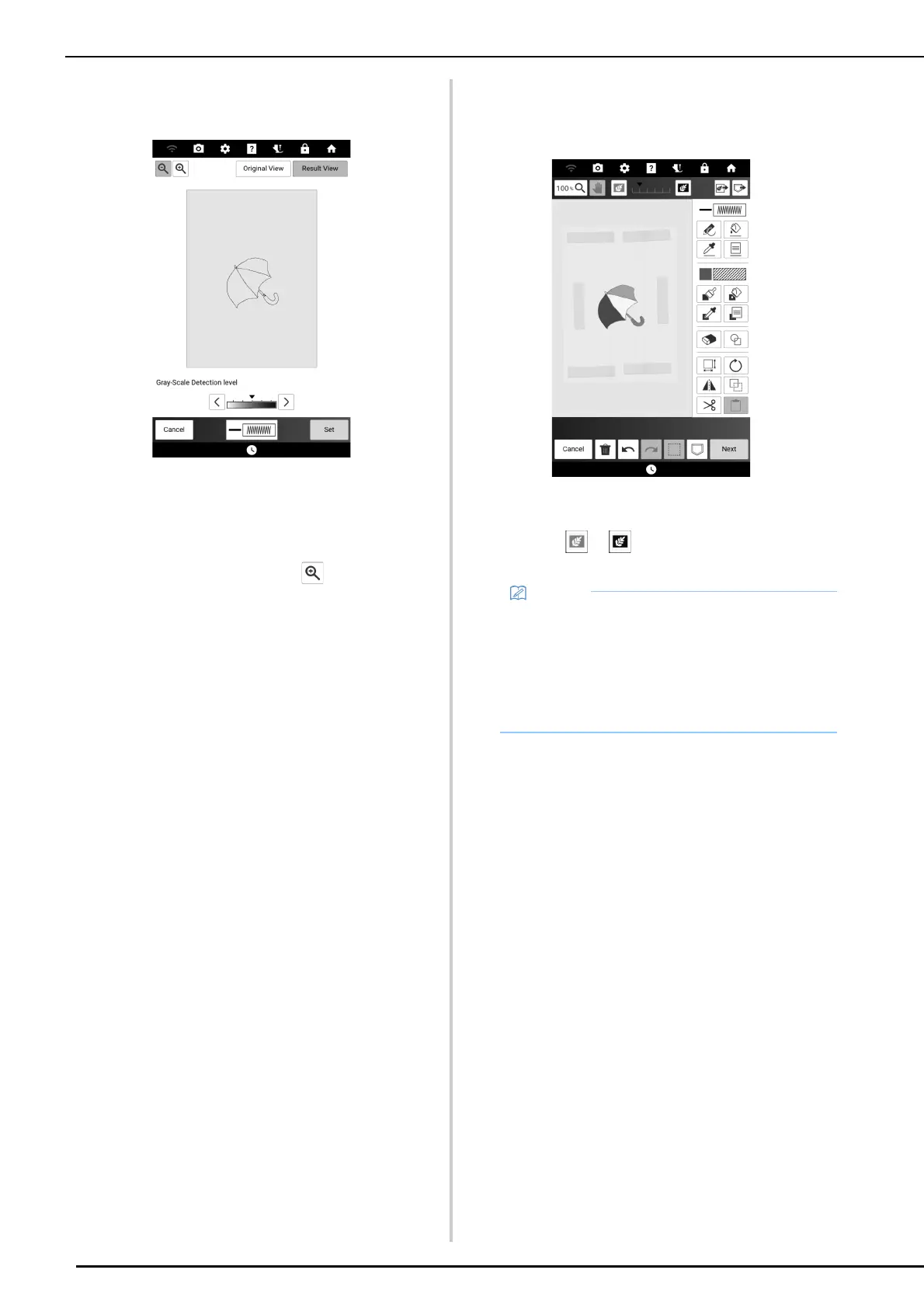
5 Confirm the converted image and then
touch [Set].
* Adjust the [Gray-Scale Detection level], the line
color and stitch type, if necessary. After changes to
the settings have been applied, [Set] changes to
[Retry]. Touch [Retry] to check that the image is as
desired.
* To enlarge the image, touch .
* To display the image before being converted,
touch [Original View].
6 If necessary, edit the design.
* Refer to “Key Functions (My Design Center)” on
page 230.
* After the image is converted to stitching, it appears
as a background in the pattern drawing screen.
Touch or to adjust the transparency of the
background.
• Small dots or unwanted lines can be erased
with the erase key. (page 235)
• Line drawings are converted without
recognizing the thickness of lines. If you want
to change the thickness of lines, specify in the
settings screen. Refer to “Stitch Settings
Screen” on page 238.



 To Next Page