Wireless Network Connection Functions
Getting Ready
33
1
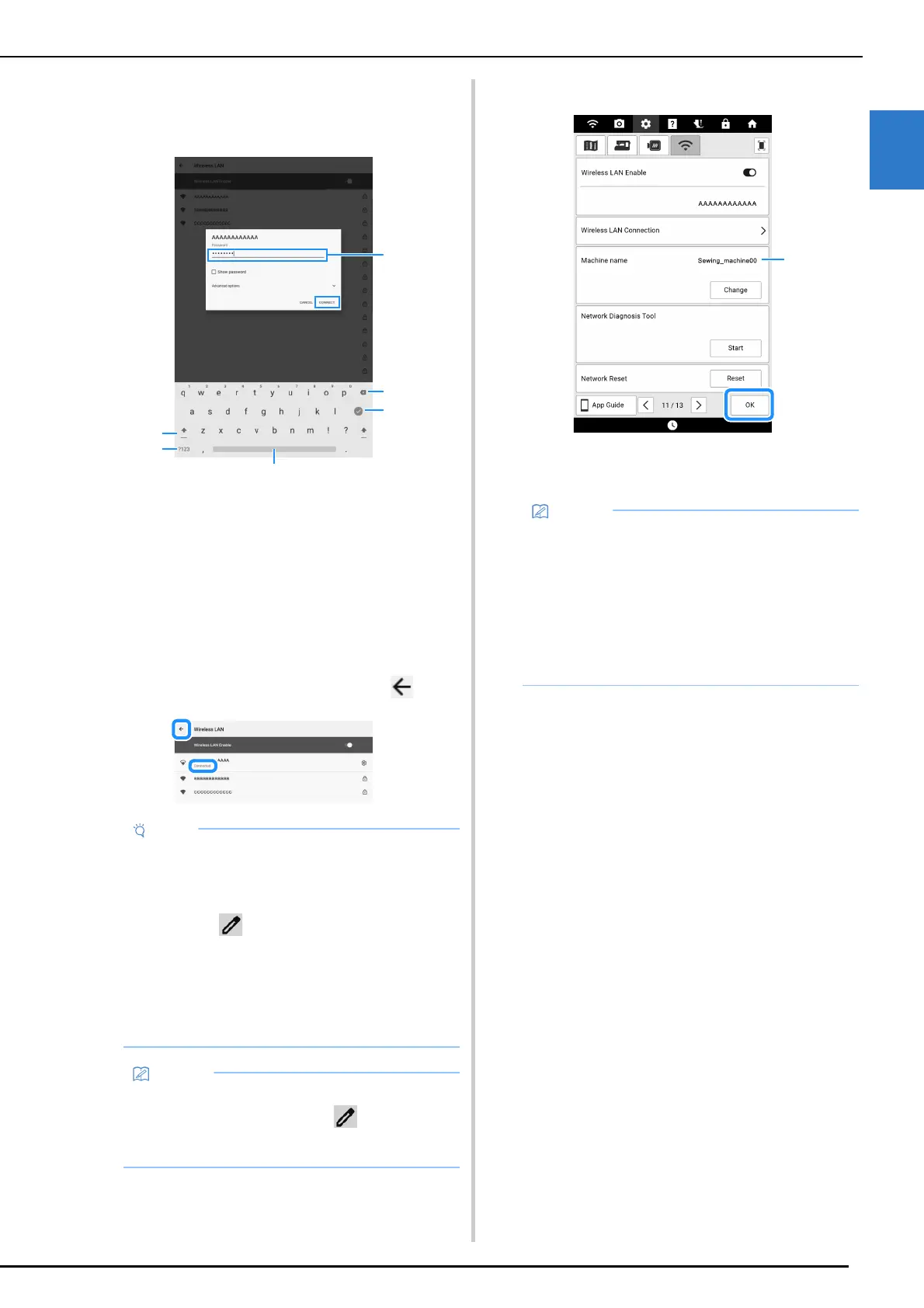
6 Enter the password (network key) that
was noted, and then touch [CONNECT].
a Text input area
b Backspace key (Deletes the character at the
cursor's position.)
c Touch to hide the keyboard. Touch the text input
area to display the keyboard again.
d Space key
e Letter/number selection key
f Uppercase/lowercase selection key
7 After confirming that [Connected] is
displayed under the SSID, touch .
8 Touch [OK] to exit the setup.
a The name in the [Machine name] field will be used
with the apps described in “Available Operations”
on page 31.
• If the password was entered incorrectly, touch
the SSID again, and then enter the correct
password. If the screen for entering the
password does not appear, touch its SSID
then touch in the appeared screen to
show the screen for entering password then
enter the correct password.
• If an incorrect SSID was selected, touch the
correct SSID. If an incorrect SSID was
manually entered, touch [Add network], and
then type in the necessary information.
• Touch the connected SSID to display its
detailed information. Touch in the upper-
right corner and display [Advanced options] to
specify the IP address and proxy settings.
• While connected, the signal strength is
indicated by the icon in the upper-left corner of
the display.
• Once a wireless network connection has been
set up, a wireless network connection will be
established each time the machine is turned
on. However, [Wireless LAN Enable] in the
Wireless LAN settings screen must remain set
to on.



 To Next Page