Appendix A: Maintenance and Troubleshooting
21-6 SkyView System Installation Guide - Revision AA
c. Confirm all SkyView Network components are found, including ALL displays that
are in the aircraft.
d. Exit Setup mode.
8. On the recently repaired display, confirm that the tail number under SYSTEM SETUP >
AICRAFT INFORMATION is now set to the actual aircraft tail number, not DYNON. This
implies that all settings and configurations have been synchronized from the other
display.
In a Multi-display SkyView System, Continuing to Fly with a Missing Display
In a multi-display SkyView system, the system can continue to operate with only one SkyView
display. However, this capability depends on all SkyView Network connections being intact so
that the remaining SkyView display is electrically connected to all SkyView Network devices.
Each SkyView display has two SkyView Network connections on the back. In the event of a
failure of a SkyView display, the two SkyView Network connectors are “electrically common”;
even if the SkyView display is failed or powered off, all pins of the upper connector are
electrically connected to all pins of the lower connector.
If both SkyView Network connectors are used, when the SkyView display is removed, there is a
“disconnect” from the SkyView Network devices connected to the upper SkyView Network
connector, and the lower SkyView Network connector.
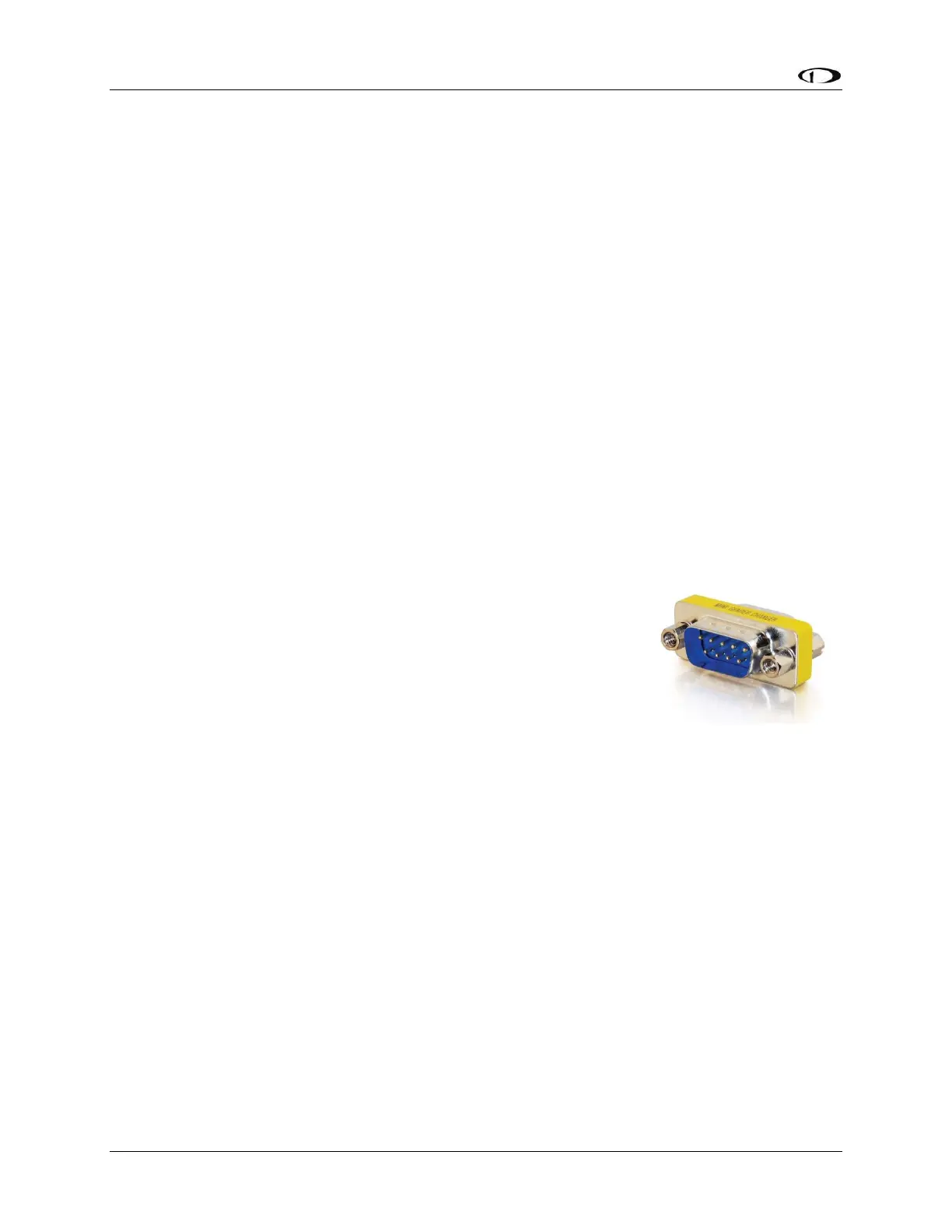
This is most easily remedied by the installation of a D9M -to-D9M
adapter (Figure 209, pictured at right) to “bypass” the removed
SkyView display’s SkyView Network connections. This connector
connects Pin 1 to Pin 1, Pin 2 to Pin 2, etc. This adapter “electrically
replaces” the missing SkyView display to allow the remaining SkyView
display to communicate with all SkyView Network devices. This
adapter can also be easily fabricated with 2 D9M connectors –
connect all pins “straight through” – Pin 1 to Pin, Pin 2 to Pin 2, etc.
This part pictured in Figure 209 – SkyView Network Bypass Adapter, is
available from Dynon Avionics Sales, P/N 101267-000.
If only one SkyView Network connector is used on the back of the SkyView display is used, then
there is no impact to the SkyView Network from the removal of that SkyView display.
SV-ADAHRS-200/201 Modules
1. Reinstall the ADAHRS in the aircraft.
2. Reconnect all harnesses and connections as originally installed.
3. Power up the entire SkyView System (all displays, modules, servos, etc.).
4. From any display in the aircraft, reconfigure SkyView Network under SETUP MENU >
SYSTEM SETUP > SKYVIEW NETWORK SETUP > CONFIGURE…
5. Confirm all SkyView Network components are found, including the reinstalled ADAHRS.
6. If the ADAHRS is the same serial number as the one you returned for repair, no further
actions should be required. However, Dynon Avionics recommends double checking the










 To Next Page