Basic SkyView Display Operation
3-18 SkyView System Installation Guide - Revision AA
How to Update Software
1. Download the latest SkyView Software file from http://downloads.dynonavionics.com.
2. Copy the Software file onto your USB flash drive. The Software file must be in the root
directory of the drive in order to be recognizable by the SkyView display.
3. Insert the USB flash drive into one of the SkyView display’s USB ports.
4. SETUP MENU > SYSTEM SOFTWARE > UPGRADE SYSTEM SOFTWARE…) > (one more right
click).
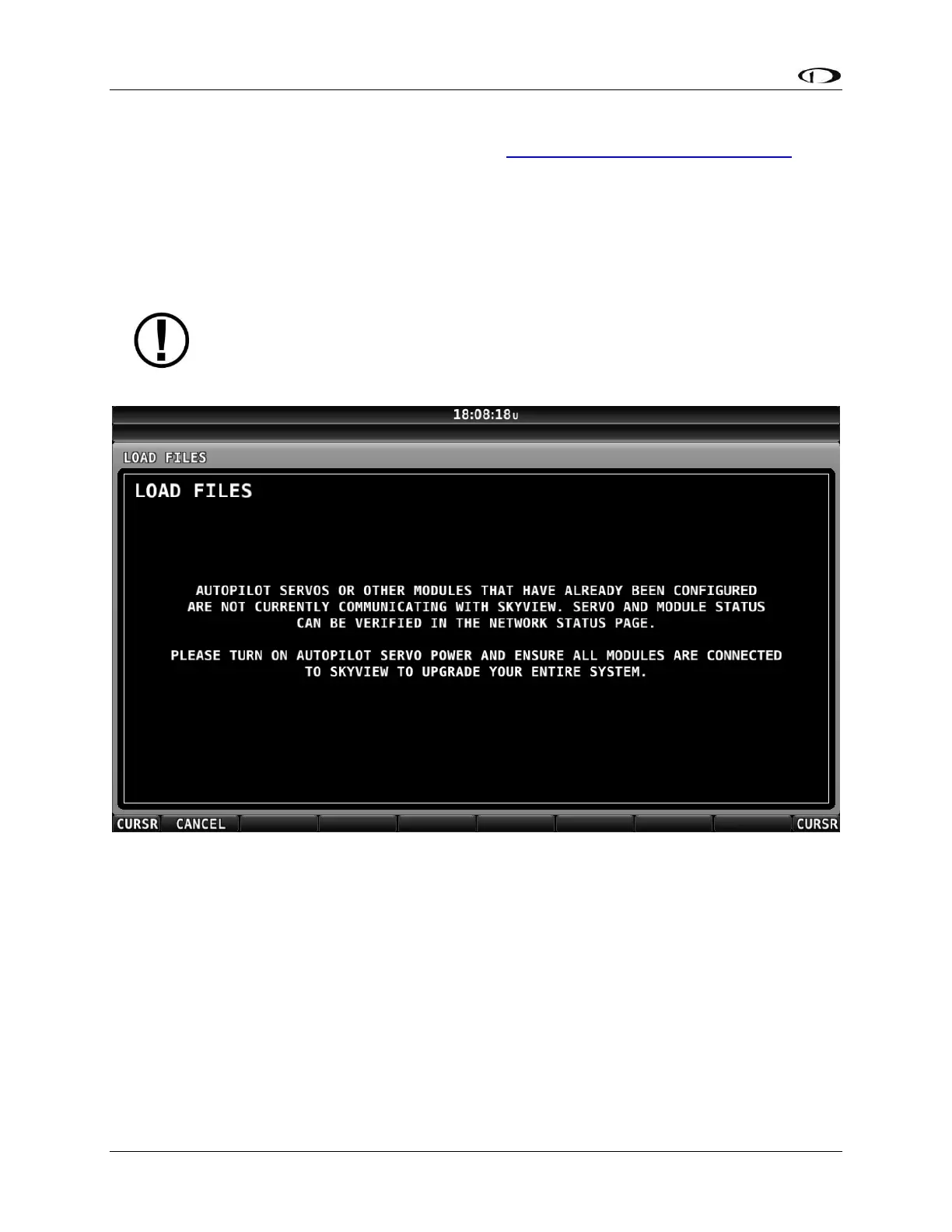
If some SkyView Network modules (or other displays) are not powered on or
connected to the SkyView network, you will see a screen that is similar to Figure 17
below.
Figure 17 – Some SkyView Network devices not online, cannot update
If you see a screen similar to the one in Figure 17 above, power on or reconnect all SkyView
Network devices. This error is typically caused by Autopilot servos or SV-COM-C25 radio not
being powered on.
5. Update the Software on the unit by pressing UPDATE or press CANCEL to return to the
SYSTEM SOFTWARE Menu.
6. To aid in troubleshooting, during the Software update process, your SkyView system’s
previous configuration files are automatically written to the USB flash drive in a
subdirectory (folder) called “settings_archive”:
TAILNUMBER_SNXXXX_SOFTWAREVERSION_SENSORS_SW_UPGRADE.sfg










 To Next Page