SV-XPNDR-261/262 Installation and Configuration
11-30 SkyView System Installation Guide - Revision AA
SV-XPNDR-261/262 Software Updates
If your SkyView or SkyView SE system has more than one SkyView display, before
you commence with the SV-XPNDR-261/262 Software update, it is recommended
to power off all but one SkyView display. Doing so will reduce the power drain on
your aircraft electrical system during the SV-XPNDR-261/262 Software update, and
minimize the chances of any interruptions to the update process while it is
underway.
You can power off an individual display by pushing and holding Button 1 on the
display to be powered off.
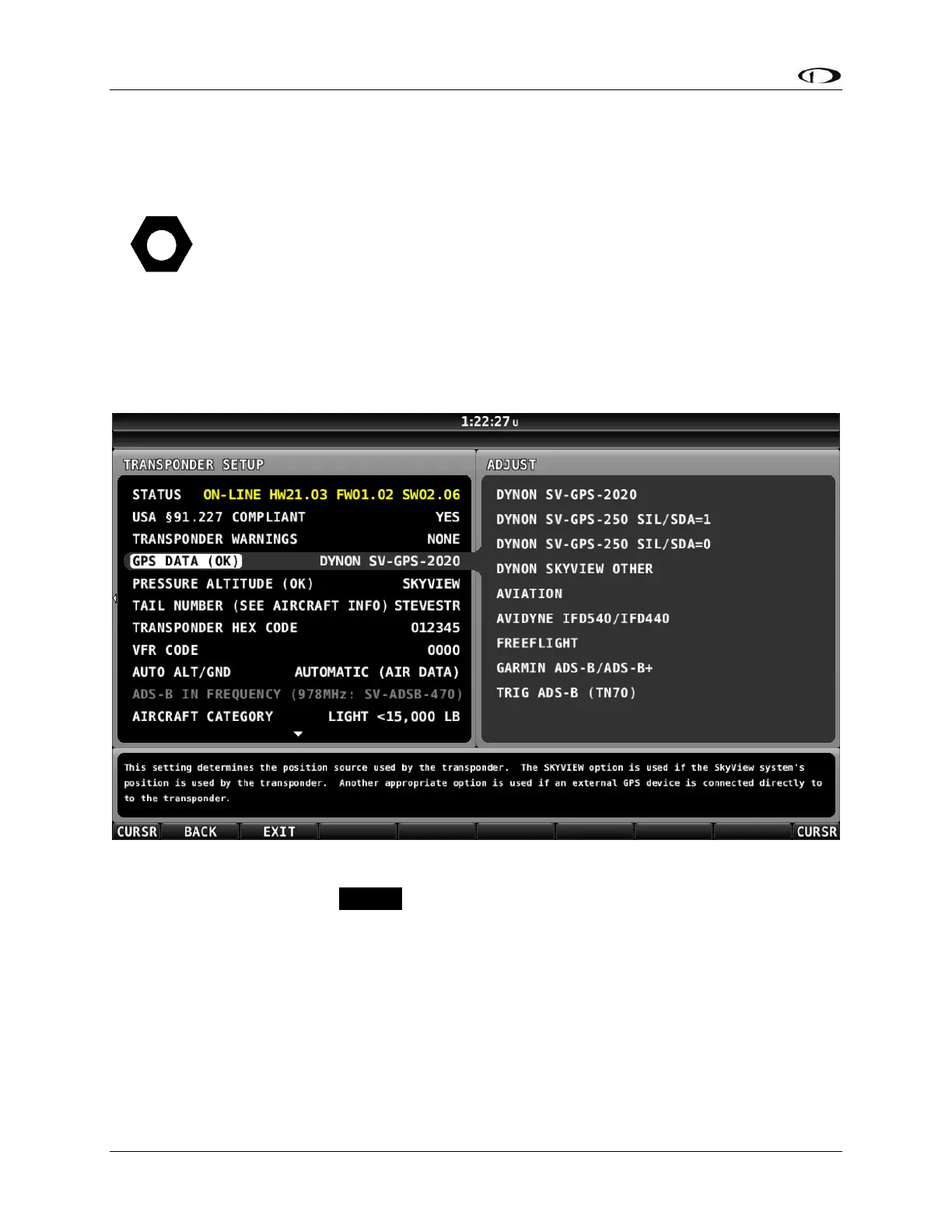
To determine your SV-XPNDR-261/262’s Software version, go to SETUP MENU > TRANSPONDER
SETUP and observe the STATUS line, as illustrated in Figure 140 below.
Figure 140 – SV-XPNDR-261/262 Software Update Available
If the STATUS line is shown in YELLOW, a Software update for the SV-XPNDR-261/262 is
available from the SkyView display.
If the STATUS line is shown in White (normal), as illustrated in Figure 144 below, the SV-XPNDR-
261/262 Software is up-to-date with the Software update available in the current version of
SkyView Software currently installed on your SkyView display.
To update your SV-XPNDR-261/262, select STATUS and right-click. You will see the screen
shown in Figure 141 below.










 To Next Page