Basic SkyView Display Operation
SkyView System Installation Guide - Revision AA 3-5
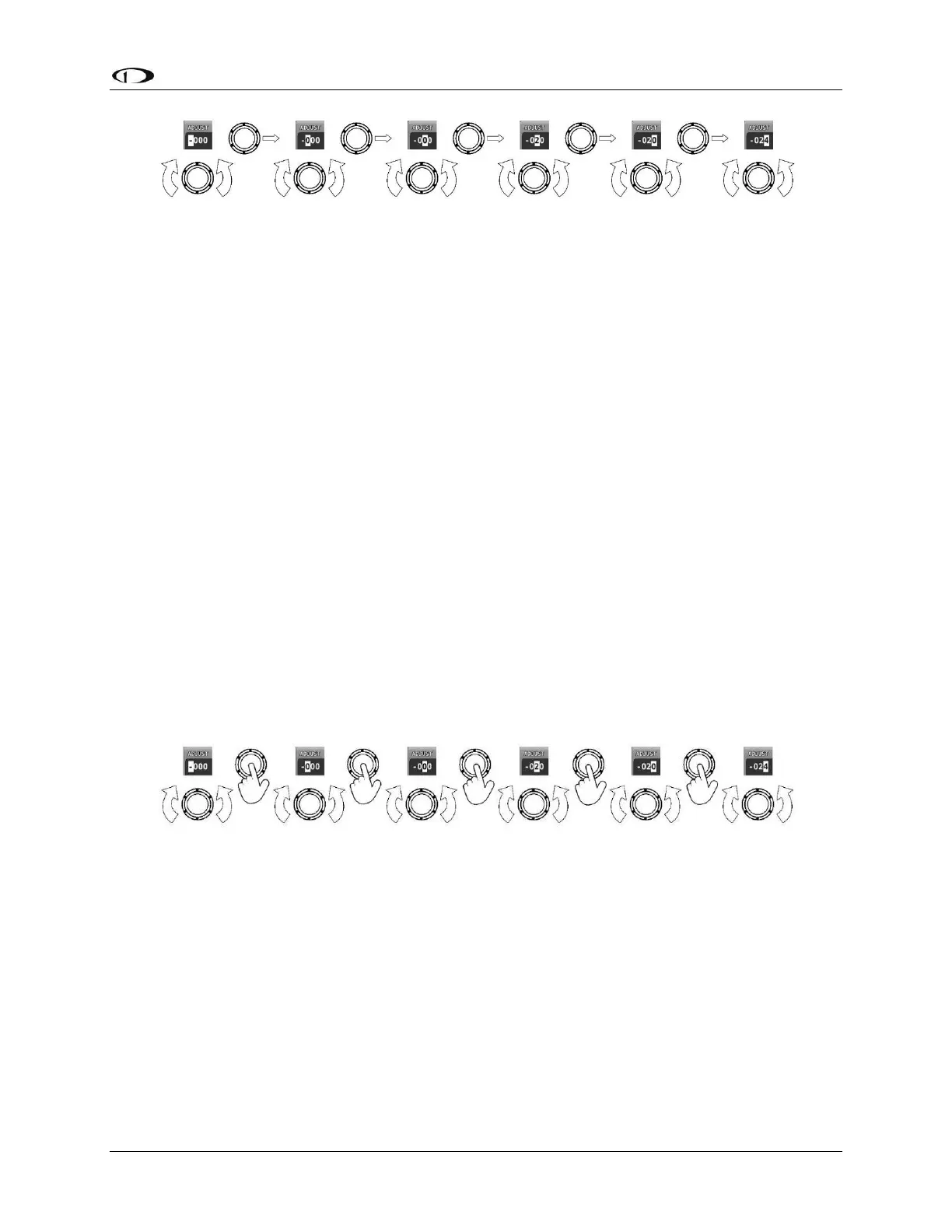
Figure 14 – Adjusting Successive Characters in SkyView Classic and SkyView SE
In this example, the first time you turn the joystick, you toggle between the “-“ and “+”
symbols. To change the succeeding characters, you must move the cursor joystick to the right.
In this example, you first adjust the “-” or “+” character, move the joystick right, then adjust the
one hundreds digit, and so forth. Once you have adjusted the value appropriately, press
ACCEPT or move the joystick to the right again.
At times, the next item in the menu path in this guide may be a joystick selection OR a button
push—the correct choice will be apparent.
SkyView Touch – Touch Interface Features Not Used in Setup Menus
Touch interface features are not enabled in the SV-D1000T’s Setup Menu; touch interface
features are not generally used during installation and initial setup.
In normal operation, in addition to using the conventional buttons and joystick knobs, many of
the on-screen elements can be touched to control SkyView. Details about how touch is used in
normal operation are covered in the SkyView Classic Pilot’s User Guide.
SkyView HDX Knob and Button Operation Example
When a parameter needs to be adjusted, the SkyView HDX’s knob / button is used to change
the parameter. When setting values with the knob, each character (symbol, letter or digit) must
be selected and adjusted successively.
Figure 15 – Adjusting Successive Characters in SkyView HDX
When the parameter is first displayed, the most significant (left-most) field is highlighted.
Rotate the knob clockwise to increment the parameter, or counter-clockwise to decrement the
parameter. In this example, the first time you rotate the knob, you toggle between the “-“ and
“+” symbols.
After changing the parameter to the desired value, push the knob (pushbutton) to accept the
desired value. The cursor will automatically change to the next field (to the right). Once you
have adjusted the value appropriately (finished entering the desired data), pushing the knob
will generally accept the entire value and return to the menu. Occasionally, it is necessary to
press ACCEPT button (on the keypad).










 To Next Page