Appendix H: Checklists
SkyView HDX System Installation Manual - Revision E 30-3
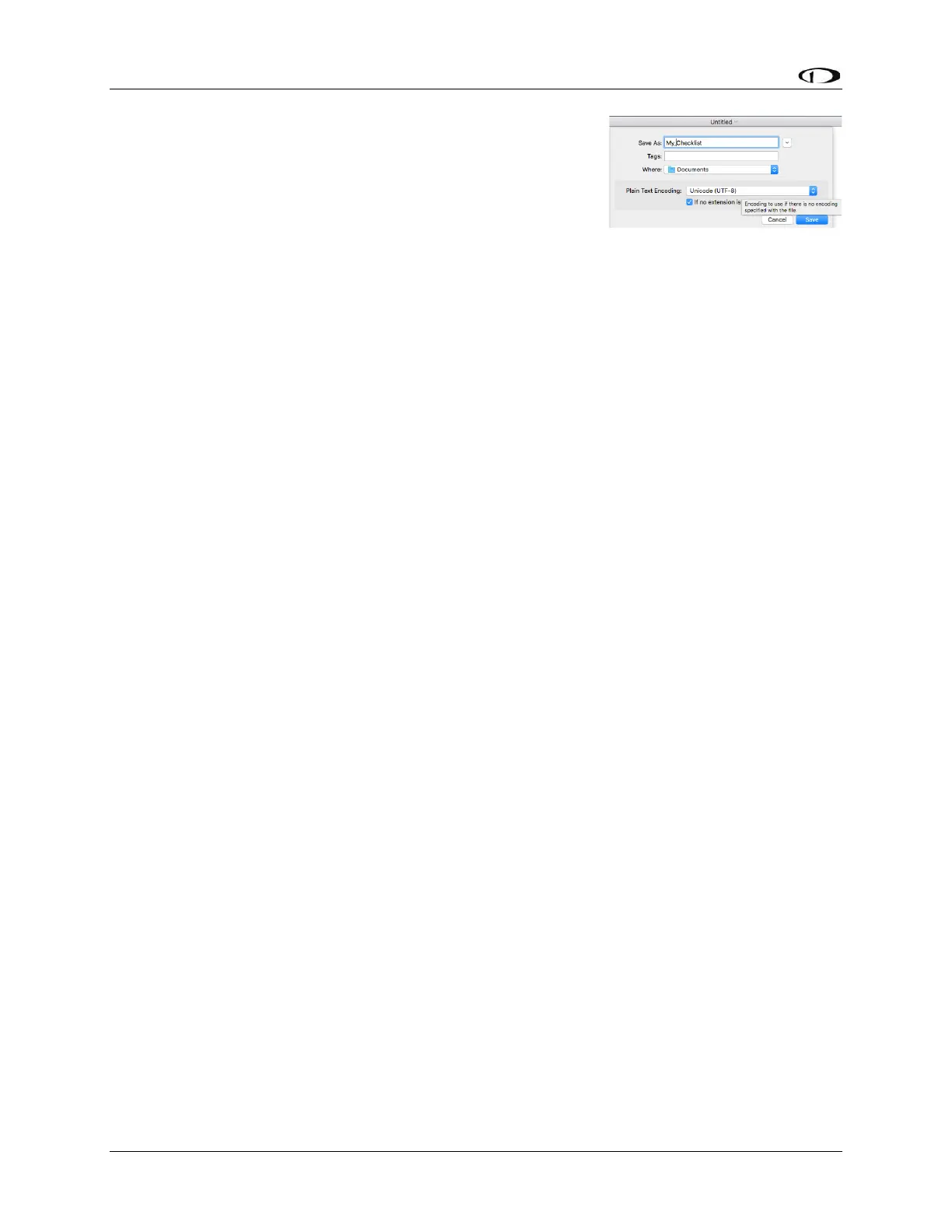
Then, follow steps 13-18 as illustrated in Figure 154 at right
(step 12 and step 19 not shown):
12. On the TextEdit menu bar, click File, then Save.
13. Fill in Save As: with your checklist filename.
14. Ignore Tags:
15. Select the name of your USB flash drive (this is
where you will save your Checklist file); example:
DYNON AVIONICS or KINGSTON:
• (older versions of Mac OS) Change Where: to the name of your USB flash
drive.
• (newer versions of Mac OS, Where: will not be shown) In the left column of the
Finder, under Devices, click on (the name of) your USB flash drive.
16. Ensure Plain Text Encoding: is set to Unicode (UTF-8).
17. Ensure the box for If no extension is provided, use “.txt” is checked.
18. Click the Save button.
19. In the left column of the Finder, next to the name of your USB flash drive, click on
the “Eject button” to close all files on your USB flash drive before physically
removing the USB flash drive from your Mac.
Windows Notepad
To save a Checklist file in Windows Notepad using “UTF-8 Character Encoding, follow
these steps:
1. Click on File.
2. Click on Save As…
3. On the left side of the window, click on the drive letter of the USB flash drive. This
will ensure that the Checklist file will be saved to the USB flash drive. Example:
Drive F: (but your computer may assign a different drive letter).
4. File Name: (fill in your preferred filename for your Checklist file).
5. Save as type: Text Documents (*.txt).
6. Encoding: Pull down and select UTF-8.
7. Click the Save button.
Steps 4-7 are illustrated in Figure 155 below:


 To Next Page