4200-900-01 Rev. K / February 2017 Return to Section Topics 2-27
Model 4200-SCS User’s Manual Section 2: Model 4200-SCS Software Environment
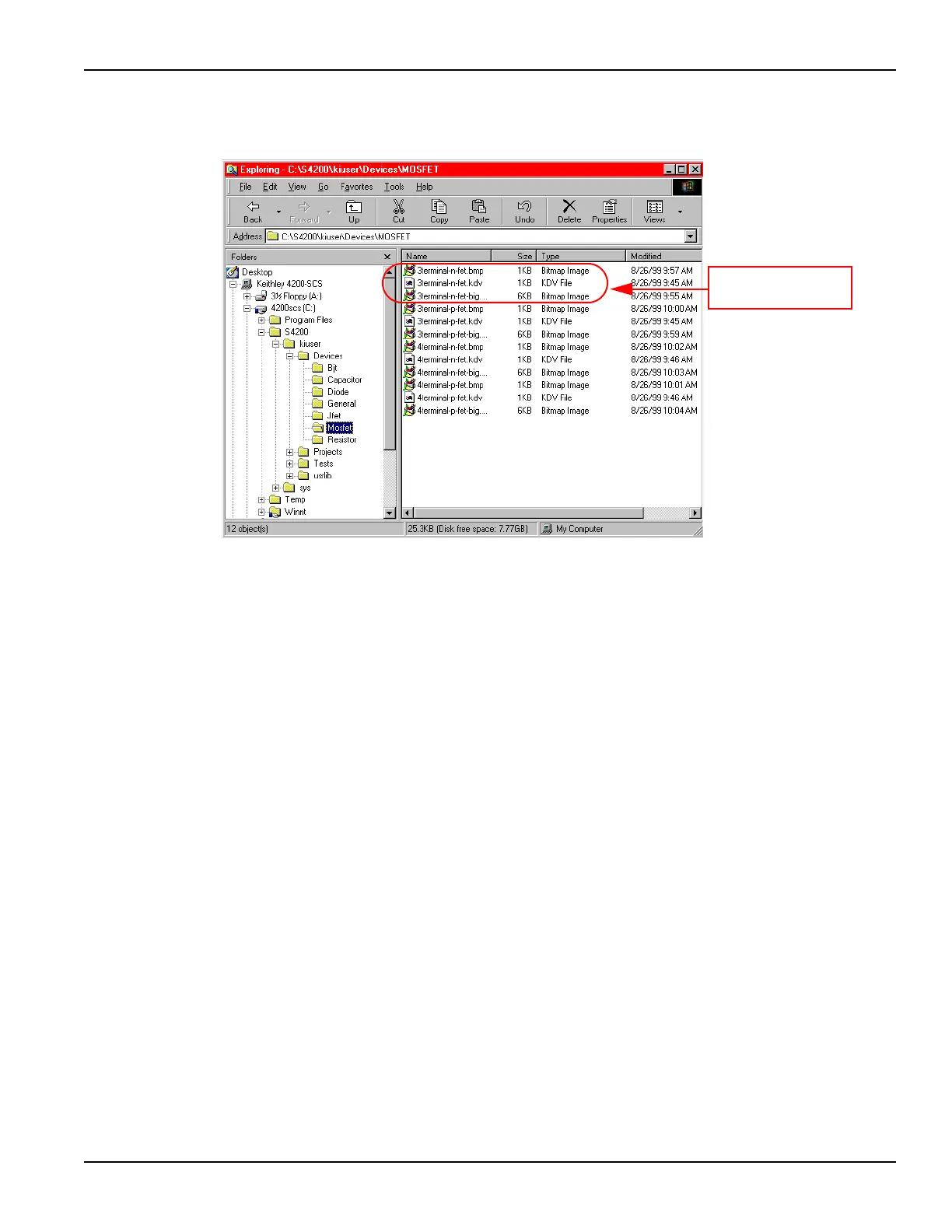
Figure 2-17
Device files
How to create and add a new device
To create a new device, you must create three files:
• The Keithley device (.kdv) file.
• The small bitmap; 16 x 16 dpi (.bmp) file for the project navigator device icon.
• The large bitmap; 120x100 dpi (.bmp) file for the ITM definition tab device graphic.
The .kdv file can be modified using text editing software, such as Microsoft
®
Notepad
®
. The .bmp
files can be modified using bitmap editing software, such as Microsoft
®
Paint
®
.
The following procedure illustrates how to add a new device, named new-mosfet, to the
default Device Library:
1. In the C:\S4200\kiuser\Devices\MOSFET directory, locate the following three files,
which define the existing library device called 3terminal-n-fet:
• 3terminal-n-fet.kdv.
• 3terminal-n-fet.bmp for the project navigator device icon.
• 3terminal-n-fet-big.bmp for the ITM definition tab device graphic.
2.Copy 3terminal-n-fet.bmp to a new file called new-mosfet.bmp.
3. If required, modify new-mosfet.bmp using Microsoft
®
Paint
®
.
4.Copy 3terminal-n-fet-big.bmp file to a new file called new-mosfet-big.bmp.
5. If required, modify the new bitmap using Microsoft
®
Paint
®
.
6. Copy the 3terminal-n-fet.kdv file to a new file called new-mosfet.kdv.
7. Edit the new-mosfet.kdv file with Notepad® by replacing all occurrences of
“3terminal-n-fet” with “new-mosfet”.
The edited new-mosfet.kdv file should appear as shown in Figure 2-18. All six lines are
required.
The three files that define
the 3terminal-n-fet device


 To Next Page