Picture Play Embroidery Function
178
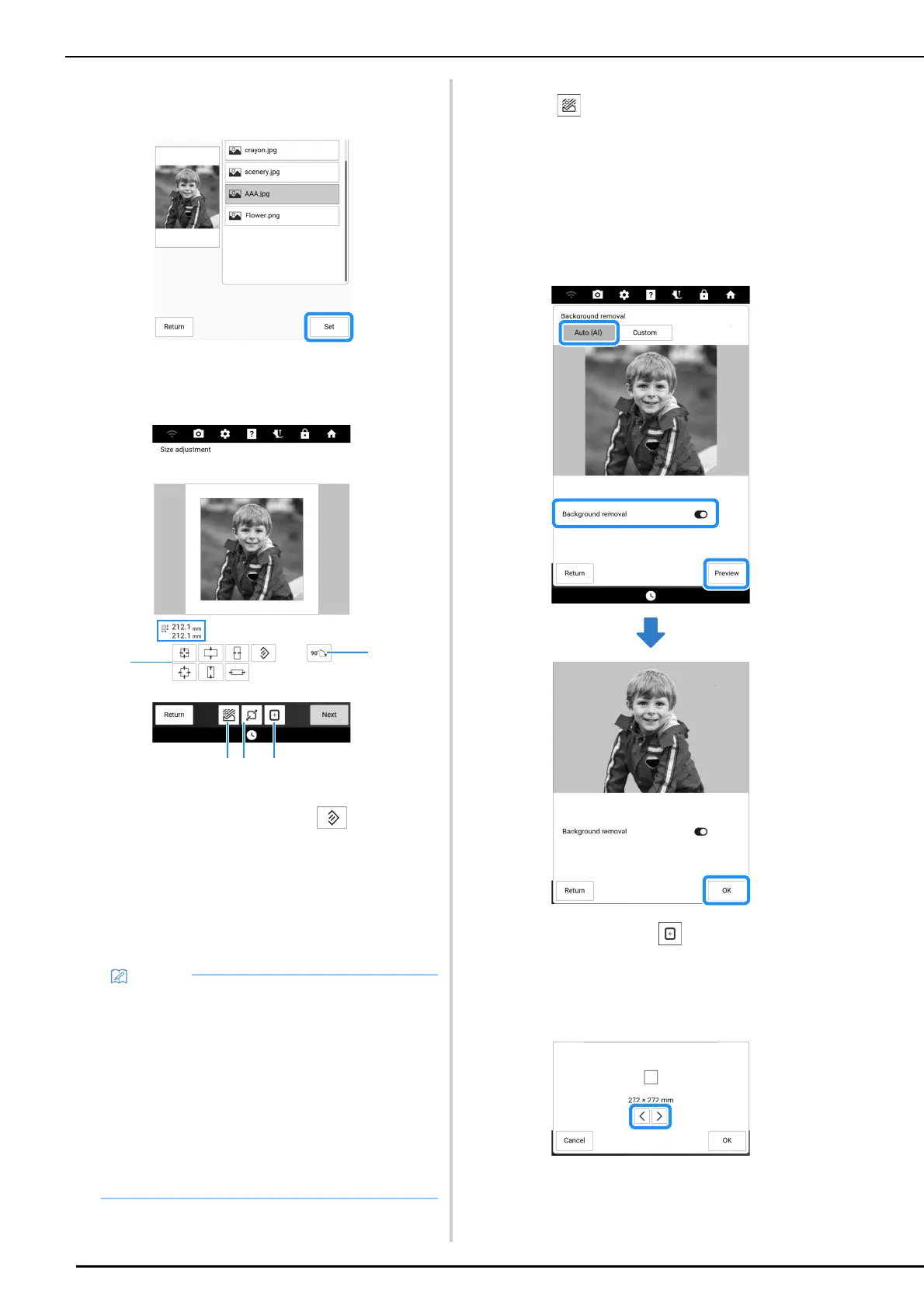
4 Select the image to be retrieved, and then
touch [Set].
5 Check the embroidery pattern size and
adjust it.
a Change the size of the image data file. In order to
return to its original size, touch .
b Rotate the image data file 90 degrees.
c Change the size to fit the embroidery frame size.
(Refer to step
7)
d Frame an area of the image. (Refer to “Framing the
Image” on page 179)
e Remove the background. (Refer to step
6)
6 If necessary, remove the background.
Touch , select [Auto (AI)], and then
switch on [Background removal]. Touch
[Preview] to confirm the cropping area,
and then touch [OK].
* If [Auto (AI)] is selected and [Background removal]
is set to on, the machine will automatically remove
the background. If the desired results are not
achieved, refer to “Removing the Background in
[Custom] Mode” on page 179.
7 If necessary, touch to change the size
of the pattern to fit the selected
embroidery frame size.
* The embroidery frames that can be used with this
function are listed.
• The recommended sizes of embroidery
patterns are listed below.
- Face only: 100 × 100 mm (approx. 4 inches
× 4 inches) or larger
- Head and face: 130 × 180 mm (approx. 5
inches × 7 inches) or larger
- The subject for detailed embroidery: 75 × 75
mm (approx. 3 inches × 3 inches) or larger
• The image framing functions (4) and the
background removal (5) cannot be used at
the same time.



 To Next Page