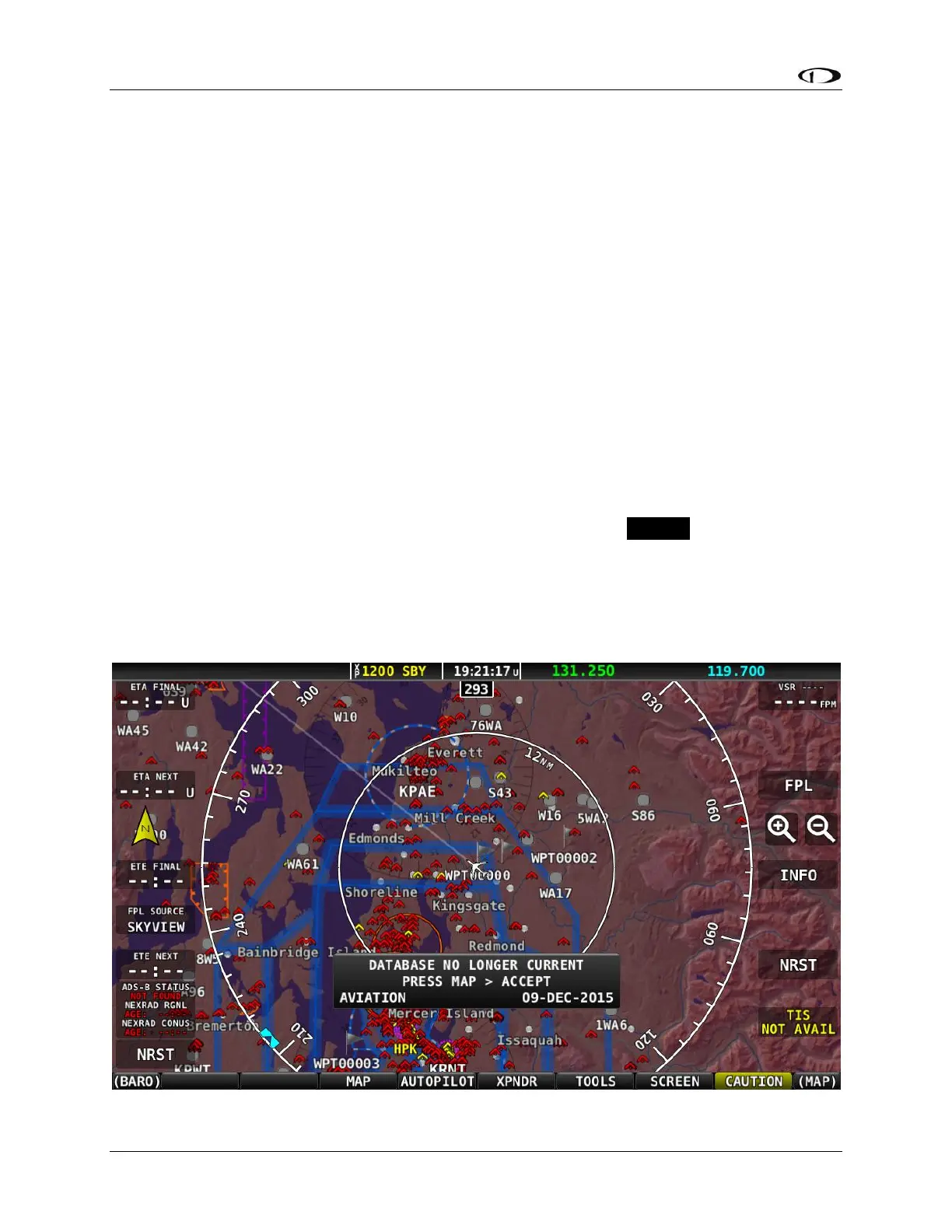
For any database which has an expiration date, if the expiration date has passed,
On a SkyView display, a popup message will appear on the MAP page as shown in Figure
51 below. This message can be cleared by pushing the MAP button and then the ACCEPT
button. The popup message is then cleared for the remainder of the time SkyView is
powered on. Until the database whose expiration date has passed is updated, this
popup message will continue to appear each time SkyView is powered on. The initial
appearance of this popup message cannot be suppressed.
Note that in the popup message, only the first database that is past its expiration date is
listed.
On a SkyView SE display, a CAUTION message will be displayed in the message area
(lower right corner of the display). Like any other CAUTION message, as soon the
CAUTION message is acknowledged (viewed), it will no longer appear (for the duration
of that power-on cycle).
The presence, and status (including expiration dates) of all databases can be checked in
the INSTALLED DATABASES page: SETUP MENU > LOCAL DISPLAY SETUP > INSTALLED
DATABASES. Any database that has expired will be shown in YELLOW and appended
with (EXPIRED), as shown in Figure 53 (SkyView) and Figure 54 (SkyView SE) below.
Note that in a SkyView system with multiple displays, it is possible for each display to
have different, and different versions (expiration dates) of various databases. Thus,
when verifying the presence, and expiration dates, of databases, check them on each
SkyView display.
Figure 51 – SkyView Database Expired Popup Message










 To Next Page