Cursor
P/N 7010-0628
5-3
Cursor
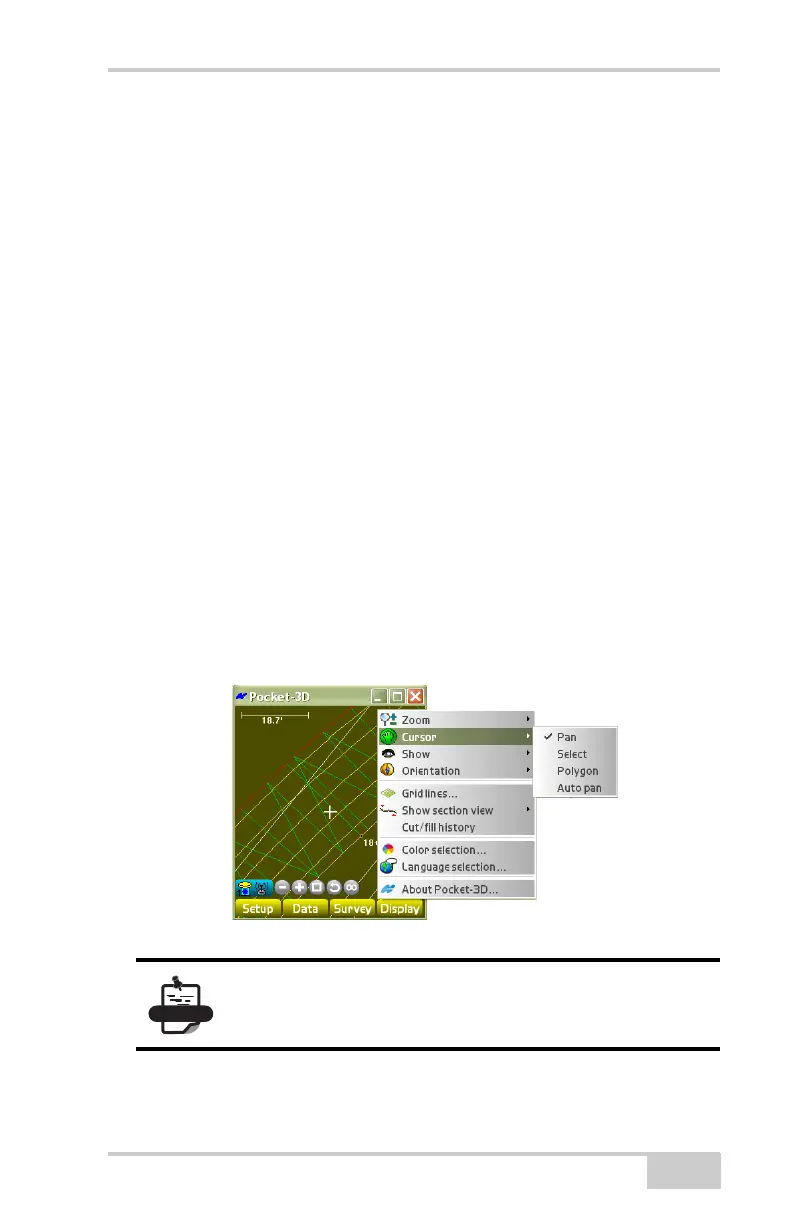
To switch the main screen between views, tap DisplayCursor
(
Figure 5-3).
• Pan – moves the main screen around by pressing down on the
screen and dragging it.
• Select – selects a point, points, and/or a polyline on the main
screen when tapping on them, or drawing a box around them.
• Polygon – selects a point, points, and/or a polyline on the main
screen when creating a polygon around them.
– To draw a polygon, tap once on the screen to start the
polygon, then tap as many points around the screen as
desired.
– To close the polygon, tap the last point and drag a line to
connect with the first point. When all lines of the polygon
turn to thick white lines, lift off the screen.
• Auto pan – available only if GPS or LPS are connected. The view
of the screen pans automatically as the user moves around the
project site.
Figure 5-3. Cursor Options
On the tool bar, click to rotate through the cursor
options.


 To Next Page